Fingerprint Sign-In? Set It Up
Signing into Windows with a fingerprint is faster than typing a password and harder to shoulder-surf — one touch and you are in. It needs a compatible fingerprint reader and a PIN as backup, then enrollment takes a minute. This guide shows the setup and the fix for when it stops working after an update.
TL;DR / Quick Fix
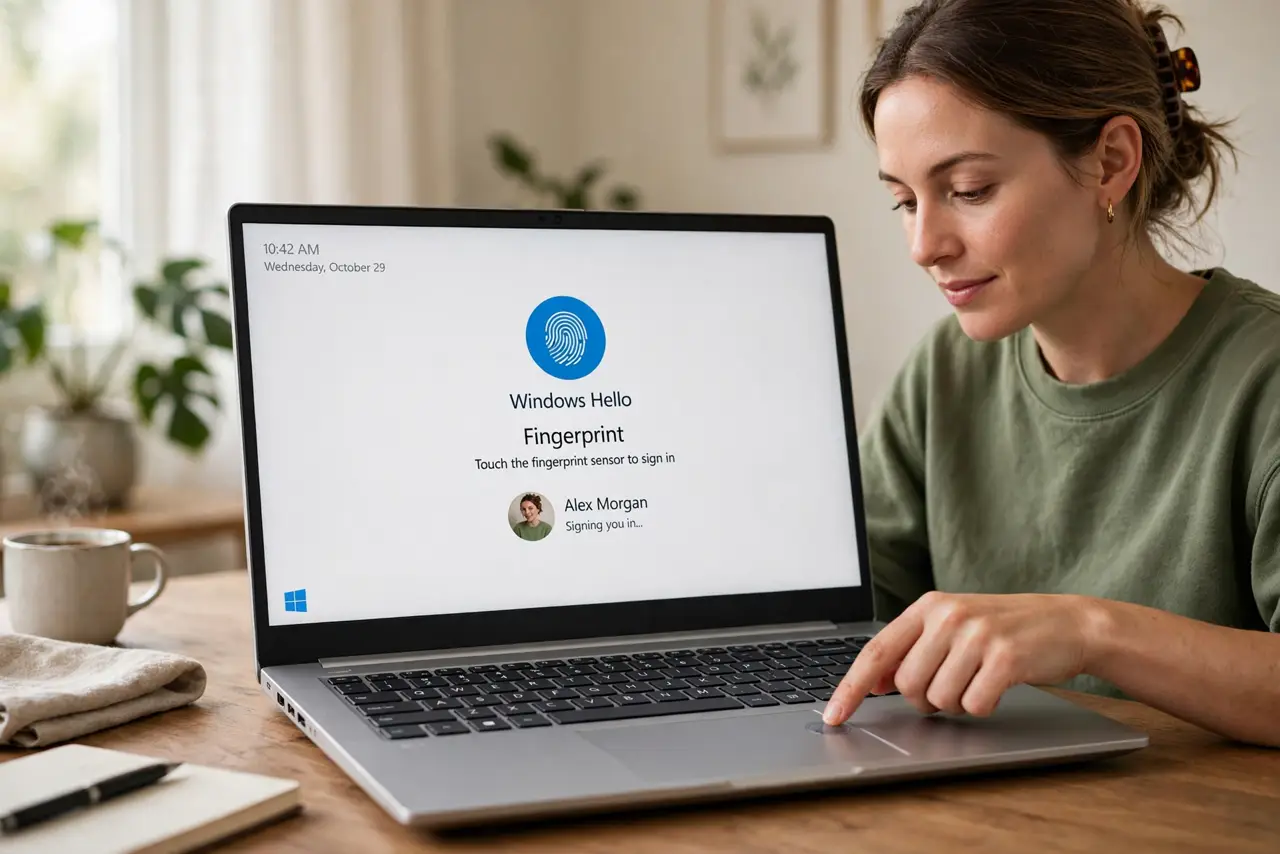
Quick fix: set up fingerprint sign-in under Settings, Accounts, Sign-in options — choose Fingerprint recognition and follow the enrollment taps. You need a PIN set first and a compatible reader. If it stops working after an update, remove and re-add the fingerprint. It is convenience, not a password replacement.
Follow these steps
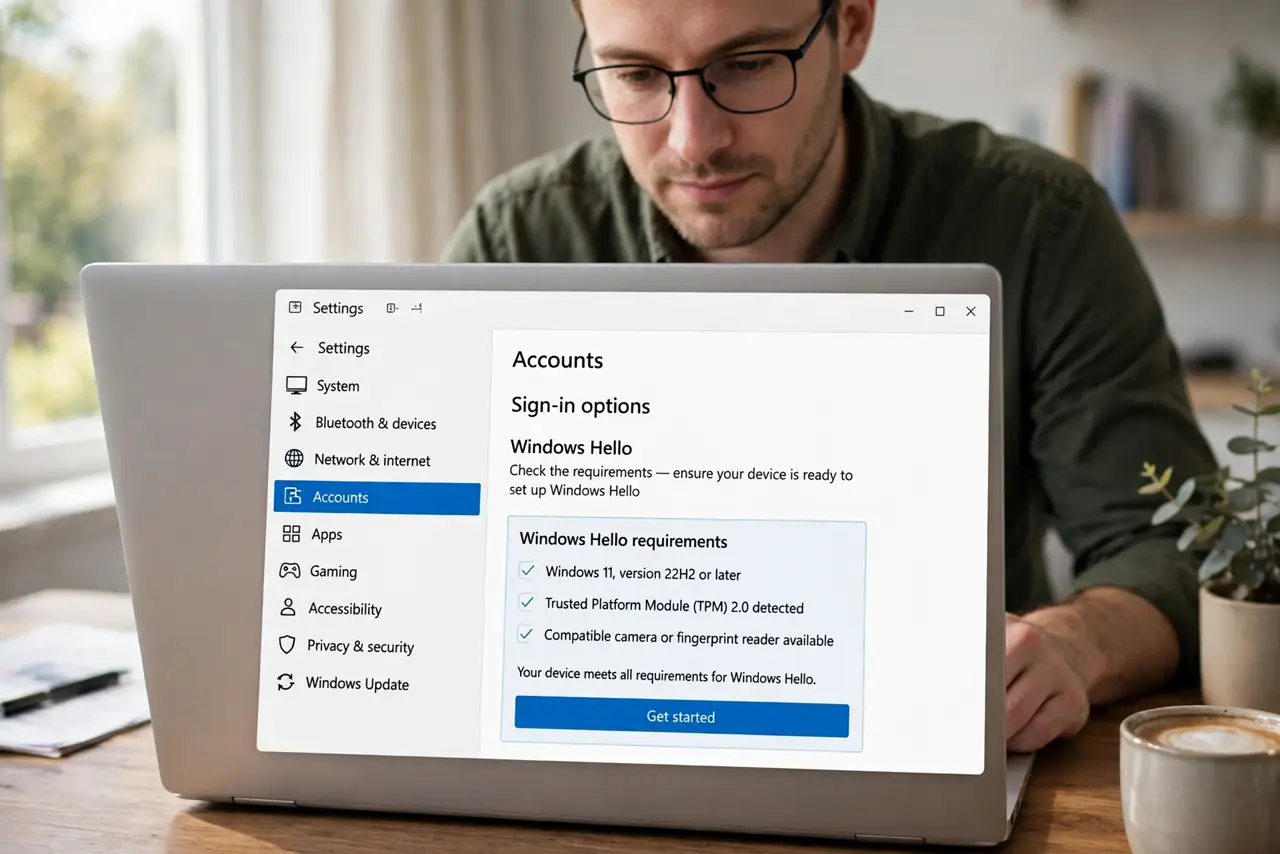
- Check the requirements. You need a Windows Hello-compatible fingerprint reader (built into many laptops, or a USB reader) and a PIN already set on the account. Without the reader, the Fingerprint option simply does not appear.
- Open Sign-in options. Go to Settings, Accounts, Sign-in options. Expand 'Fingerprint recognition (Windows Hello)' — this is the enrollment doorway.
- Enroll your finger. Click Set up and follow the taps — lift and reposition your finger so the reader learns multiple angles. Enroll the finger you naturally use; add a second finger as backup if the option exists.
- Test it on the lock screen. Press Win+L to lock, then touch the reader. You should land on the desktop without typing. If it fails, try the enrolled finger at a different angle before troubleshooting.
- Fix post-update failures. Windows updates sometimes break fingerprint recognition — the classic symptom is covered in the fingerprint after update guide. The quick fix is removing the fingerprint and enrolling again fresh.
- Keep the PIN as backup. Cuts, dry skin, and reader glitches happen — the PIN always works. Never remove the PIN thinking the fingerprint replaces it; it is the fallback, not the spare.
What NOT to do
- Do not buy a random USB reader blindly. Confirm Windows Hello compatibility specifically — generic fingerprint readers without Hello support will not enroll.
- Do not enroll with wet or dirty fingers. Moisture and grime confuse the reader during enrollment and create a template that fails daily — clean, dry fingers only.
- Do not treat it as high security. Fingerprint sign-in is convenient and decent, but a strong password plus the PIN remains the serious protection — biometrics are the fast lane, not the vault.
- Do not panic if one finger stops working. Readers and skin change — enroll a second finger now so a paper cut does not lock you into PIN-only mode.
Frequently asked questions
Is fingerprint sign-in safer than a password?
For daily use, yes against casual threats — nobody can watch you type it. Against determined attackers, a strong password is still king. Use both: fingerprint for speed, password and PIN as the foundation.
Why did my fingerprint stop working after an update?
Driver and Hello component updates sometimes invalidate enrollments. Removing and re-adding the fingerprint fixes it in nearly all cases.
Can I use fingerprint on a desktop PC?
Yes, with a Windows Hello-compatible USB fingerprint reader. Laptops often have one built in; desktops need the add-on.