Firewall Blocks Your Network Printer? Fix It
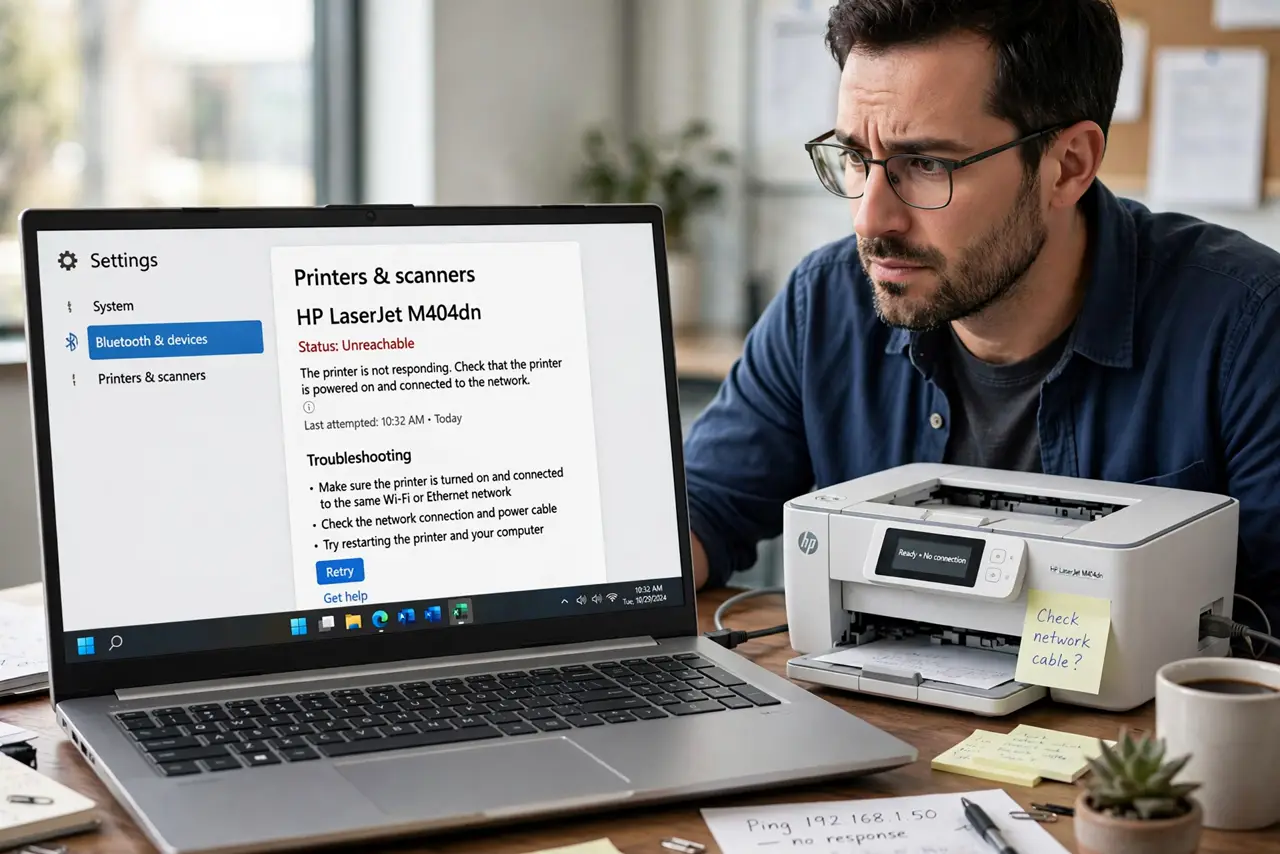
The network printer worked yesterday, and today the PC cannot reach it — no error from the printer, just silence. Windows Firewall can block printer sharing when the network profile flips from Private to Public, which happens more often than people realize. The fix is checking the profile and the sharing rules, alongside the general printer troubleshooting guide.
TL;DR / Quick Fix
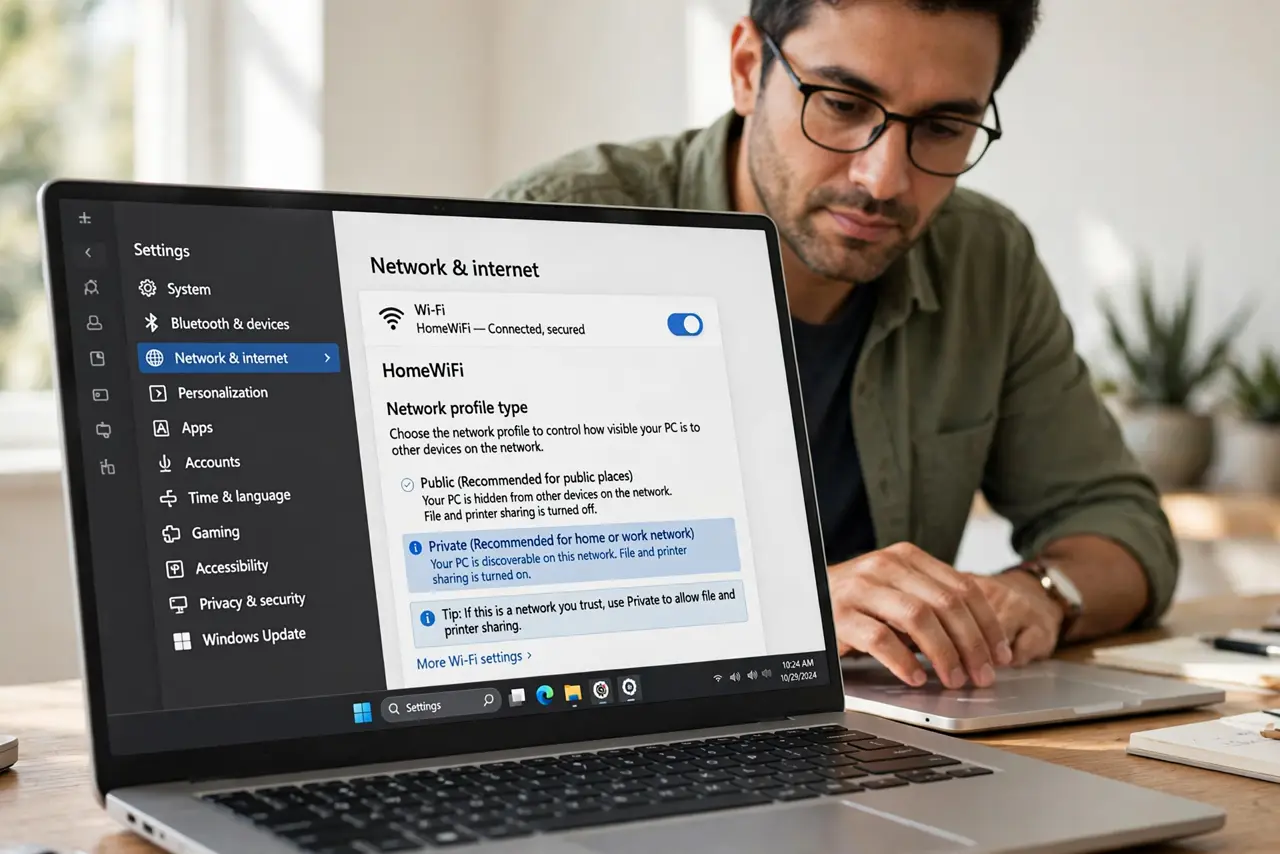
Quick fix: open the network profile and make sure it says Private, not Public — Public mode blocks printer sharing by default. Then confirm File and Printer Sharing is allowed through Windows Firewall. Print a test page; if it prints, the firewall profile was the whole story.
Follow these steps
- Check the network profile first. Open the network settings and look at the profile for your current connection. If it says Public, Windows blocks printer sharing; switch it to Private on a network you trust.
- Confirm File and Printer Sharing is allowed. In the firewall's allowed-apps list, check that File and Printer Sharing is ticked for the Private profile. An unticked entry blocks the printer even on a Private network.
- Ping the printer's IP address. Find the printer's IP on its display or your router, then ping it from the PC. A successful ping proves the network path is fine and the block is in software.
- Re-add the printer if it still fails. Remove the printer from Settings and add it again. Re-adding rebuilds the connection with the current firewall rules instead of fighting stale ones.
- Check third-party security software. If you run a third-party firewall or security suite, check its network trust settings too. Two firewalls can disagree, and the stricter one wins.
- Print a test page to confirm. Send a test page from the printer's properties. A printed test page is the only proof the whole chain works.
What NOT to do
- Do not turn Windows Firewall off to test. Flipping the profile to Private is the precise fix; disabling the firewall is a sledgehammer.
- Do not set an untrusted network to Private. Private lowers the firewall's guard, so only use it on networks you actually trust.
- Do not reinstall the printer driver first. A firewall block is a communication problem, and a fresh driver cannot talk through a closed port either.
- Do not ignore the profile after travel. Laptops often flip to Public on new networks, so recheck the profile whenever the printer worked at home but not elsewhere.
Frequently asked questions
Why did my printer stop working overnight?
Because the network profile likely flipped to Public after a router reboot or update, which silently enabled the firewall block.
How do I know the firewall is the cause?
If the printer pings fine but will not print, and it works with the firewall's sharing rule allowed, the firewall was the cause.
Is it safe to set my network to Private?
On your own home network, yes. On coffee-shop or hotel Wi-Fi, keep it Public and expect sharing to stay blocked.