Automate Focus Rules
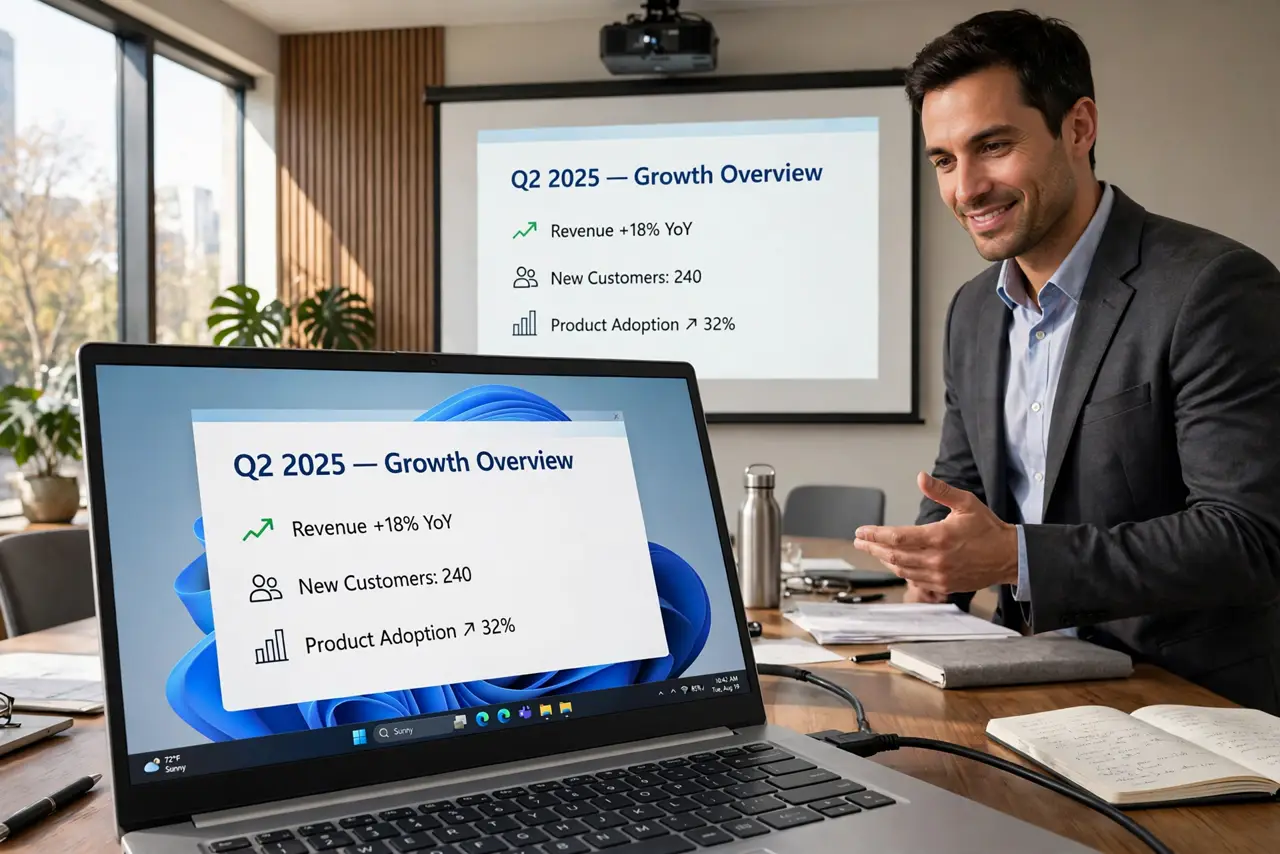
You are mid-presentation when a game notification pops over your slides. Focus Assist silences Windows automatically — during presentations, during work hours, while gaming — but only if you set its automatic rules. Two minutes of rules buys you interruption-free everything.
TL;DR / Quick Fix
Quick fix: open Settings, System, Notifications, and turn on Focus Assist automatic rules for presentations, full-screen apps, and set hours. Choose Priority Only and pick which contacts and apps break through. Alarms still sound by default. Review the notification center afterward with Win+N to catch anything silenced.
Follow these steps
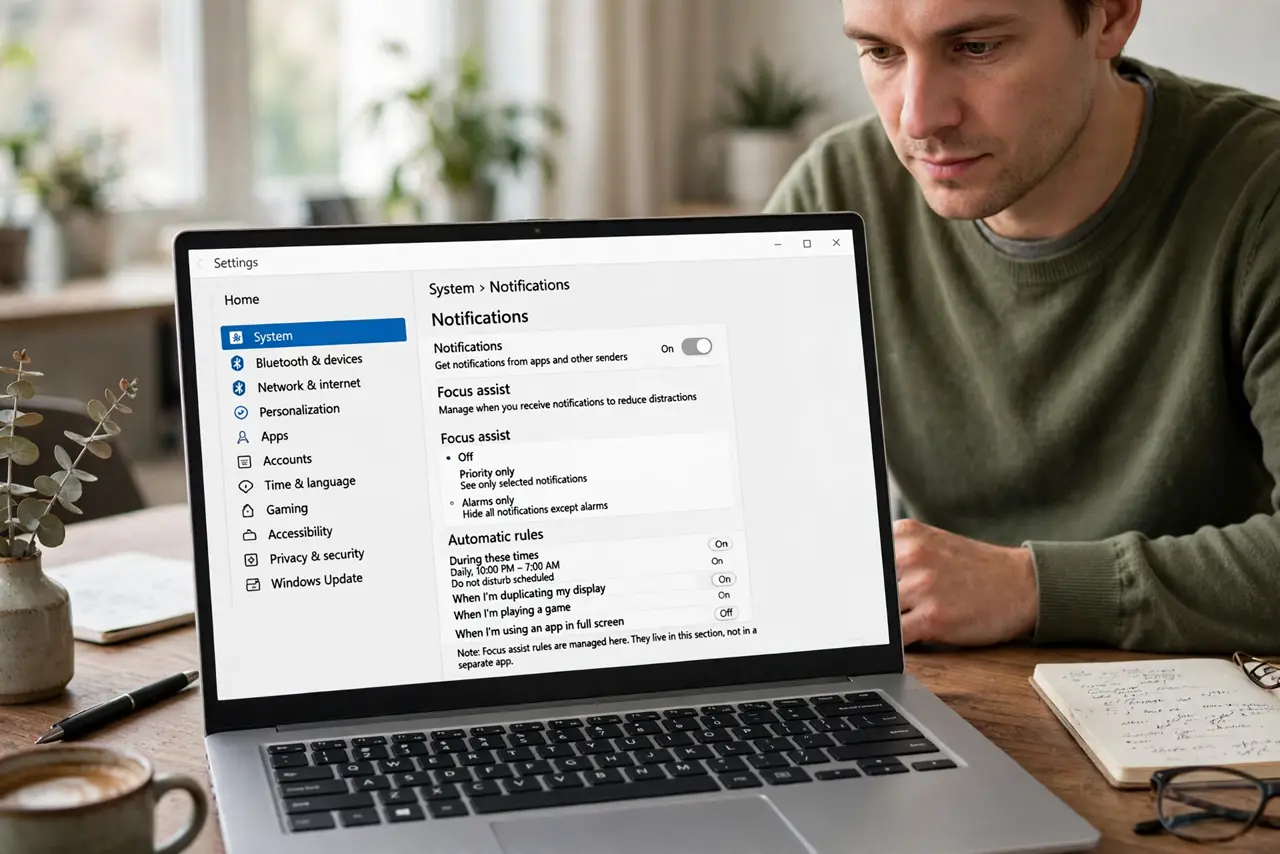
- Open Focus Assist settings. Go to Settings, System, Notifications, and scroll to Focus Assist. The automatic rules live here, not in a separate app.
- Enable the presentation rule. Turn on When I am duplicating my display. This is the rule that saves presentations — it triggers the moment you project.
- Enable full-screen and gaming rules. Turn on When I am using an app in full-screen mode and When I am playing a game. Movies and games stay popup-free.
- Set priority, not total silence. Choose Priority Only instead of Alarms Only. Then customize the priority list — your boss and family break through; the game launcher does not.
- Schedule quiet hours. Set During these times for work blocks or bedtime. Scheduled rules beat remembering to toggle manually.
- Check what got silenced. Afterward, press Win+N to review the notification center. If important calls got blocked, loosen the priority list.
What NOT to do
- Do not use Alarms Only and forget it. Total silence blocks the genuinely urgent — Priority Only is the sane default.
- Do not leave the presentation rule off. One popup over client slides undoes a week of preparation.
- Do not assume rules sync to your phone. Windows rules stay on Windows — set phone quiet hours separately.
- Do not ignore the summary. Windows shows what it silenced; glance at it so nothing important rots unseen.
Frequently asked questions
Why did a call still come through during Focus Assist?
Priority list exceptions or the alarms allowance. Check which contacts and apps are allow-listed.
Does Focus Assist block alarms?
No — alarms always sound unless you pick the strictest mode. Your wake-up call is safe.
Can apps override Focus Assist?
Some can request breakthrough for critical alerts. Review per-app settings if something noisy keeps appearing.