The HDR Toggle Is Greyed Out on Windows
The HDR toggle in Display settings is greyed out when Windows thinks your display, cable, or graphics setup cannot do HDR. That is often correct, but sometimes a wrong input, an old cable, or a display setting hides HDR that your screen actually supports. This guide checks the chain before you buy anything. If colors look wrong rather than HDR being unavailable, see the guide on your color profile resetting after reboot.
TL;DR / Quick Fix
Quick fix: Confirm the display actually supports HDR. Use the right input and cable. Then work through the remaining steps in order, checking one change at a time, and stop for a technician if you see damage, swelling, or a burning smell.
Follow these steps
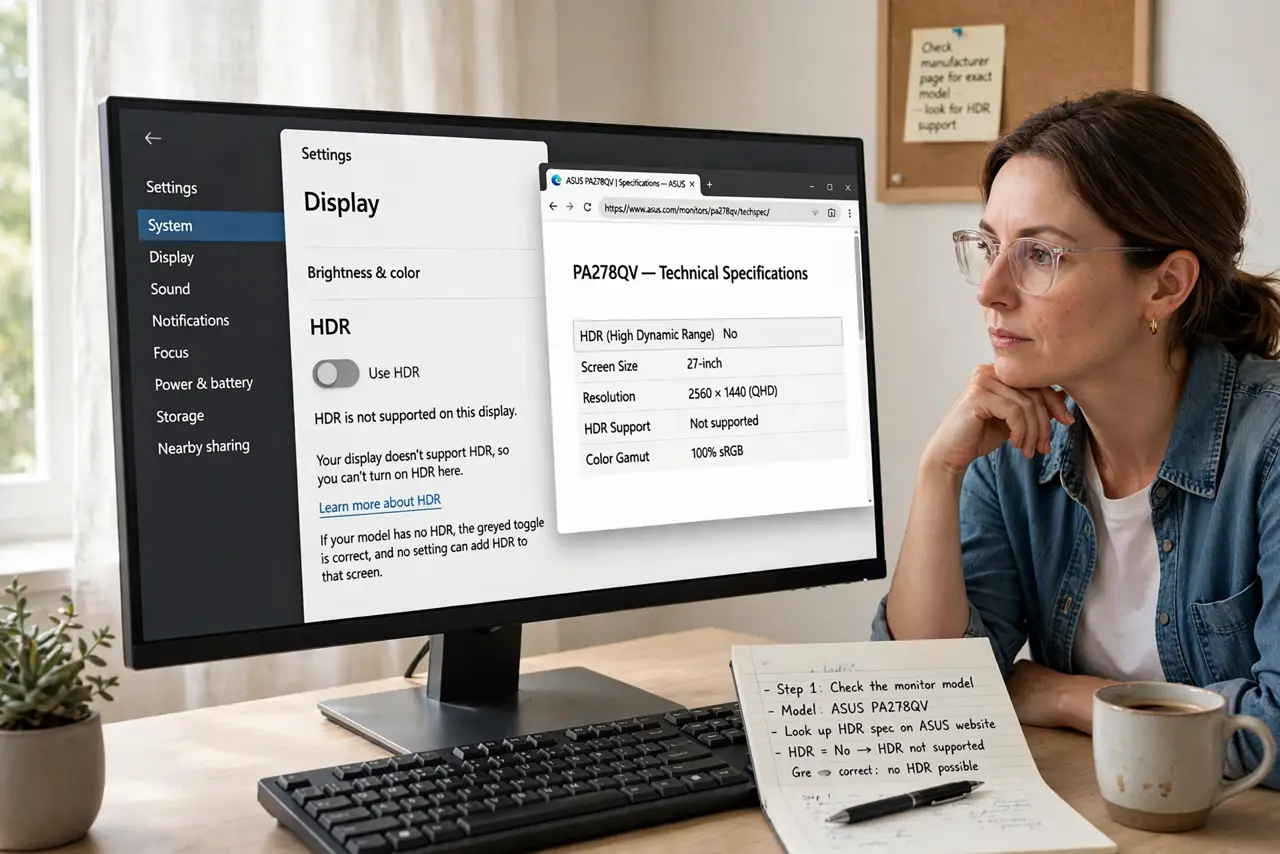
- Confirm the display actually supports HDR. Check the monitor or TV maker page for your exact model and look for HDR support. If the model has no HDR, the greyed toggle is correct, and no setting can add HDR to that screen.
- Use the right input and cable. Connect with HDMI or DisplayPort on an input the maker lists as HDR-capable, using a cable rated for your resolution. Some inputs on the same TV support HDR while others do not.
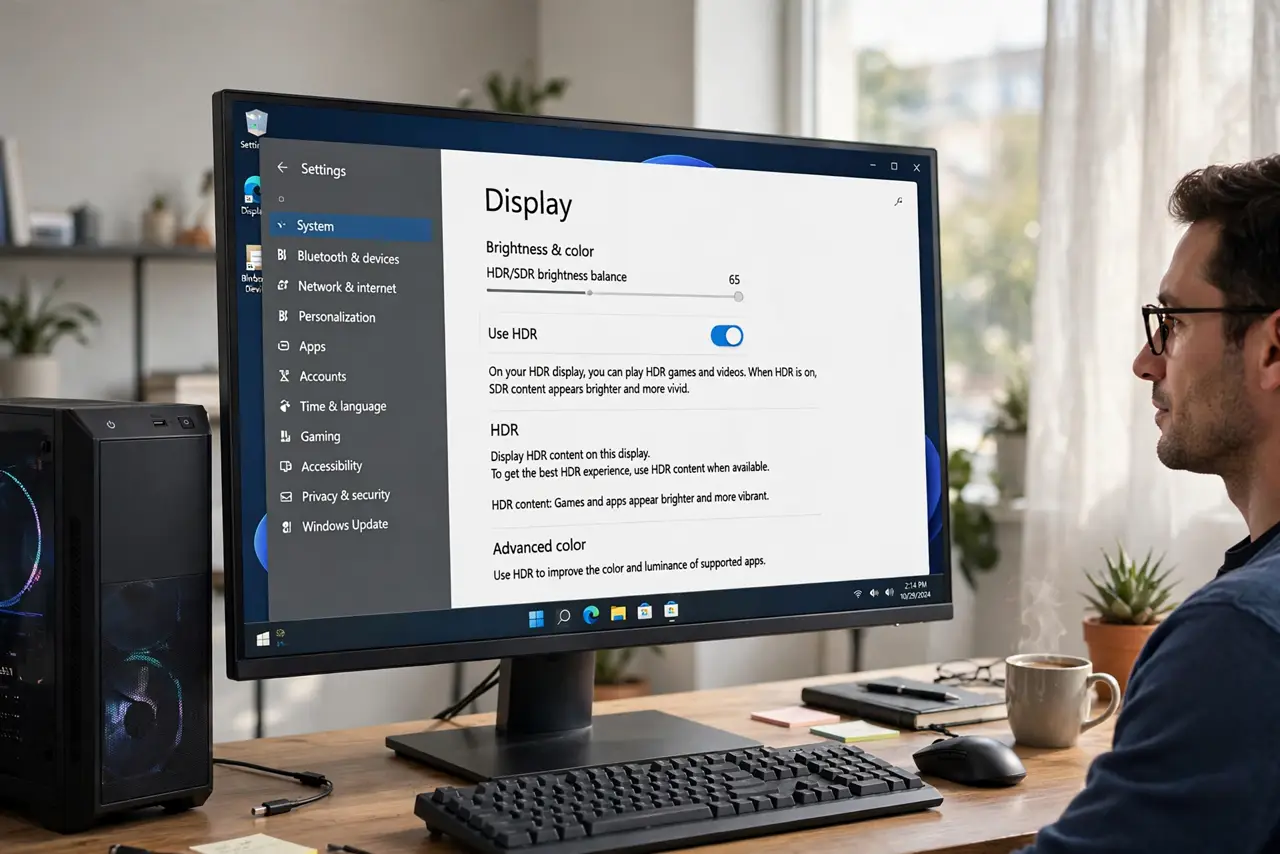
- Check Windows display settings for HDR. Open Settings, then System, then Display, select the HDR display at the top, and look for the HDR option. On a multi-monitor PC, the toggle belongs to the selected display, so check each one separately.
- Update the graphics driver from the maker. Get the newest driver from the graphics chip maker or PC maker site for your exact model, not just Windows Update. An old driver can hide HDR even when the display supports it.
- Turn HDR on in the display own menu. Open the monitor or TV on-screen menu and confirm HDR or an HDR mode is enabled there. Some displays ship with HDR off in their own menu, which greys out the Windows toggle.
- Test with one display only. Disconnect other monitors, restart, and check the HDR toggle on the single HDR display. If it becomes available, a second display or adapter in the chain was blocking HDR.
What NOT to do
- Do not buy a new monitor just for a greyed toggle. Check the input, cable, and display menu first, because those cost nothing to fix.
- Do not install driver updater tools. Get drivers from the maker site, since updater tools can install wrong drivers.
- Do not force HDR with a third-party tool. Forced HDR on a non-HDR display looks worse, not better, and can wash out colors.
- Do not edit the registry to ungrey the toggle. The toggle reflects what Windows detected, and forcing it cannot create HDR hardware.
Frequently asked questions
Does every HDMI cable support HDR?
No. Older or low-rated cables can block HDR at higher resolutions, so use a cable rated for your resolution and refresh rate.
Can a laptop screen do HDR?
Some can, but many cannot. Check the exact laptop model, because HDR support varies even within one product line.
Why is HDR available on one monitor but not the other?
HDR is per display. Only the display that supports it, with the right input and cable, gets an available toggle.