Headphones Pair but Produce No Sound
Bluetooth headphones that pair successfully but stay silent are usually not the chosen output, stuck on a call profile, or muted in a place you did not check. Pairing only proves the connection, not the sound route. This guide follows the sound from Windows to your ears. If pairing itself fails, see connecting a Bluetooth device to Windows.
TL;DR / Quick Fix
Quick fix: Select the headphones as output. Check the Bluetooth sound profile. Then work through the remaining steps in order, checking one change at a time, and stop for a technician if you see damage, swelling, or a burning smell.
Follow these steps
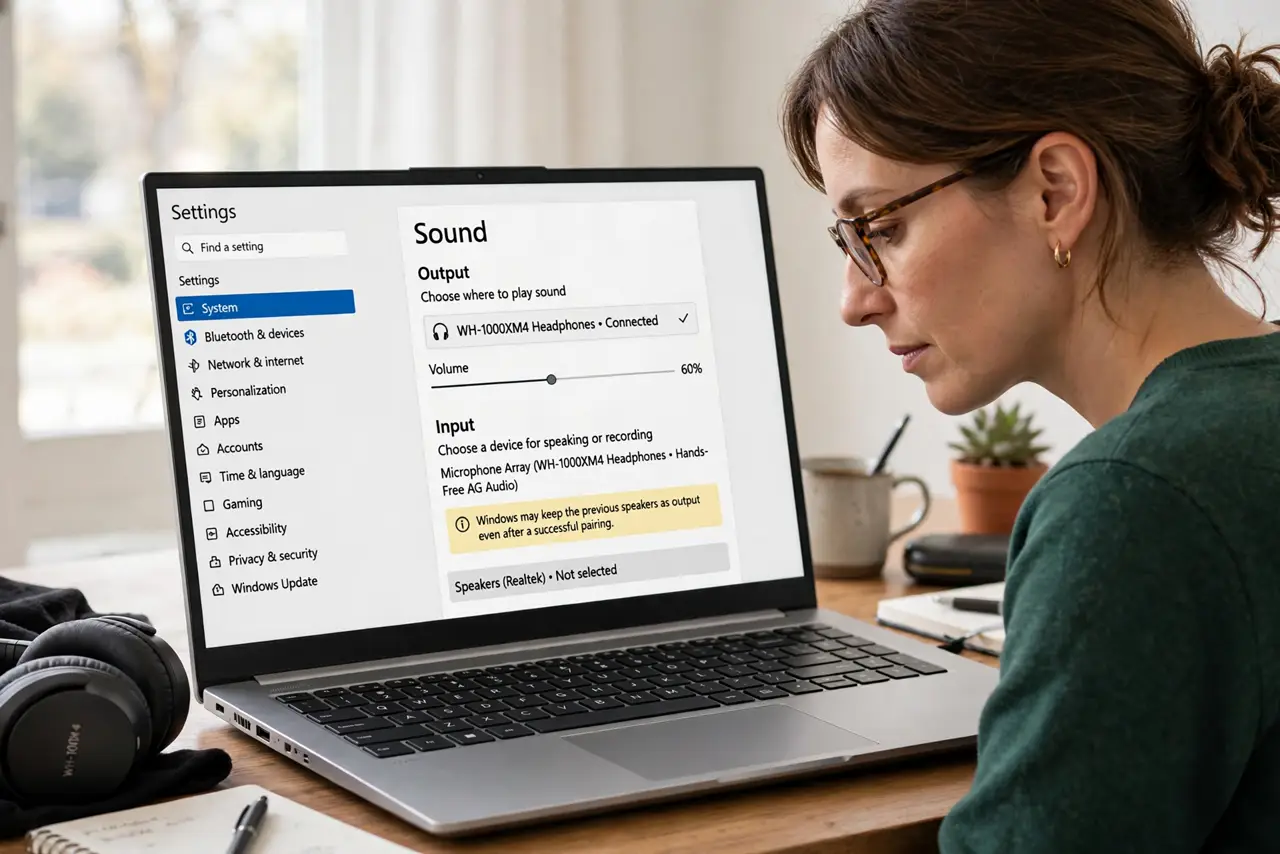
- Select the headphones as output. Open Settings, then System, then Sound, and under Output choose your headphones by name. Windows may keep the previous speakers as output even after a successful pairing.
- Check the Bluetooth sound profile. In Sound settings, look at the headphone device name: a Hands-free or Headset entry is for calls and sounds poor or silent for music. Choose the Stereo entry for music and video playback.
- Check every volume control. Raise the Windows volume, the app volume in Volume mixer, and the headphone own buttons. Bluetooth headphones have their own volume, and any one of the three at zero means silence.
- Disconnect and reconnect once. In Settings, then Bluetooth and devices, disconnect the headphones, wait a few seconds, and reconnect them. A fresh connection re-negotiates the sound profile, which fixes a pairing that stuck on the wrong one.
- Test with a different app. Play sound in a second app, such as a browser video after a music app. If one app plays and another does not, the silent app output choice, not the headphones, is the fault.
- Remove and pair the headphones again. In Bluetooth settings, remove the device, then pair it fresh from scratch. A clean pairing clears a corrupted profile that disconnecting alone cannot fix.
What NOT to do
- Do not assume paired means ready. Pairing is only the connection, and output choice plus profile decide whether sound actually plays.
- Do not buy new headphones before testing the Stereo profile. A Hands-free profile can make good headphones sound silent or terrible.
- Do not turn Windows volume to maximum as the first step. Check output choice first, because loud volume on the wrong device proves nothing.
- Do not remove the device repeatedly. One clean remove-and-pair is a fair test, but repeating it without checking profiles wastes time.
Frequently asked questions
Why do headphones work for calls but not music?
Calls use the Hands-free profile, while music needs the Stereo profile. Windows can pick the wrong one after pairing.
Can wired headphones have the same problem?
Partly. Wired headphones can still be the wrong output device, but they have no Bluetooth profile to get stuck.
Does removing the device delete anything?
No. Removing forgets the pairing only, so you can pair again without losing files or settings.