Windows Hello Fails When You Wear Glasses
Windows Hello face recognition can struggle with glasses, especially new frames, dark tints, or glare, and it feels unfair when sign-in worked without them. The fix is usually improving the stored face data and the lighting, not removing Hello. If fingerprint sign-in is your failing method instead, see fingerprint sign-in failing after an update.
TL;DR / Quick Fix
Quick fix: Improve recognition with glasses on. Check the lighting and glare carefully. Then work through the remaining steps in order, checking one change at a time, and stop for a technician if you see damage, swelling, or a burning smell.
Follow these steps
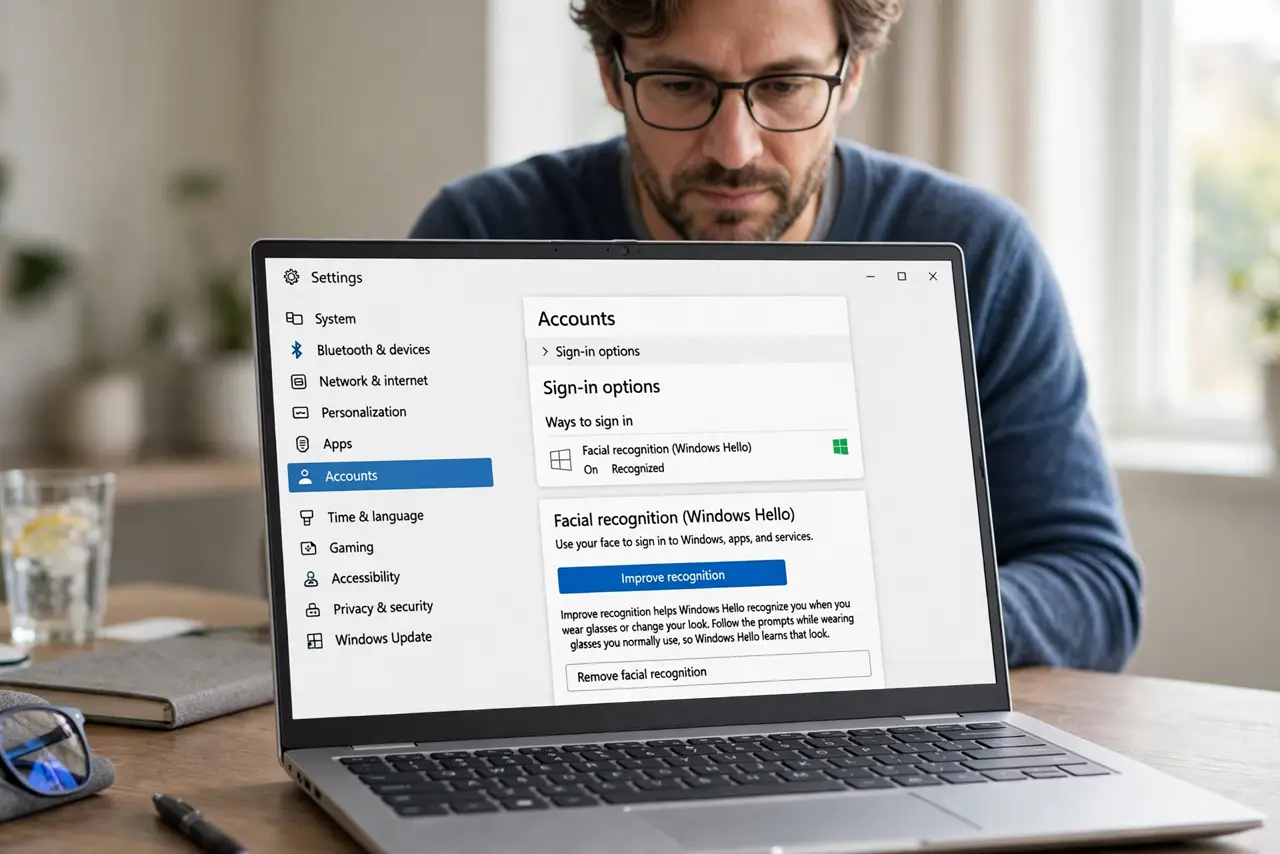
- Improve recognition with glasses on. Open Settings, then Accounts, then Sign-in options, then Facial recognition, and choose Improve recognition. Follow the prompts while wearing the glasses you normally use, so Hello learns that look.
- Check the lighting and glare carefully. Face the camera in even, front lighting, and tilt the screen slightly to cut glare on the lenses. Strong backlight or lens glare hides facial features that Hello needs.
- Clean the camera and lenses. Wipe the camera lens and your glasses with a soft cloth. Smudges on either one blur the features Hello compares, and cleaning costs nothing.
- Test with and without glasses. Try sign-in once with glasses and once without, in the same lighting. If only the glasses case fails, the stored face data needs the improve step above, not a new camera.
- Remove and set up face again. If improving does not help, remove facial recognition in Sign-in options and set it up fresh while wearing your usual glasses. A fresh setup with glasses often beats patching an old one.
- Keep PIN as a reliable fallback. Confirm your PIN works in Sign-in options, so a failed face scan never locks you out. A working PIN turns a Hello miss into a minor delay, not a crisis.
What NOT to do
- Do not remove Windows Hello over glasses trouble. Improving recognition with glasses on usually fixes it, while removing loses a fast sign-in.
- Do not buy a new webcam before improving recognition. The built-in camera works for most glasses once Hello learns the look.
- Do not sign in with dark sunglasses. Tinted lenses hide too much of the face, and Hello is right to refuse them.
- Do not share your PIN to work around face failures. A PIN is a personal fallback, and improving recognition is the real fix.
Frequently asked questions
Does Hello work with different glasses?
Usually yes after improving recognition with each pair, but very dark or heavily tinted frames can still fail.
Is face data stored online?
No. Windows Hello face data stays on the device, and improving recognition updates only that local data.
Can I use Hello with a hat as well?
Hats are usually fine, but anything covering much of the face, such as a mask plus glasses, can still fail.