The Hibernate Option Is Missing on Windows
Hibernate saves your open work to disk and powers off fully, which is ideal for laptops, but the option often hides because it was never enabled in power settings. This guide turns it on and checks the space it needs. If Fast Startup causes double boots instead, see Fast Startup making your PC boot twice.

TL;DR / Quick Fix
Quick fix: Open the power button settings. Unlock the shutdown settings first. Then work through the remaining steps in order, checking one change at a time, and stop for a technician if you see damage, swelling, or a burning smell.
Follow these steps
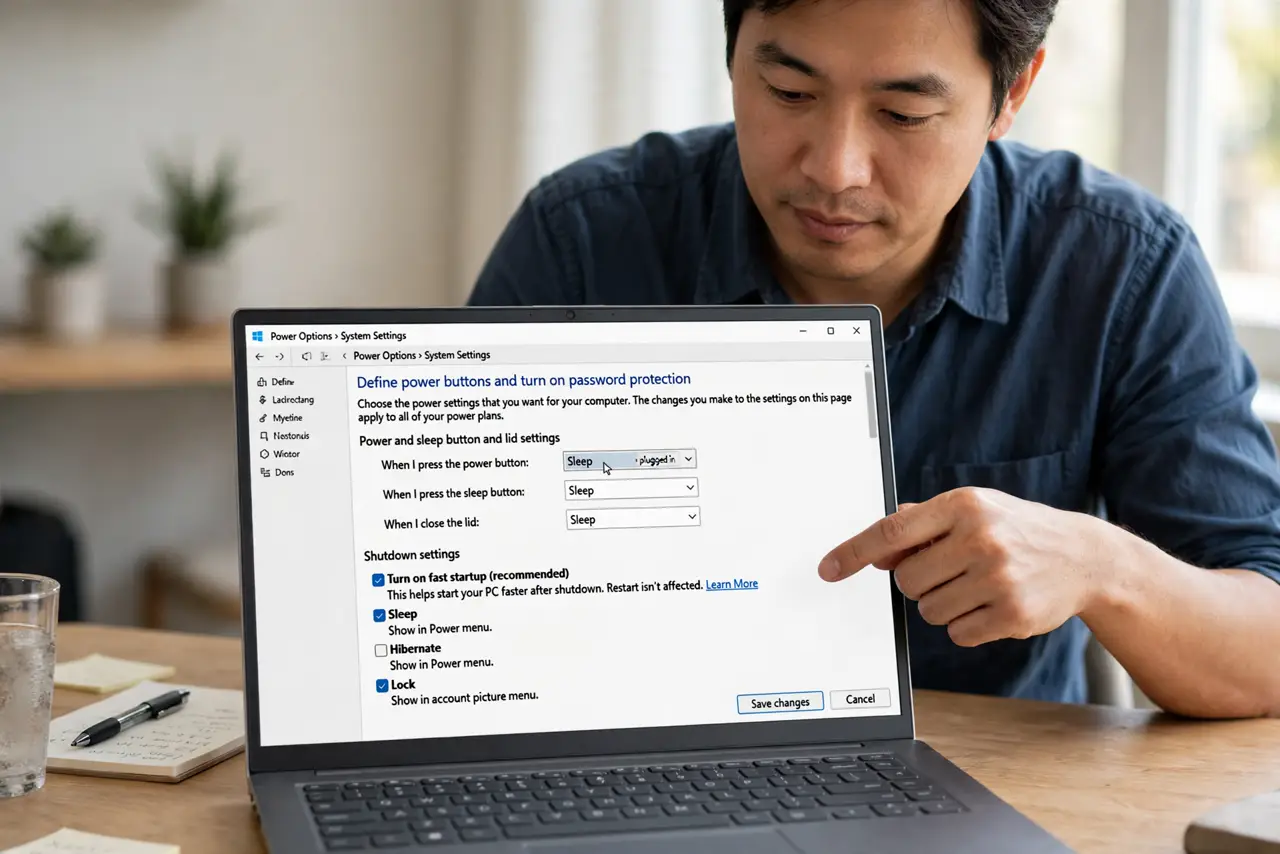
- Open the power button settings. Open Control Panel, then Power Options, then Choose what the power buttons do. The shutdown settings at the bottom of that page control which options appear in the power menu.
- Unlock the shutdown settings first. Click Change settings that are currently unavailable, which requires administrator approval. The greyed shutdown options become editable, including Hibernate.
- Tick Hibernate and save. Tick Hibernate in the shutdown settings list, then click Save changes. Hibernate should now appear in the Start power menu alongside Sleep, Shut down, and Restart.
- Check free disk space. Hibernate needs free disk space roughly equal to your memory size to save the session. Open Settings, then System, then Storage, and confirm enough free space exists for the hibernation file.
- Turn hibernate on from a terminal if needed. If the tick box is missing, open a terminal as administrator and run powercfg /hibernate on, then reopen the power button settings. This command enables hibernation at the system level.
- Test hibernate with work open. Open a document, choose Hibernate from the power menu, wait for full power off, then power on and confirm your work returns. A successful test proves hibernate works, not just appears.
What NOT to do
- Do not confuse hibernate with sleep. Sleep keeps memory powered, while hibernate powers off fully, so they suit different situations.
- Do not delete the hibernation file by hand. Use the powercfg command or settings to manage it, since manual deletion can confuse power options.
- Do not enable hibernate on a nearly full drive. Without enough free space, hibernation can fail partway and lose the saved session.
- Do not use hibernate as a daily shutdown replacement without testing. Test once with real work open, so you trust it before relying on it.
Frequently asked questions
What is the difference between Sleep and Hibernate?
Sleep keeps memory powered for instant wake, while Hibernate writes memory to disk and powers off, using no power.
Does hibernate wear out an SSD?
Not meaningfully in normal use. Occasional hibernation writes far less than everyday file work.
Why is Hibernate missing on some PCs?
It may be disabled by policy, by the maker, or because hibernation was turned off with powercfg, all of which this guide reverses.