High Contrast Mode Will Not Turn Off? Fix It
When high contrast mode will not turn off, every window shows harsh black, white, and bright colors, and normal settings look hidden. The mode is a contrast theme, so the fix is to switch the theme back, not to change every color by hand.
TL;DR / Quick Fix
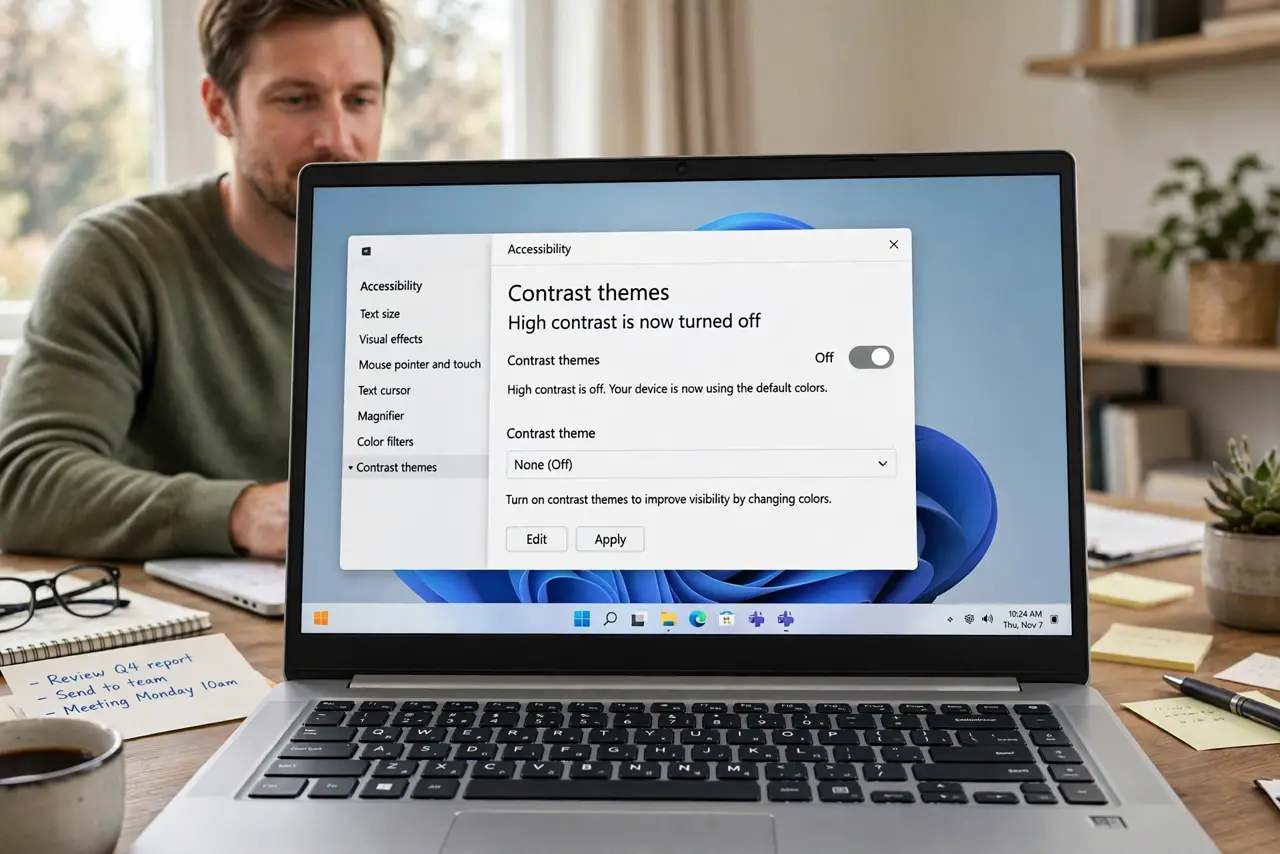
Quick fix: press Left Alt, Left Shift, and Print Screen together, and confirm if Windows asks. If that does not work, open Settings, then Accessibility, then Contrast themes, choose None, and apply it, and wait a few seconds for colors to return.
Follow these steps
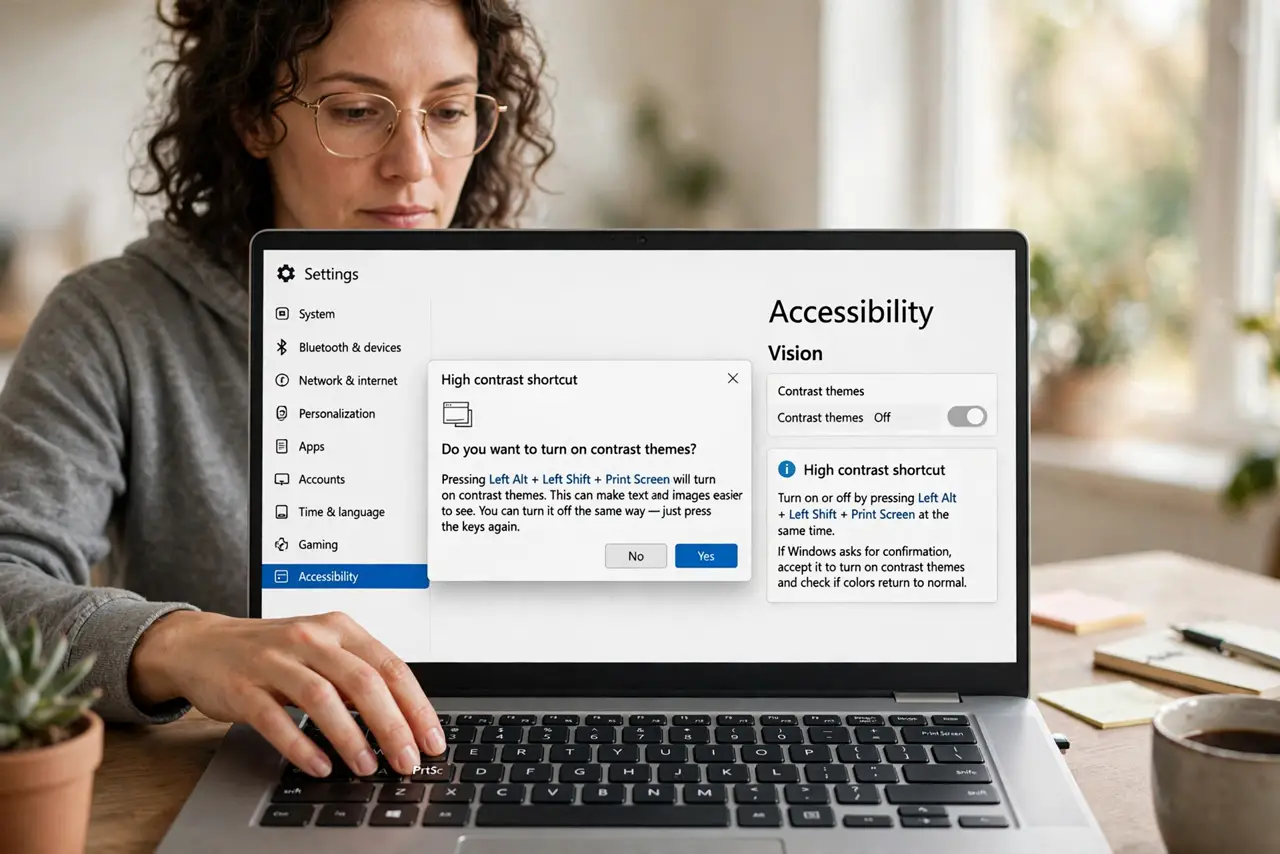
- Try the high contrast shortcut. Press Left Alt, Left Shift, and Print Screen at the same time. If Windows asks for confirmation, accept it, and watch whether colors return to normal.
- Open Contrast themes. Open Settings, then Accessibility, then Contrast themes. This page controls the high contrast setting, even when other color pages look confusing.
- Choose None and apply. Select None from the contrast theme list, then click Apply. Wait a few seconds, because the theme change can take a moment to repaint every window.
- Check Personalization themes too. Open Settings, then Personalization, then Themes, and confirm you are on a normal theme, not a high contrast one. Apply a normal theme if the contrast page alone did not help.
- Restart if colors look half-changed. Save your work and restart. A restart clears a theme state where some windows changed and others stayed in high contrast.
- Check the shortcut did not retrigger it. If high contrast returns, check whether the shortcut keys are being pressed by accident, such as a stuck key or a macro. Turn off the shortcut prompt in the contrast themes page if needed.
What NOT to do
- Do not change every app color by hand to work around high contrast. Switching the theme back fixes all apps at once, while manual color changes take far longer.
- Do not reinstall a graphics driver for a theme problem. High contrast is an accessibility theme, not a driver fault, and a driver change will not turn it off.
- Do not delete your user profile to escape high contrast. The theme is a setting on your account, and the contrast themes page is the direct way to change it.
- Do not assume the screen is broken because colors look harsh. High contrast changes colors on purpose, and normal colors return once the theme is set to None.
Frequently asked questions
What is high contrast mode?
It is an accessibility theme that uses stark colors so text stands out. It helps some people read the screen, but it looks harsh if you turned it on by accident.
Why did it turn on by itself?
Usually the shortcut keys were pressed together by accident, or a theme change applied a contrast theme. The shortcut is the most common cause.
Will turning it off lose my other settings?
No. Choosing None only changes the contrast theme. Your wallpaper, accent color, and other personalization settings stay as they were.