Hyper-V vs Sandbox: Which Fits?
You want to run something risky or different on your PC — test a sketchy installer, try Linux, run an old app — and Windows offers two built-in answers: Sandbox and Hyper-V. They sound similar and overlap confusingly. Sandbox is a disposable mini-PC that wipes itself every launch; Hyper-V is a full virtualization platform for permanent virtual machines. Picking wrong means fighting the tool instead of doing the task.
TL;DR / Quick Fix
Quick fix: use Sandbox for quick disposable tests — it launches clean in seconds and wipes itself. Use Hyper-V for persistent virtual machines with snapshots and heavier workloads. Sandbox is simpler per session; Hyper-V is more powerful and permanent. Testing software? Sandbox. Running other systems? Hyper-V.
Follow these steps
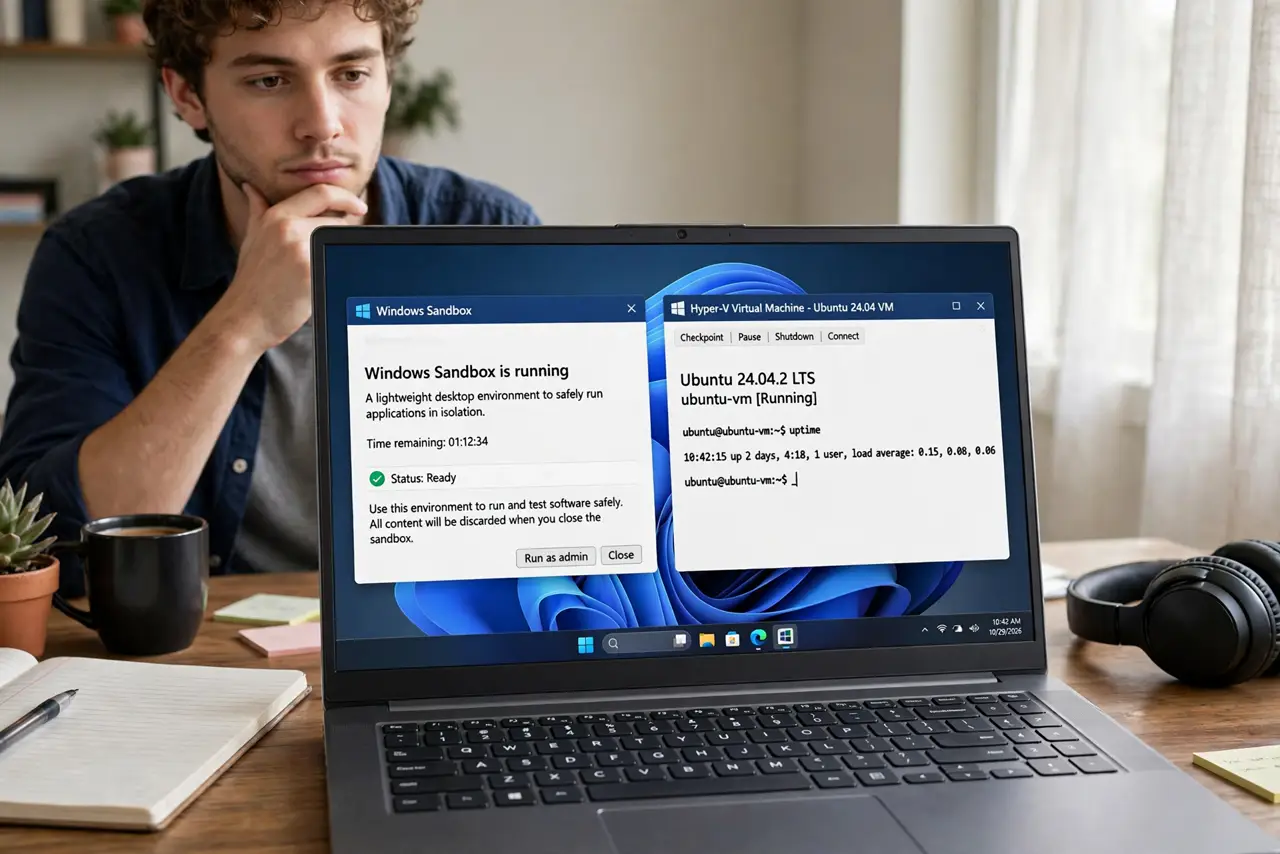
- Learn what Sandbox is for. Windows Sandbox spins up a clean, isolated Windows in seconds, runs your test, and destroys itself on close — nothing persists. Perfect for opening a suspicious file or testing an installer. See Enable Windows Sandbox to turn it on, and customize it to pre-load your tools.
- Learn what Hyper-V is for. Hyper-V is a type-1 hypervisor for permanent virtual machines: install Linux, run a test server, keep snapshots, allocate resources. VMs persist, snapshot, and revert — a lab, not a disposable cup. Enable it via Hyper-V on Windows.
- Match the tool to the task. One-off suspicious file or installer: Sandbox. Trying Ubuntu for a month: Hyper-V. Testing how software behaves on a clean Windows: Sandbox. Running a permanent test server: Hyper-V. The task's lifespan decides.
- Check the requirements. Both need virtualization enabled in BIOS/UEFI and a Pro, Enterprise, or Education edition of Windows — Home edition gets neither natively. Sandbox also wants plenty of RAM; Hyper-V wants disk space for virtual disks.
- Know the persistence difference. Sandbox forgets everything — save results to a mapped folder before closing. Hyper-V remembers everything — snapshots let you rewind mistakes. This single difference drives most wrong-tool frustration.
- Consider using both. They coexist fine: Sandbox for the quick risky click, Hyper-V for the ongoing lab. Many developers run both — the disposable cup and the workshop, each for its job.

What NOT to do
- Do not use Sandbox for work you need tomorrow. It wipes on close — anything not saved to a mapped folder is gone, and there is no undo.
- Do not use Hyper-V for a single suspicious file. Spinning up a whole VM for one quick test is using a crane to hang a picture — Sandbox exists for this.
- Do not enable Hyper-V without checking edition. Home edition lacks it entirely; discovering this mid-project wastes an afternoon.
- Do not snapshot instead of backing up. Hyper-V snapshots are convenient rewind buttons, not backups — a dead host disk kills snapshots and VMs alike.
Frequently asked questions
Can Sandbox run Linux?
No — Sandbox is Windows-only, always a clean Windows. For Linux, use Hyper-V or WSL instead.
Which is safer for malware testing?
Sandbox, for quick looks — its disposable design is the safety feature. For serious malware analysis, neither replaces a proper isolated lab.
Do they slow down my PC?
Only while running. Sandbox uses RAM while open; Hyper-V VMs consume what you allocate. Closed, both cost nothing but disk space.