Tune Key Repeat
You hold backspace and either nothing happens for an eternity or half the sentence vanishes — the key repeat rate is wrong for your hands. Windows lets you tune both the delay before repeating starts and how fast it repeats, and the right settings make typing feel telepathic. This guide dials in both. For trickier key behavior, try Sticky Keys or Filter Keys.
TL;DR / Quick Fix
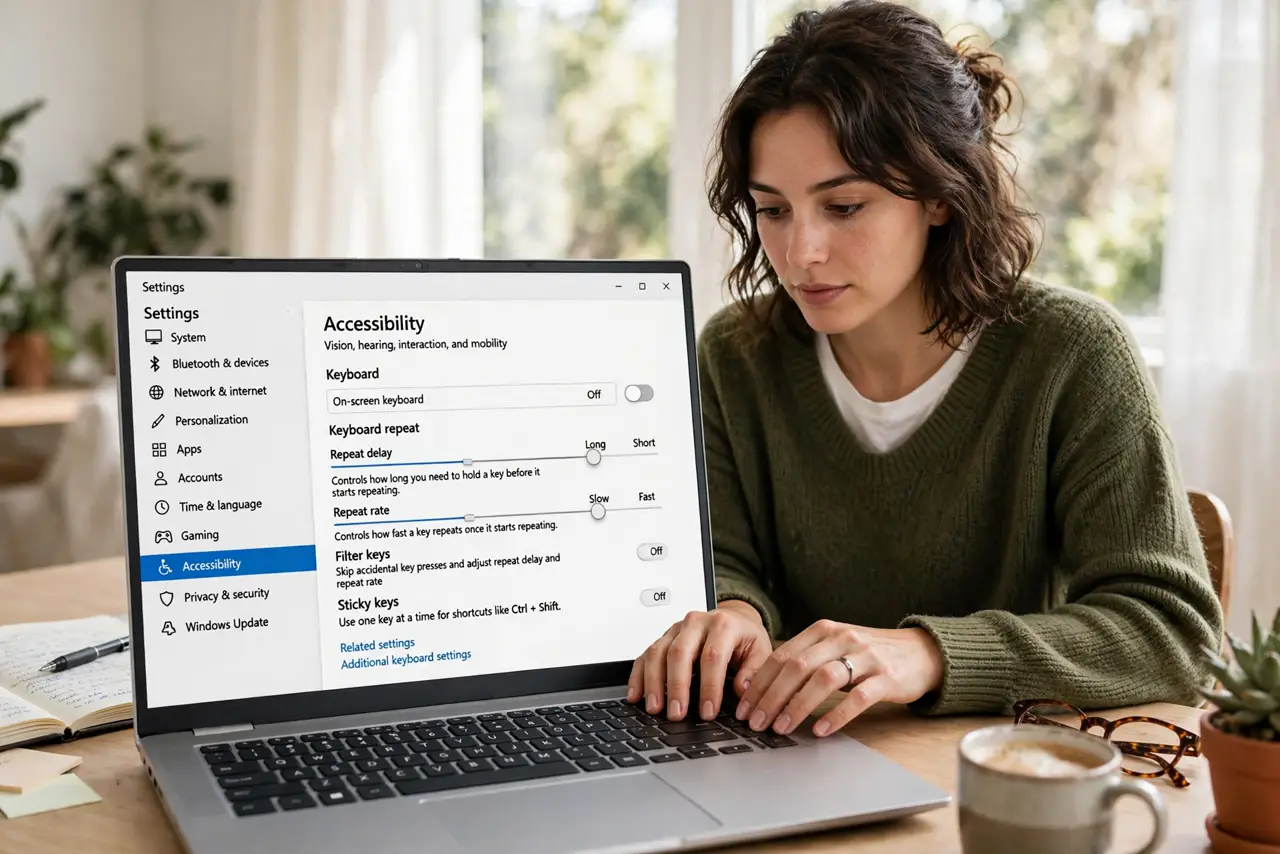
Quick fix: open the classic Keyboard settings via Control Panel or search, and adjust Repeat delay and Repeat rate with the test box. Short delay plus fast rate suits confident typists; longer delay suits careful ones. Test in the box until holding a key feels exactly right.
Follow these steps
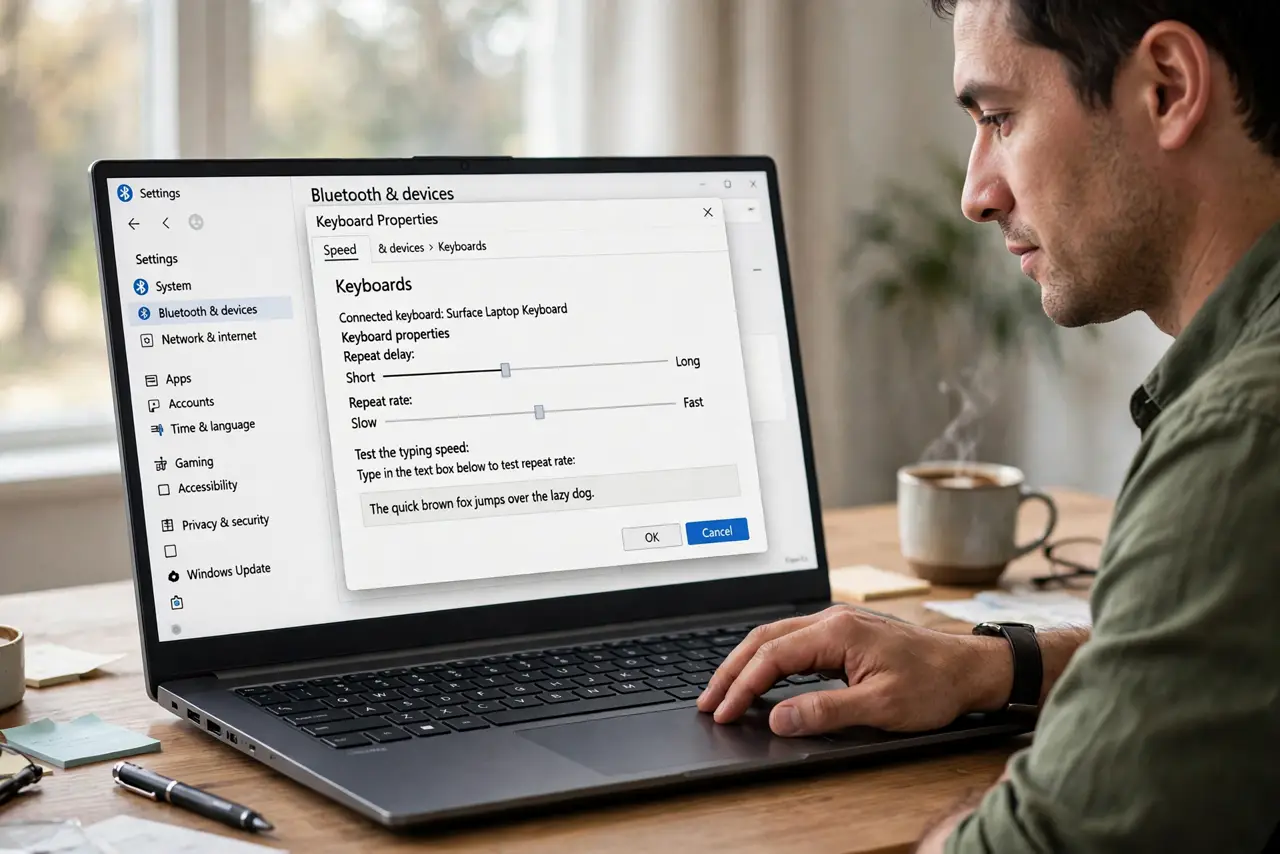
- Open Keyboard properties. Search for 'keyboard' in the Start menu and open the classic Keyboard control panel — the modern Settings app buries these particular sliders.
- Set the repeat delay. Repeat delay is the pause before a held key starts repeating. Shorter suits fast typists; longer prevents accidental repeats for deliberate typists — test in the provided box.
- Set the repeat rate. Repeat rate is how fast the key repeats once started. Fast rates delete and navigate quickly; too fast and you overshoot — find your personal edge.
- Test in the box. The dialog includes a test field — hold a key and watch. Adjust until the behavior matches your intention without thinking about it.
- Consider accessibility needs. If tremors or motor difficulties cause double letters, the delay and rate help — but Filter Keys is the purpose-built tool for that.
- Apply per user. These settings follow your Windows user profile. Shared computers need each person to set their own — there is no household consensus on key repeat.
What NOT to do
- Do not max both sliders immediately. Fastest delay plus fastest rate is uncontrollable for most hands — tune gradually.
- Do not confuse repeat settings with keyboard lag. If keys register late rather than repeating oddly, the issue is elsewhere — Bluetooth, drivers, or system load.
- Do not forget laptop keyboards differ. External and built-in keyboards can feel different at the same settings — tune for the one you use most.
- Do not ignore it if settings will not stick. Some 'gaming' utilities override Windows repeat settings — check their profiles too.
Frequently asked questions
Why do keys repeat when I hold them?
That is the repeat feature working as designed — hold means repeat. If it surprises you, lengthen the repeat delay.
Can I turn off key repeat entirely?
Not with a single toggle, but a very long delay plus slow rate makes accidental repeats rare. Filter Keys can disable it further.
Do these settings affect games?
Yes — menu navigation and chat typing follow the same repeat rules. Most games handle held keys themselves during gameplay.