Bring Back Libraries
Windows used to gather your Documents, Pictures, and Music from every drive into one view called Libraries — then Microsoft hid the feature, and files scattered across drives became a treasure hunt. Libraries still exist in Windows 11, just buried. Turning them back on gives you one Documents view that spans your SSD, your big data drive, and even network folders. This guide re-enables Libraries, adds your folders, and sets the defaults. If OneDrive keeps moving things around, choose what it syncs to stop the surprises.
TL;DR / Quick Fix
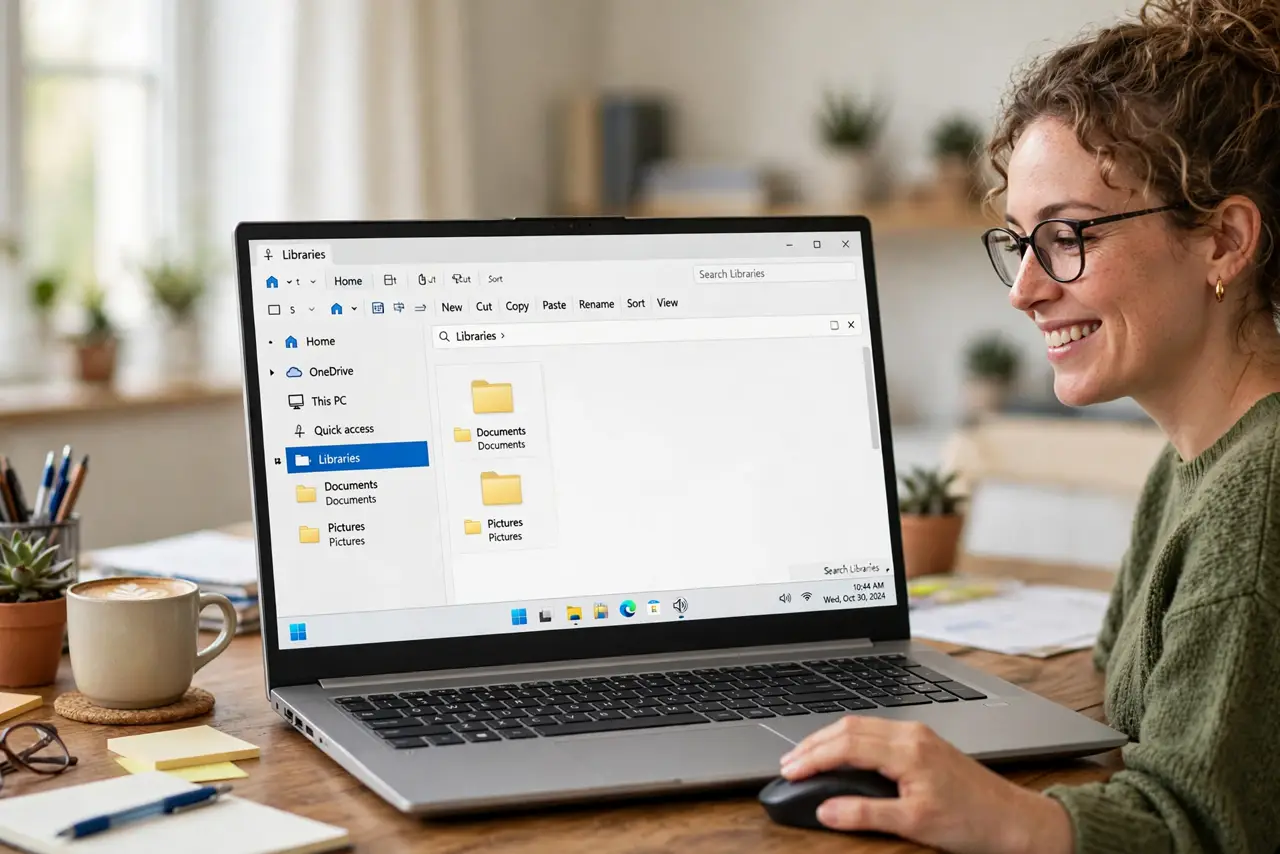
Quick fix: in File Explorer, open Folder Options and check Show libraries to bring the feature back. Then right-click each library, add the folders from all your drives, and set the default save location. Your scattered Documents, Pictures, and Music appear in one tidy view again.
Follow these steps
- Show Libraries in File Explorer. Open File Explorer, click the three-dot menu, then Options. On the View tab, check Show libraries and click OK. Libraries appears in the navigation pane immediately.
- Open a library's properties. Right-click Documents under Libraries and choose Properties. You will see the folders currently included — usually just the default one on your system drive.
- Add folders from your other drives. Click Include a folder and browse to the matching folder on your second drive, external drive, or network share. Repeat for Pictures, Music, and Videos with their counterparts.
- Set the default save location. In the same Properties window, select the folder where new files should land and click Set save location. Programs that save to the library will use this folder.
- Arrange the library view. Inside a library, use the Arrange by options to group by folder, date, or type across all included folders. This is where the multi-drive magic shows — one sorted view of everything.
- Pin libraries for quick access. Right-click each library and Pin to Quick access. Now your unified folders are one click away in every File Explorer window and save dialog.
What NOT to do
- Do not add the same folder to two libraries. Duplicates in search results and confusing save behavior follow — one folder, one library.
- Do not include a removable drive you often unplug. The library will show ghost entries and errors every time the drive is missing.
- Do not confuse Libraries with OneDrive. Libraries are views of your folders; OneDrive is cloud sync — they solve different problems.
- Do not delete the default folders after adding your own. Some programs expect the defaults to exist; leave them in place and just change the save location.
Frequently asked questions
Why did Microsoft hide Libraries?
They were de-emphasized in favor of Quick access and OneDrive, but never removed. Power users kept asking, so the toggle remains in Folder Options.
Can libraries include network folders?
Yes, if the network location is indexed or available offline. Unindexed network folders can be added but search inside them will be slow.
Do libraries use extra disk space?
No. A library is just a saved view pointing at your real folders — adding folders costs nothing and moves nothing.