Use a Local Account
Windows pushes hard for a Microsoft account at setup — and hides the local-account option like a secret. But you can still run Windows with a plain local account: no cloud sign-in, no sync, your PC answering to nobody but you. Here is how to set one up and what you give up.
TL;DR / Quick Fix
Quick fix: you can still use Windows with a local account — no Microsoft sign-in required. During setup, choose offline account options, or convert later in Settings, Accounts, Your info. You'll miss cloud sync features, but your PC works fully offline with complete local control.
Follow these steps
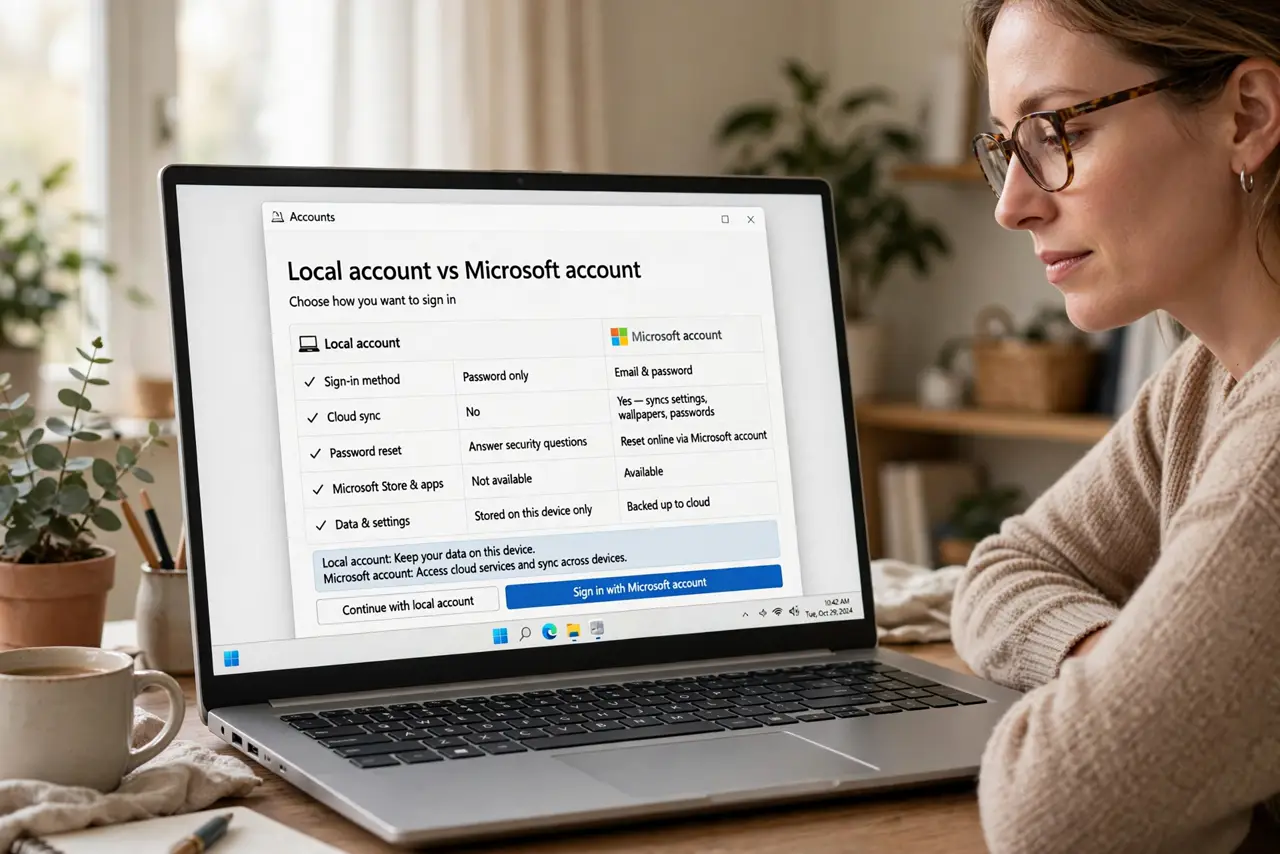
- Know what you are choosing. A local account lives only on your PC — username and password, no cloud. A Microsoft account syncs settings and ties you to OneDrive and the Store. Compare the two in the local vs Microsoft rundown before deciding.
- Find the hidden option at setup. On Windows 11 setup, the offline-account path is buried: look for 'Sign-in options,' 'Offline account,' or 'Domain join instead' on the account screen. On some editions, disconnecting from the internet during setup reveals it.
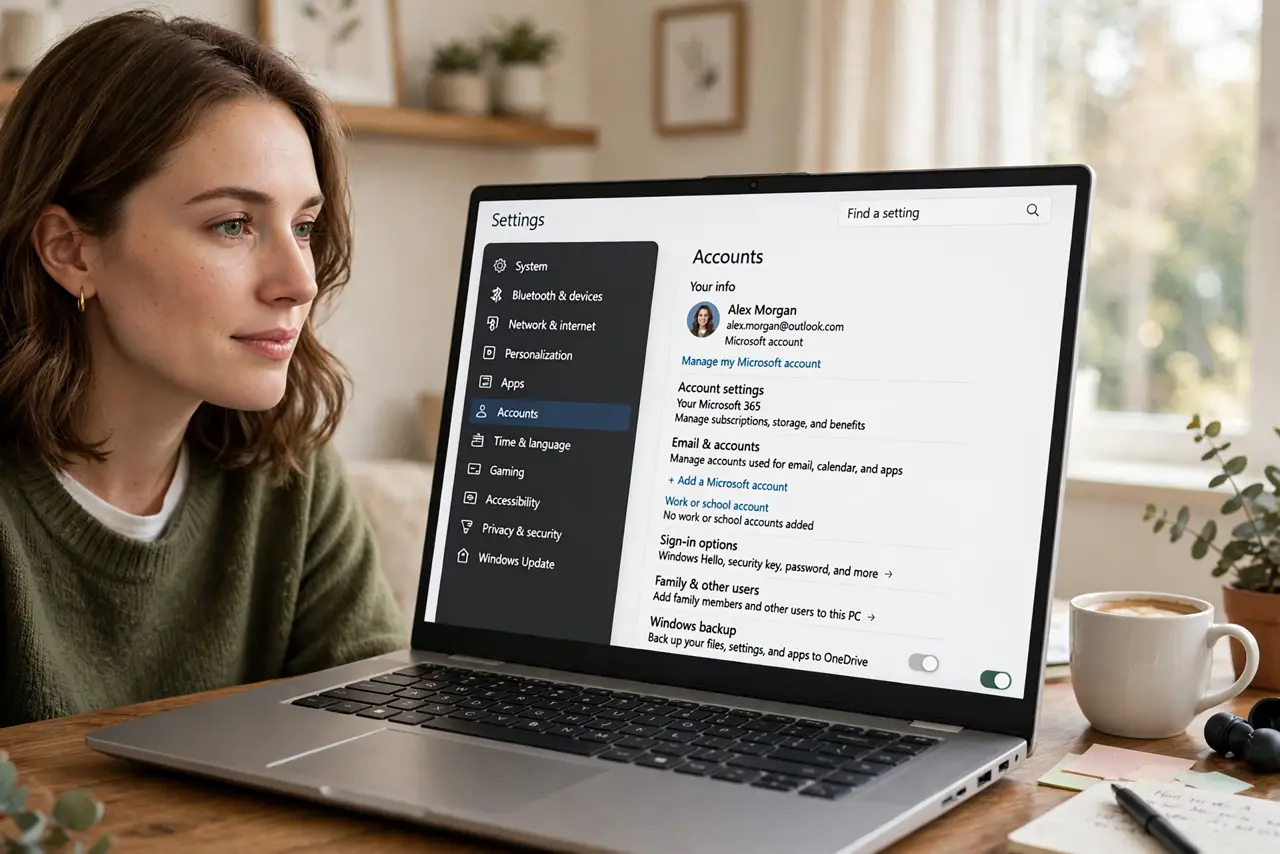
- Convert an existing account. Already signed in with Microsoft? Go to Settings > Accounts > Your info > 'Sign in with a local account instead.' Windows walks you through creating the local credentials — your files and apps stay put.
- Set a strong local password. Without Microsoft's cloud recovery, a forgotten local password is harder to reset — use a password manager and consider a second admin account as a spare key.
- Handle the Store and apps. Some Store apps and features (OneDrive sync, Find My Device) need a Microsoft account. You can sign into the Store alone without converting your whole Windows account — best of both worlds for many.
- Keep a second admin account. Create a second local administrator account and store its password safely. If your main account ever locks you out, the spare admin is your way back in — cheap insurance.
What NOT to do
- Do not skip the password on a local account. No password plus no cloud recovery equals anyone with physical access owning the PC.
- Do not assume local means private from everything. Windows still phones home for updates and telemetry — a local account limits account sync, not all data flow.
- Do not convert without noting what syncs. Browser profiles, Store purchases, and OneDrive files tied to the Microsoft account need attention before you switch.
- Do not use one admin account for daily use. Run daily as a standard user if you are security-minded — admin only when installing.
Frequently asked questions
Can I switch back to a Microsoft account?
Yes — Settings > Accounts > Your info, anytime. Your files stay; sync features just resume.
Does a local account affect Windows activation?
No. Activation is tied to the hardware license, not the account type — switching changes nothing there.
Is a local account safer?
It is simpler and syncs less to the cloud, which some prefer. Against malware and phishing, account type barely matters — updates and caution matter more.