Magnifier Is Stuck Zoomed In on Windows
Magnifier zooms the whole screen for low-vision users, but when it turns on by accident, everything looks huge and hard to use. The fix is exiting Magnifier properly and turning off its shortcut, not changing your display resolution. If Narrator is your accidental guest instead, see Narrator starting by accident.
TL;DR / Quick Fix
Quick fix: Exit Magnifier with its shortcut. Reset the zoom level fully. Then work through the remaining steps in order, checking one change at a time, and stop for a technician if you see damage, swelling, or a burning smell.
Follow these steps
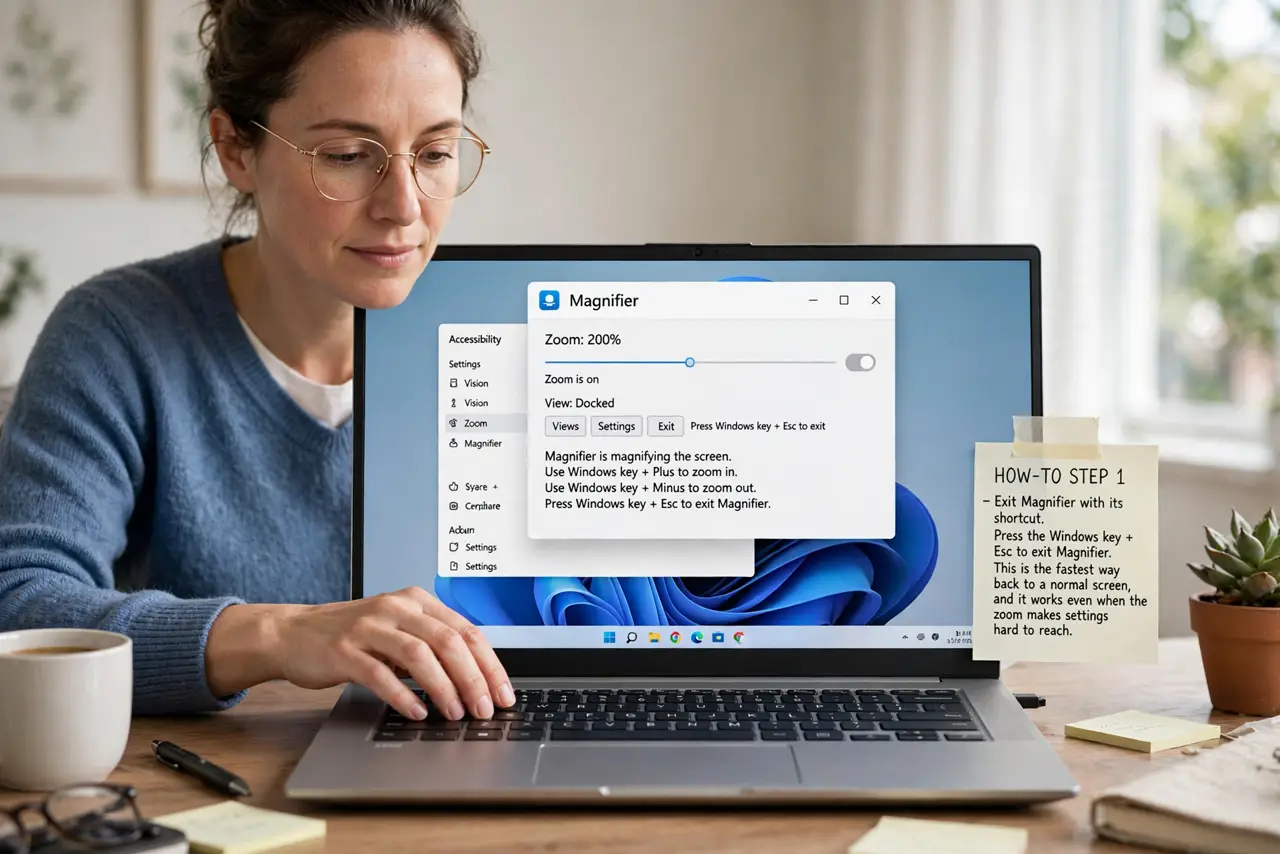
- Exit Magnifier with its shortcut. Press the Windows key plus Esc to exit Magnifier. This is the fastest way back to a normal screen, and it works even when the zoom makes settings hard to reach.
- Reset the zoom level fully. If you stay in Magnifier, press the Windows key plus minus to zoom out until the screen looks normal. The zoom level persists, so leaving it high means the next start is zoomed too.
- Open Magnifier settings. Open Settings, then Accessibility, then Magnifier, and confirm whether Magnifier is set to start automatically. Turn off any automatic start you do not want.
- Turn off the Magnifier shortcut. In the same page, check the shortcut settings for starting Magnifier. Turning off the Windows plus Plus shortcut stops accidental zooming during ordinary keyboard use.
- Check display scaling separately. Open Settings, then System, then Display, and confirm display scaling is your usual value. If the screen still looks large after exiting Magnifier, scaling, not Magnifier, is the remaining cause.
- Restart and confirm a normal screen. Restart Windows and sign in, checking that the screen opens at normal size. If zoom returns at sign-in, recheck the automatic start setting above.
What NOT to do
- Do not lower display resolution to fix a zoomed screen. Magnifier zoom and resolution are different, and changing resolution shrinks everything else too.
- Do not keep pressing zoom-out forever. Exiting Magnifier with Windows plus Esc is the real exit, while zooming out only shrinks the magnified view.
- Do not disable accessibility features broadly. The Magnifier shortcut and startup toggles are the precise fixes.
- Do not assume the monitor zoomed itself. A whole-screen zoom that follows the mouse is Magnifier, and its shortcut exit proves it.
Frequently asked questions
What is Magnifier for?
It enlarges part or all of the screen, helping people with low vision read text and see details.
Does Magnifier change my files?
No. It only changes how the screen displays content, never the files themselves.
Why does the screen follow my mouse when zoomed?
That is Magnifier follow mode, which keeps the magnified area centered on the mouse or keyboard focus.