Mouse Pointer Speed Resets After Reboot
A pointer speed that feels right today and wrong tomorrow is usually being overwritten at startup by mouse software, a second settings page, or a profile that loads after sign-in. This guide sets the speed in the right place and finds the overwrite. If clicks themselves misbehave, see mouse double-clicking on a single click.
TL;DR / Quick Fix
Quick fix: Set the speed in Windows settings. Check the old Control Panel speed too. Then work through the remaining steps in order, checking one change at a time, and stop for a technician if you see damage, swelling, or a burning smell.
Follow these steps
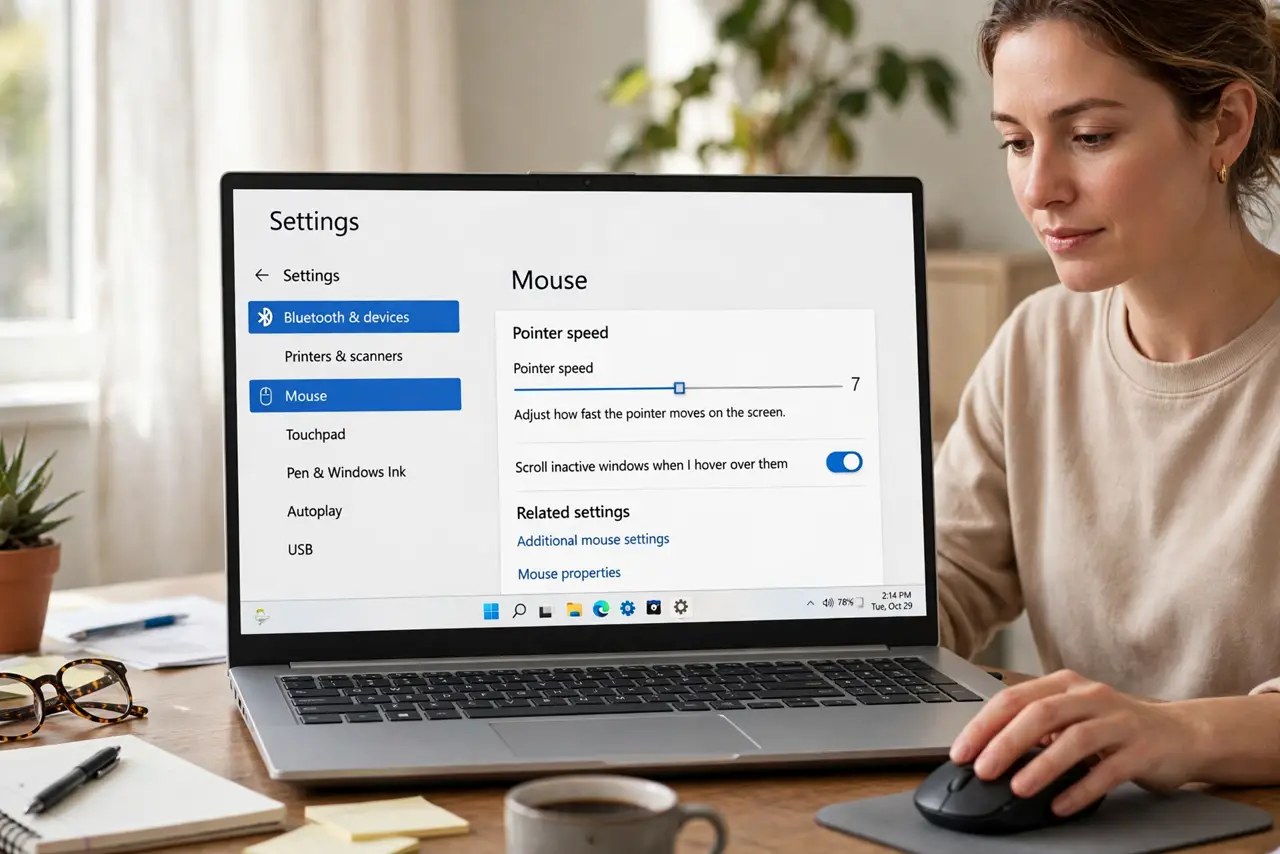
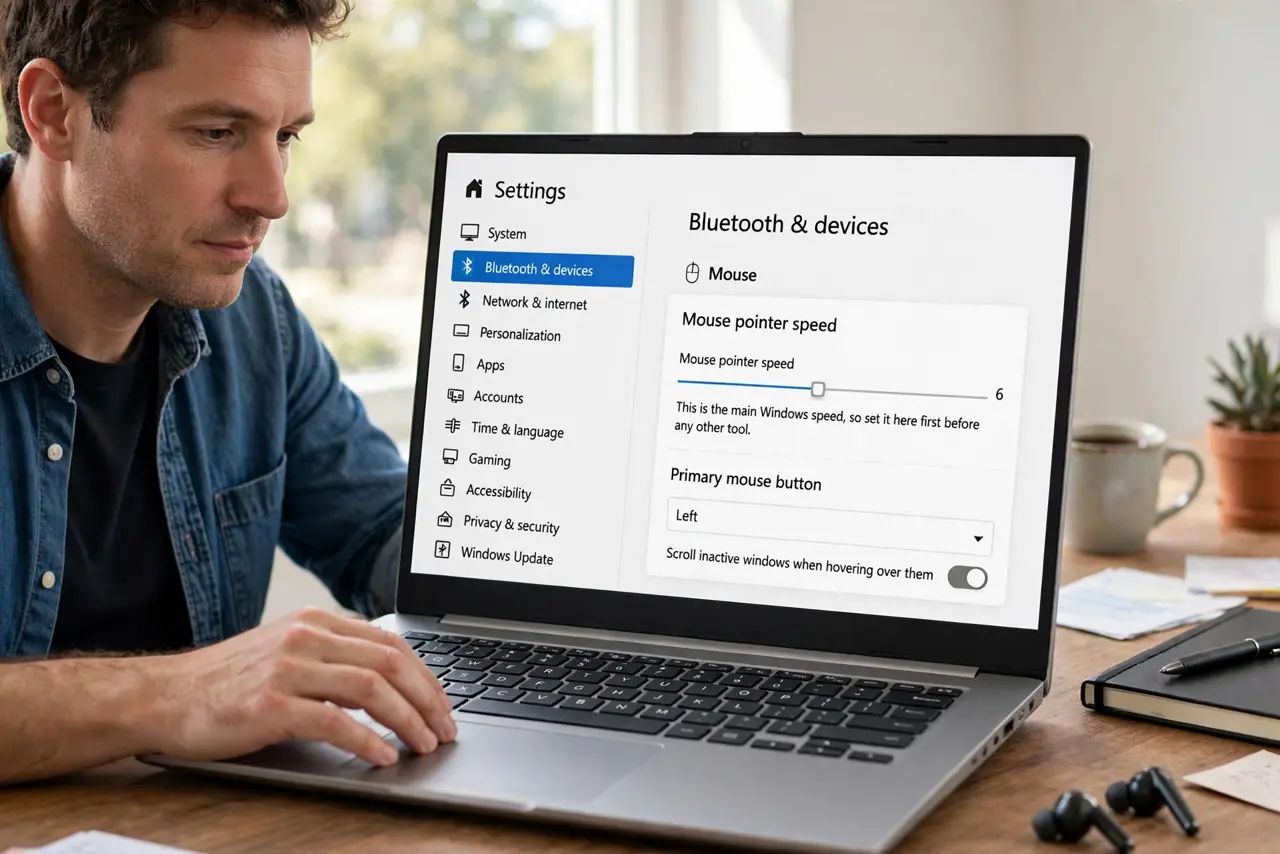
- Set the speed in Windows settings. Open Settings, then Bluetooth and devices, then Mouse, and set Mouse pointer speed to your preferred value. This is the main Windows speed, so set it here first before any other tool.
- Check the old Control Panel speed too. In the same Mouse page, open Additional mouse settings, then Pointer Options, and confirm the Motion speed matches. Two speed settings can fight, with one winning after reboot.
- Check mouse software profiles. If your mouse has maker software, open it and confirm its pointer speed and profile match Windows. Maker software often applies its own profile at startup, overwriting the Windows value.
- Test after a full restart. Restart Windows, sign in, and move the mouse before opening any mouse software. If the speed is wrong already, the overwrite happens at startup, not when you open the app.
- Turn off startup for the mouse app as a test. Open Settings, then Apps, then Startup, and turn off the mouse software for one restart. If the speed now holds, that software was overwriting it, and its profile is the fix.
- Set one speed everywhere and keep it. Pick the speed you want, set it identically in Windows and in the mouse software, then restart and confirm. Matching values everywhere means no tool has a different speed to impose.
What NOT to do
- Do not keep resetting the speed every morning. Finding the startup overwrite fixes the cause, while daily resetting only hides it.
- Do not install a second mouse tool to lock the speed. Two tools fighting over one setting cause more resets, not fewer.
- Do not change the speed in two places to different values. Matching values are the point, because any difference becomes a reset.
- Do not assume the mouse is faulty. A speed reset is a settings conflict, and a faulty mouse shows as jumps or dead movement, not a speed change.
Frequently asked questions
Why does speed reset only sometimes?
Startup order varies, so mouse software sometimes loads before you notice and sometimes after, which makes the reset look random.
Does pointer precision affect speed?
Enhance pointer precision changes acceleration, not base speed, so test speed with it off if movement still feels off.
Can different mice keep different speeds?
Windows keeps one pointer speed, so switching mice usually means the same speed, unless maker software sets per-device profiles.