Wi-Fi Adapter Missing After Sleep
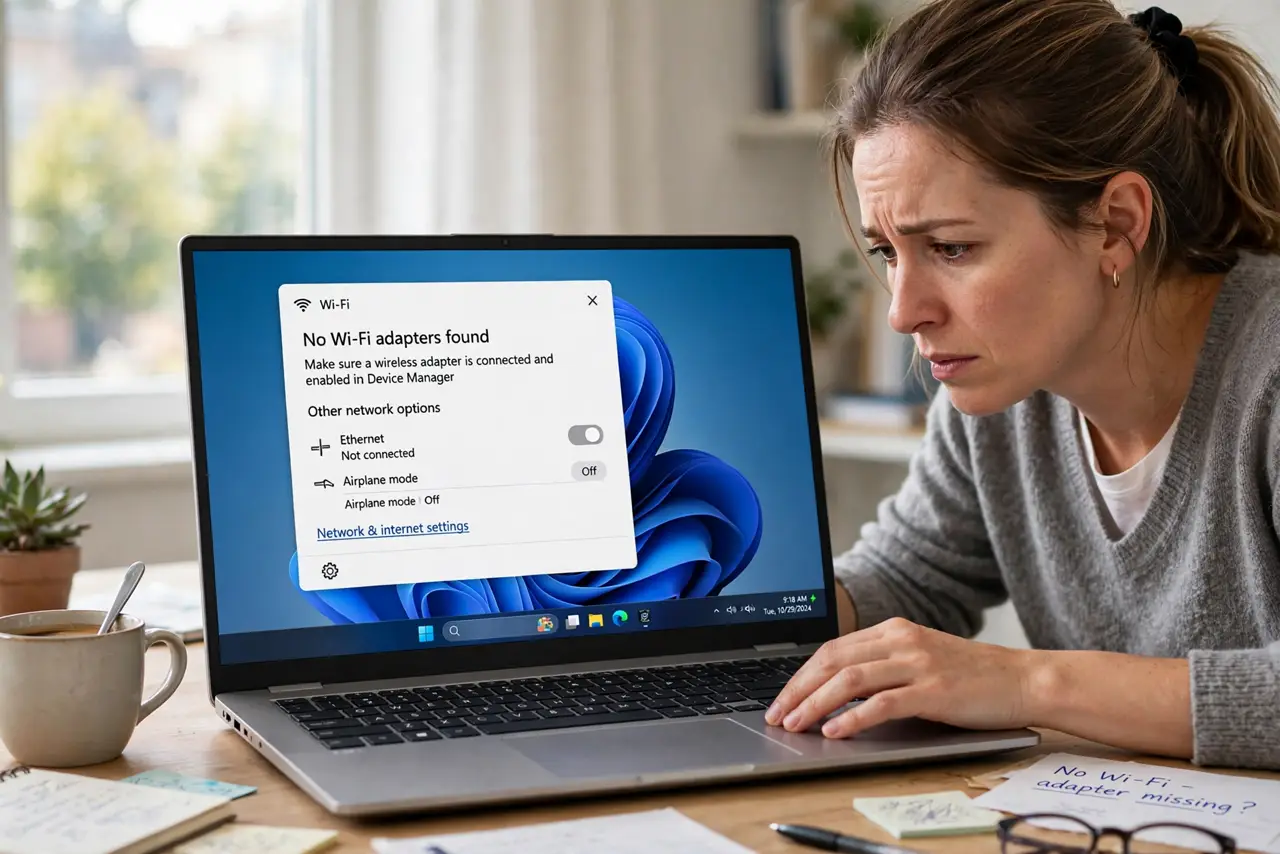
The laptop wakes up and Wi-Fi is gone — not disconnected, but the adapter itself missing from the network list. Windows' power management put the adapter to sleep and it never woke up. The fix is stopping Windows from powering the adapter down, and refreshing the driver if that fails — a sharper version of the general Wi-Fi will not connect problem.
TL;DR / Quick Fix
Quick fix: in Device Manager, open the Wi-Fi adapter's power management tab and uncheck allowing the computer to turn it off. If the adapter still vanishes after sleep, update the driver from the laptop maker and disable Fast Startup. The adapter should then survive every sleep cycle.
Follow these steps
- Confirm the adapter is missing, not just disconnected. Open the network list and Device Manager. If the adapter is gone from both, Windows lost the hardware; if it is present but disconnected, that is a different, simpler problem.
- Stop Windows from powering the adapter off. In Device Manager, find the Wi-Fi adapter, open Properties, and on the Power Management tab uncheck the box that lets the computer turn the device off to save power.
- Check the advanced power plan setting. In the power plan's advanced settings, set the wireless adapter's power saving mode to Maximum Performance on both battery and plugged in. Aggressive saving is what strands the adapter.
- Update the driver from the laptop maker. Get the Wi-Fi driver from the laptop manufacturer's support page, not just Windows Update. Maker drivers include the power-state fixes that generic drivers often lack.
- Disable Fast Startup as a test. Fast Startup's hybrid shutdown can leave hardware in a half-asleep state. Turn it off in the power options, shut down fully, and test a sleep-wake cycle.
- Reset the network stack if it still fails. As a last step, use the network reset option, which reinstalls the adapters and returns network settings to defaults. You will need to rejoin Wi-Fi networks afterward.

What NOT to do
- Do not reinstall Windows for a sleep-only Wi-Fi problem. This is a power-management and driver issue, and a reinstall brings the same driver back.
- Do not disable the adapter in Device Manager as a workaround. That hides the symptom while the power problem keeps happening underneath.
- Do not use a generic driver when the maker offers one. Laptop Wi-Fi quirks are exactly what manufacturer drivers exist to fix.
- Do not ignore a pattern with other devices. If USB devices also vanish after sleep, the whole system's sleep states need attention, not just Wi-Fi.
Frequently asked questions
Why does Wi-Fi vanish only after sleep?
Because sleep powers the adapter down, and a buggy driver or aggressive power setting prevents it from waking cleanly.
Will turning off power saving hurt battery life?
Slightly, but the Wi-Fi adapter is a small drain compared to the screen. Reliability is worth the tiny cost.
Why does a restart fix it temporarily?
Because a full restart re-initializes the hardware from scratch, while sleep tries to resume a broken power state.