Night Light Ignores the Schedule You Set
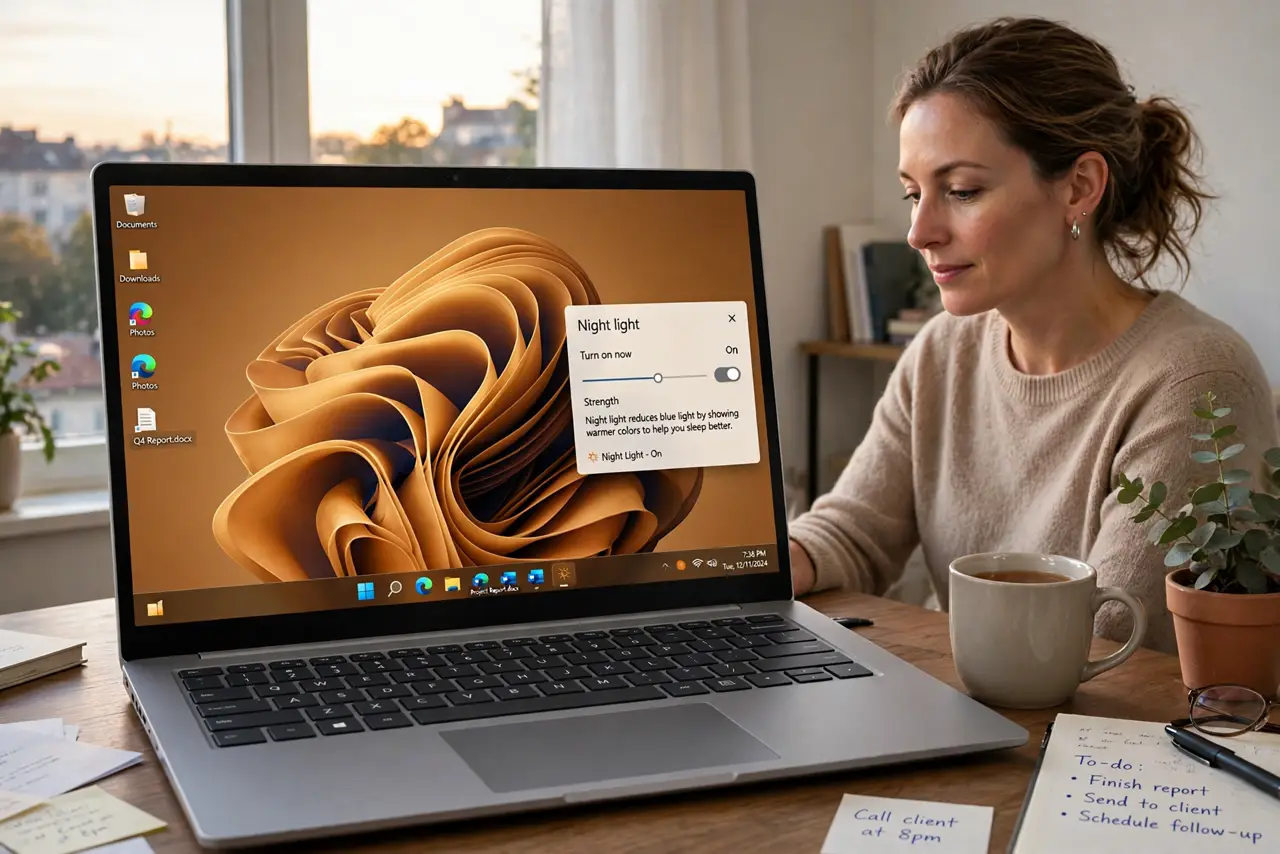
Night Light should warm your screen automatically in the evening and return to normal in the morning, but a schedule that never triggers is frustrating. The cause is usually a schedule that was never turned on, a sunset time based on the wrong location, or a manual toggle overriding it. This guide checks each one. If screen brightness itself is the issue, see the guide on fixing Windows screen brightness and Night Light.
TL;DR / Quick Fix
Quick fix: Confirm Night Light is on and scheduled. Check the scheduled times by hand. Then work through the remaining steps in order, checking one change at a time, and stop for a technician if you see damage, swelling, or a burning smell.
Follow these steps
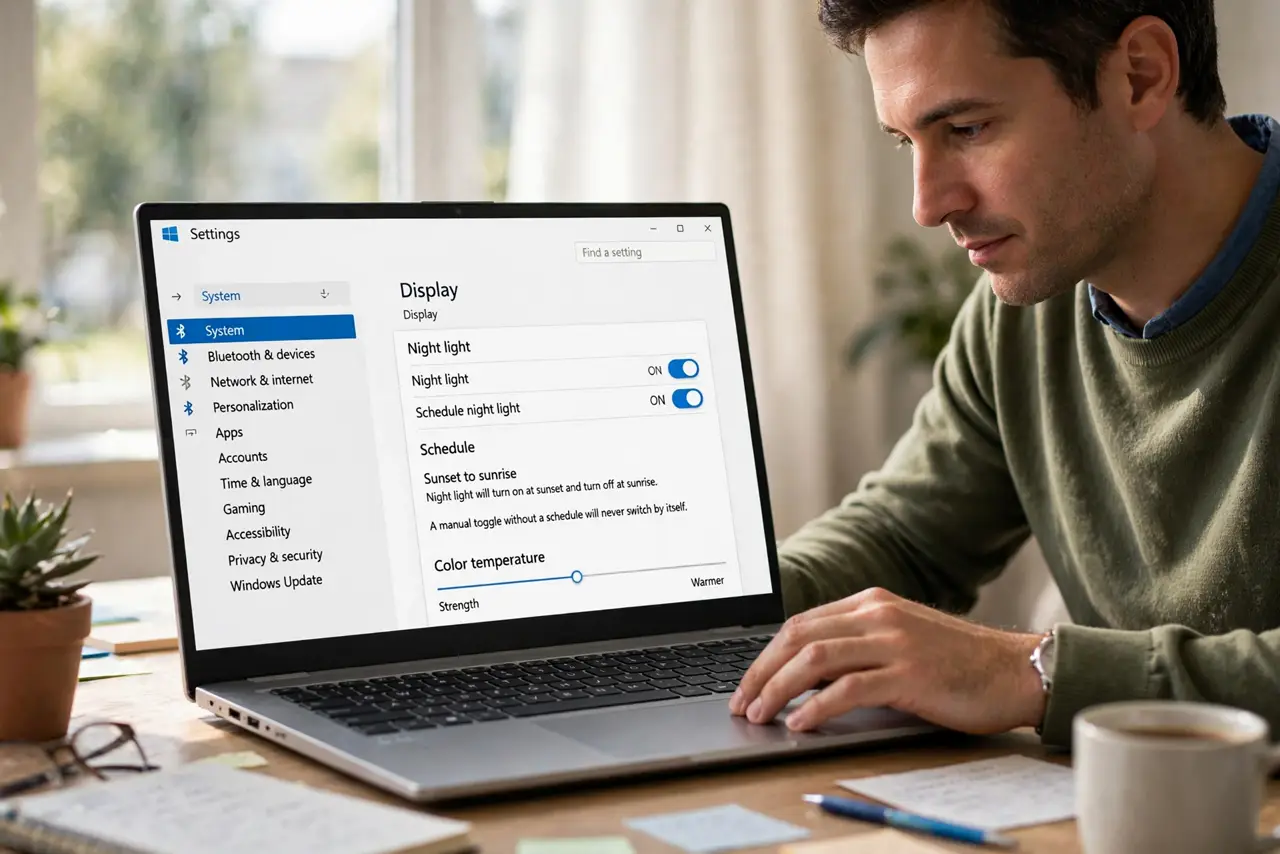
- Confirm Night Light is on and scheduled. Open Settings, then System, then Display, then Night Light, and confirm both Night Light and Schedule night light are on. A manual toggle without a schedule will never switch by itself.
- Check the scheduled times by hand. Choose Set hours instead of sunset to sunrise, and set a clear evening start and morning end, such as 9 PM to 7 AM. If the custom hours work, the sunset calculation was the problem, not Night Light itself.
- Check location for sunset times. If you use sunset to sunrise, confirm Windows location permission is on under Privacy and security, then Location. Sunset times come from your location, so a wrong or missing location gives wrong times.
- Check the strength slider. In the same Night Light page, move the Strength slider to the middle or higher. A very low strength can make Night Light look like it never turned on, even when the schedule worked.
- Test with a time one minute away. Set a custom schedule to start one minute from now, then watch the screen. If it warms on time, the schedule works and your original times need a second look.
- Restart and restore your real schedule. Restart Windows, then set your preferred schedule again and check the next evening. If it still fails after a restart, note whether you use sunset times or custom hours for support.
What NOT to do
- Do not install a blue light app on top of Night Light. Two warmers can conflict and make the screen far too orange.
- Do not set the schedule to all day. That hides whether the schedule triggers, and it leaves your daytime screen wrongly warm.
- Do not blame the monitor for a schedule problem. Night Light is a Windows setting, so the monitor cannot override its timing.
- Do not turn Night Light on and off by hand every night. Fixing the schedule once beats a nightly manual chore.
Frequently asked questions
Why does Night Light turn on at the wrong time?
Sunset times depend on your location, so a wrong location shifts the trigger. Custom hours remove that guesswork.
Does Night Light affect screenshots?
No. Night Light changes only how the screen looks to you, not the colors stored in a screenshot or file.
Can I use Night Light on only one monitor?
No. Night Light applies to all displays on the PC, so a second monitor warms at the same time.