Windows Says No Internet, but Browser Works
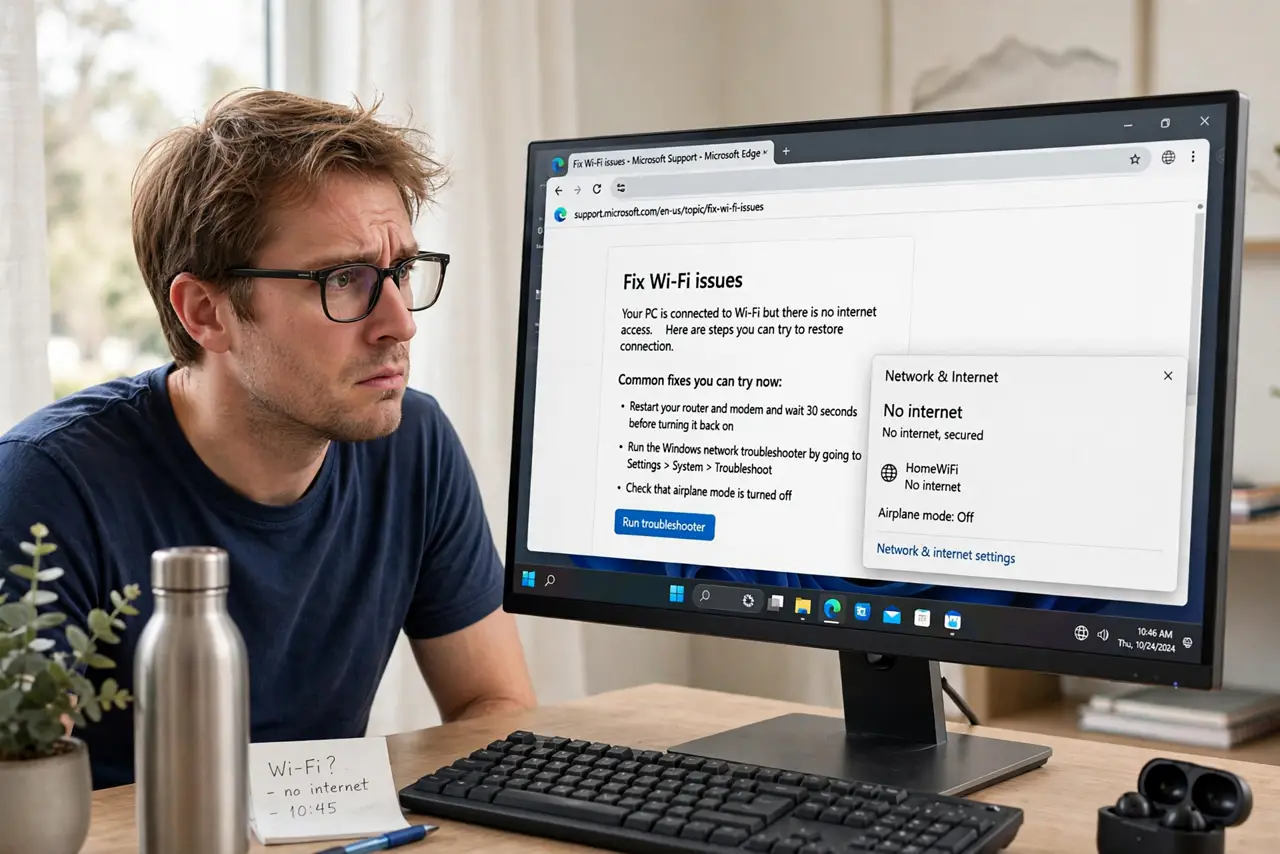
The taskbar shows No Internet, yet your browser loads pages fine. Windows decides you are offline by probing a Microsoft server, and anything that blocks that probe — a VPN, a custom DNS, a captive portal — triggers the false warning. The warning itself is harmless, but it can confuse apps, so it is worth fixing — unlike a genuine Wi-Fi connection failure.
TL;DR / Quick Fix
Quick fix: the warning comes from Windows' connectivity probe being blocked, not from a real outage. Disconnect the VPN, check that the system date and time are correct, and flush the DNS cache. If the icon clears, the probe was the problem; if apps still misbehave, reset the network adapter.
Follow these steps
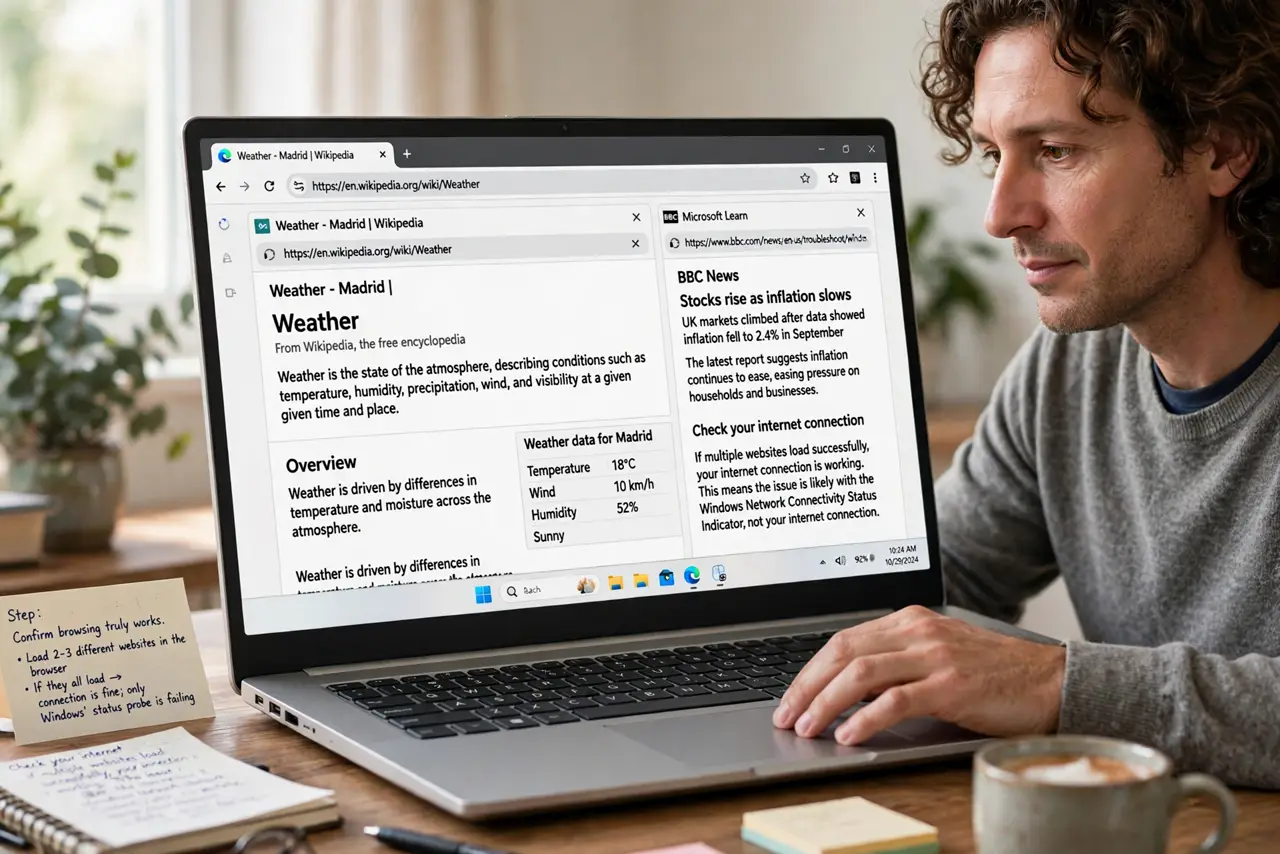
- Confirm browsing truly works. Load two or three different websites in the browser. If they all load, the connection is fine and only Windows' status probe is failing.
- Disconnect the VPN as a test. Turn the VPN off for a minute and watch the icon. VPNs commonly block or reroute the probe Windows uses, which is the single most common cause.
- Check the system date and time. A wrong clock breaks the secure probe's certificate check. Enable automatic time and sync once; a clock off by days can fake an outage.
- Flush the DNS cache. Open a terminal and flush the DNS resolver cache, then renew the connection. Stale or poisoned DNS entries can break the probe while browsing still works.
- Check for a captive portal. On hotel, airport, or office networks, open a plain HTTP page to trigger the login portal. An unauthenticated portal blocks the probe exactly like this.
- Disable and re-enable the adapter. Turn the network adapter off and on again in the network settings. A fresh handshake clears stuck states that survive a mere disconnect.
What NOT to do
- Do not reset your router for a false warning. The router is delivering traffic fine; only Windows' self-check is confused.
- Do not change DNS servers blindly. Custom DNS is a fine choice, but switching randomly will not fix a probe blocked by a VPN or portal.
- Do not ignore the warning forever. Some apps trust the icon and refuse to work offline, so the false status has real consequences.
- Do not edit the registry to disable the probe. That hides the messenger instead of fixing the block, and you lose a useful diagnostic.
Frequently asked questions
Why does Windows think I am offline when I am not?
Because it probes a specific Microsoft endpoint to decide. Anything blocking that endpoint — VPN, DNS, portal — fakes an outage.
Can this break Microsoft Store or OneDrive?
Yes. Some Microsoft apps check the same status flag and may refuse to sync while it says offline.
Will this fix itself?
Sometimes, when the VPN reconnects cleanly or the portal session refreshes. But a persistent false warning deserves the checklist above.