Noise Suppression? How To Set Up
The keyboard clatter, the fan hum, the dog — your callers hear your whole room, not just you. Noise suppression filters steady background noise from your microphone in real time, and Windows, your apps, and even some headsets each offer a version. Turning the right one on makes you sound like you work in a studio instead of a kitchen.
TL;DR / Quick Fix
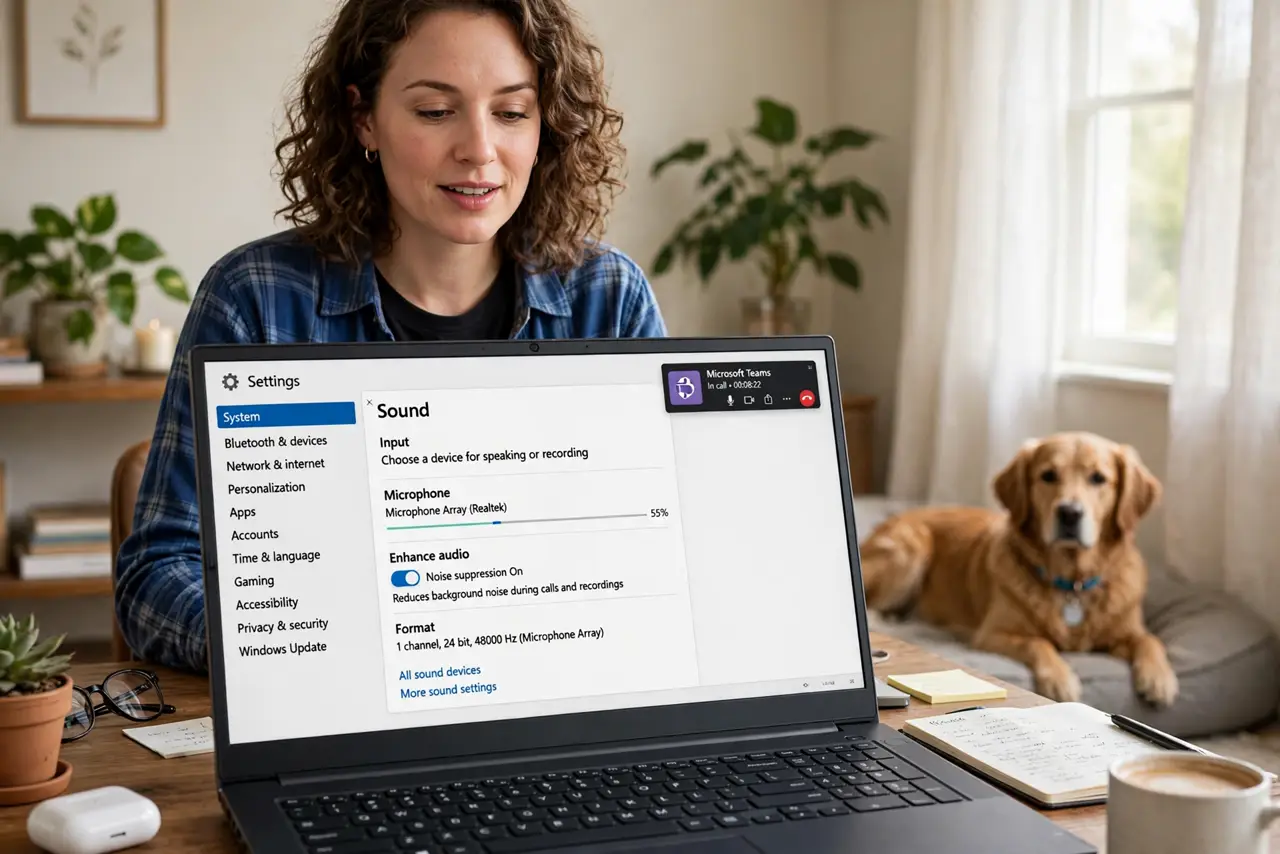
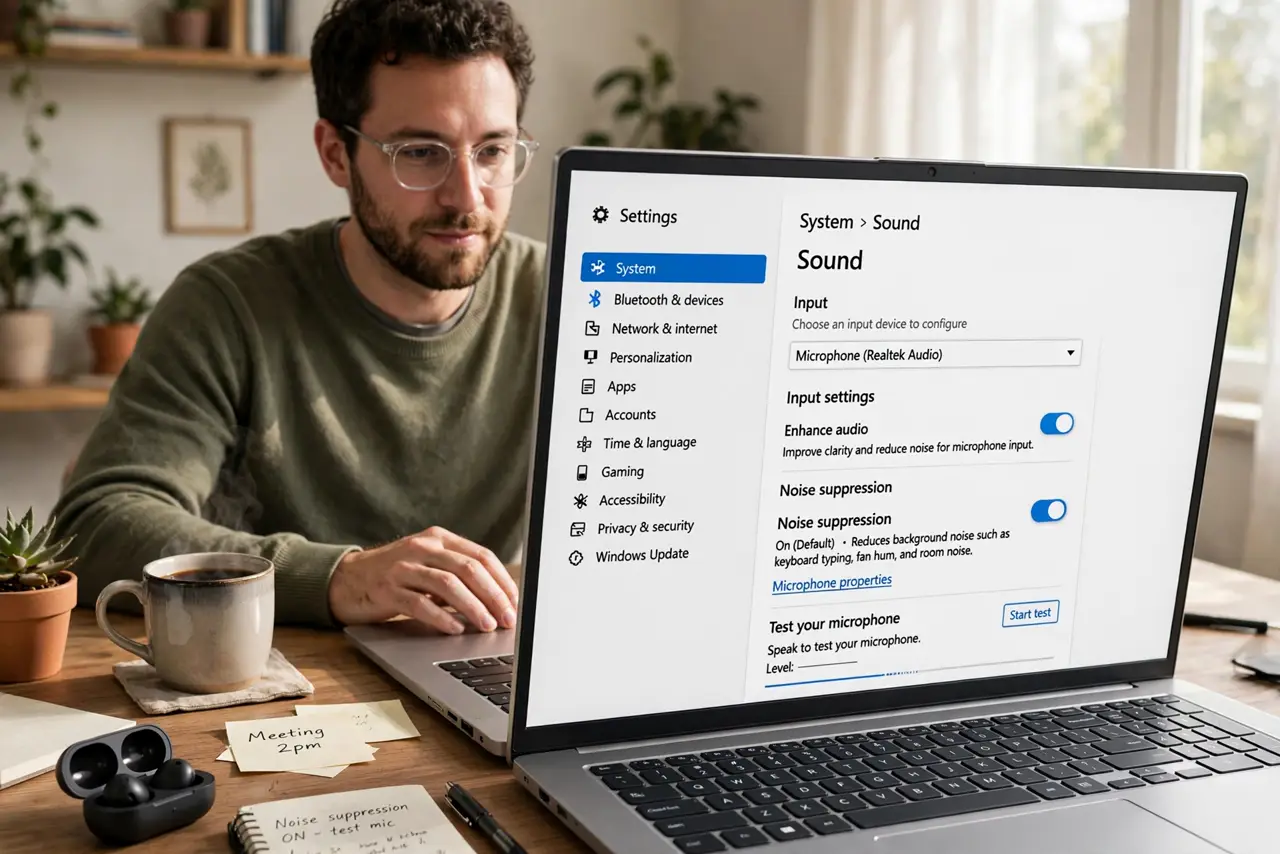
Quick fix: open Settings, go to System, then Sound, and turn on noise suppression or enhancements for your input device. Your calling app (Teams, Zoom, Meet) has its own stronger version — enable the app's for the best result. Record a test so you hear what callers hear.
Follow these steps
- Try Windows' built-in option first. In Settings > System > Sound, select your input device and look for audio enhancements or noise suppression. Toggle it on — free and instant.
- Enable your app's suppression too. Teams, Zoom, and Meet each ship stronger noise removal than Windows. Find it in the app's audio settings and set it to Auto or High.
- Pick one, not all three. Stacking Windows, app, and headset suppression garbles voices. Enable the strongest single one — usually the app's — and leave the rest off.
- Test with a real recording. Record yourself typing while talking, then listen back. Your ears are the only honest judge of whether the suppression helps or hurts.
- Fix the room before the software. Suppression removes steady hums, not sudden barks. Move the mic closer and the noise source farther — physics beats algorithms.
- Know what it cannot do. It will not erase loud, irregular noise or a bad mic level. Set your gain right first, then suppress.
What NOT to do
- Do not enable every suppression everywhere. Stacked filters make voices robotic and cut words — one good filter wins.
- Do not expect miracles on sudden noises. Doorbells and dogs defeat suppression; mute is the only real answer for those.
- Do not leave it on High for music or instruments. Aggressive suppression eats musical detail — drop to Low or off for performances.
- Do not use suppression to excuse a terrible room. A mic next to a fan will always struggle — move the mic first.
Frequently asked questions
Why do I sound robotic with suppression on?
Over-aggressive filtering clips parts of your voice. Drop the app's setting from High to Auto or Low and the naturalness returns.
Windows vs app suppression — which is better?
The app's, usually. Calling apps tune theirs for voices specifically; Windows' is generic. Enable the app's and skip Windows'.
Does it work for background music?
Poorly — music is irregular and loud, exactly what suppression cannot remove. Mute or move away from the speaker instead.