Never Lose Notepad Work
Notepad used to be where notes went to die in a crash. The modern version autosaves your work and restores it — if the setting is on. This guide makes sure it is, and shows what to do when Notepad closes unexpectedly. If you juggle many files, tabs keep them organized too.
TL;DR / Quick Fix
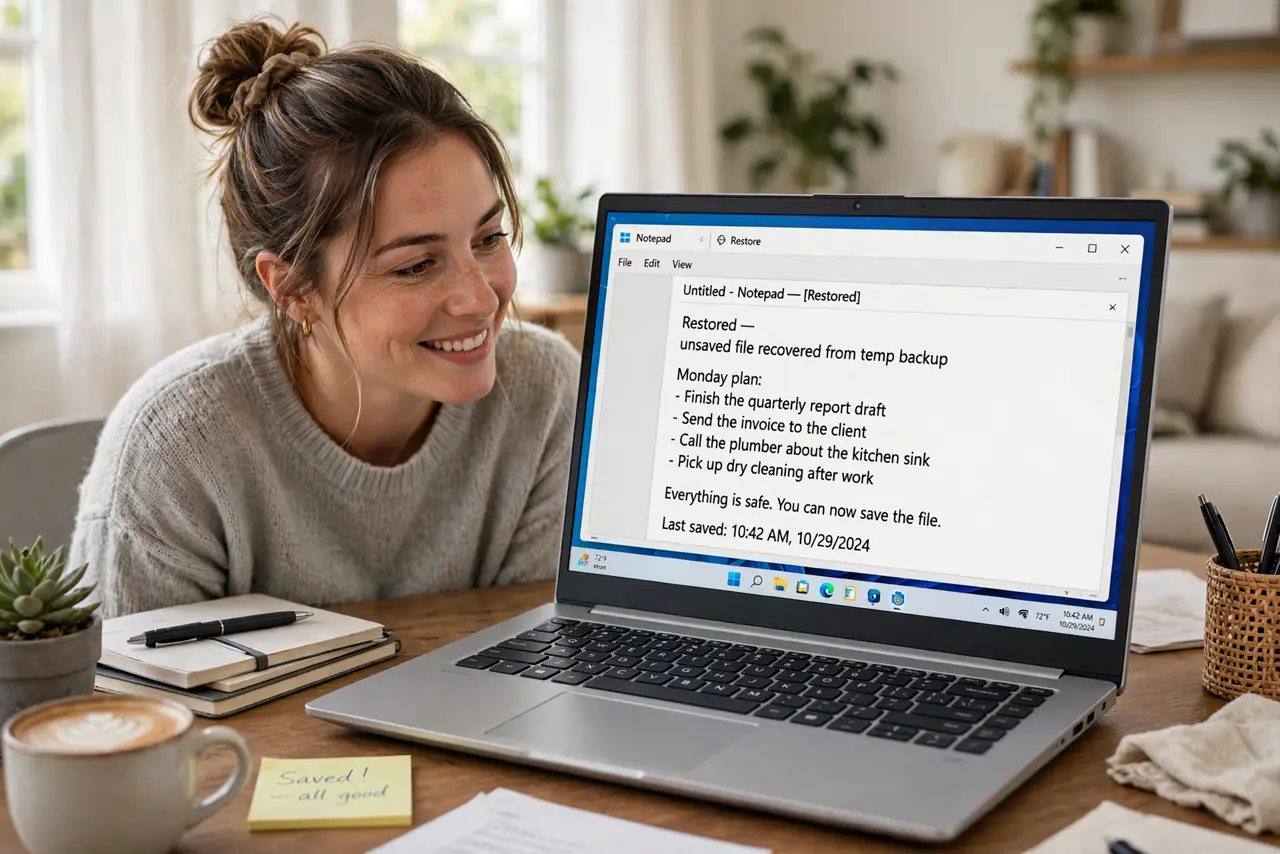
Quick fix: open Notepad settings and turn on autosave so every keystroke is preserved without prompting. After a crash or restart, Notepad reopens your unsaved tabs automatically. For notes that truly matter, still press Ctrl+S with a real filename — autosave is a safety net, not a filing system.
Follow these steps
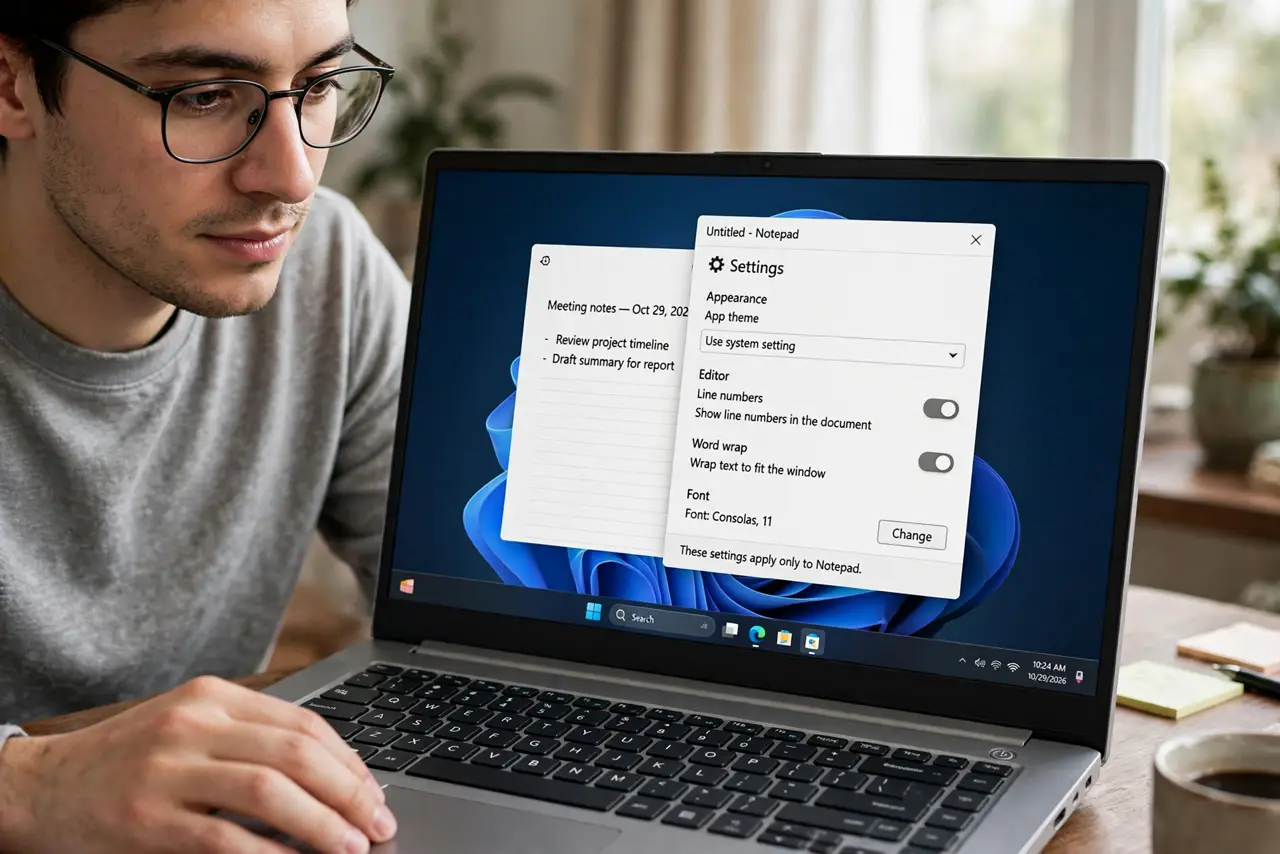
- Open Notepad settings. Click the gear icon in the top-right of Notepad. All the safety options live on this one settings page.
- Turn on 'save without prompting'. Enable the option that saves changes automatically instead of asking. This is the single switch that ends lost-note disasters.
- Confirm tabs reopen after closing. In the same settings, choose to open content from the previous session. Now closing Notepad — or a crash — brings everything back.
- Test it once so you trust it. Type a test line in an unsaved tab, close Notepad, reopen it. Seeing your text return is worth more than any promise.
- Give important notes real names. Ctrl+S an important note with a real filename into Documents. Autosave protects the session; a saved file protects the idea for years.
- Know the limits. Autosave covers Notepad's session, not the whole PC. For notes that must survive anything, a real file plus a cloud-synced folder is the belt and suspenders.
What NOT to do
- Do not assume autosave is on by default. Check the setting — on some installs it is off until you enable it.
- Do not keep the only copy of critical text in an untitled tab. Save it with a name; untitled tabs are for drafts.
- Do not ignore the save prompt if it still appears. A prompt means autosave is off — fix the setting instead of clicking through.
- Do not use Notepad as your only notes system. For synced, searchable notes across devices, a real notes app beats Notepad.
Frequently asked questions
Where does Notepad autosave my text?
In its own session cache, restored when Notepad reopens. It is not a file in Documents until you save it yourself.
Does autosave work if Windows updates and restarts?
Yes — Notepad restores the session after the restart, as long as the setting is enabled.
Can I turn autosave off?
Yes, in the same settings page. Some people prefer the old prompt-every-time behavior — but you lose the safety net.