Stop Banners From One App
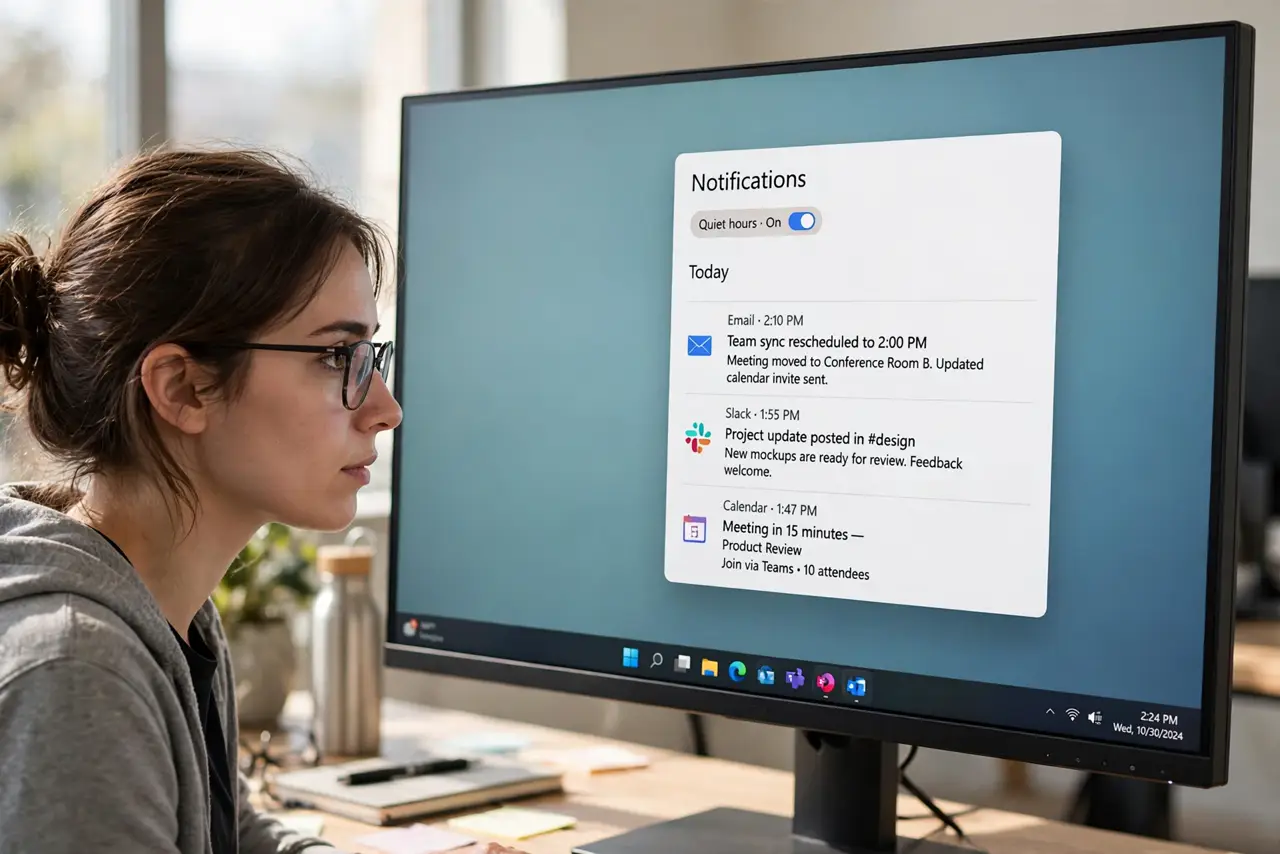
One chatty app keeps popping banners over your work — game invites, deal alerts, social noise. You want its messages waiting quietly, not tap-dancing across your screen. The per-app banner switch sends its alerts straight to Notification Center, silently.
TL;DR / Quick Fix
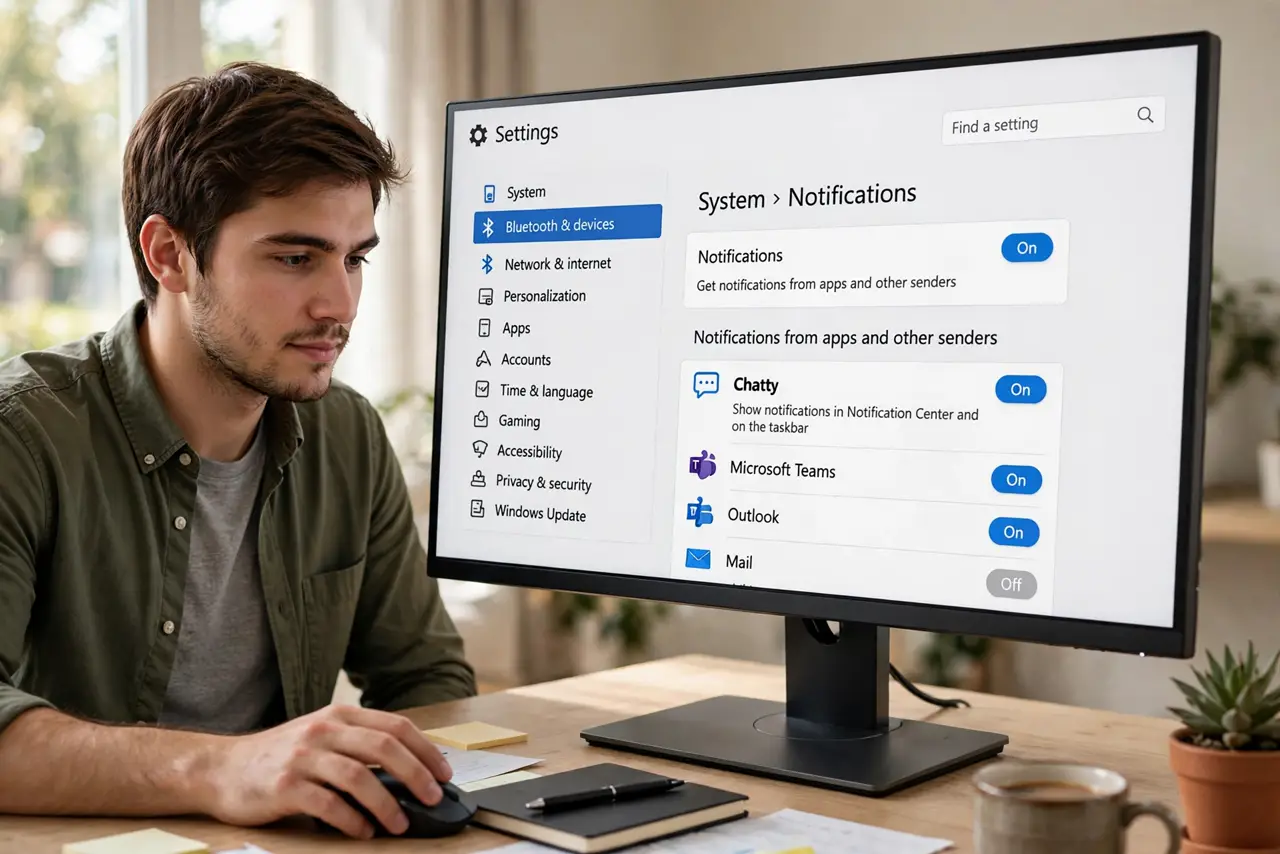
Open Settings > System > Notifications, click the app, and uncheck 'Show notification banners' — its alerts go quietly to Notification Center instead of popping over your work. The app keeps working and badging; you just stop the interruptions. Re-enable the same way when the project or game event ends.
Follow these steps
- Open the app's notification page. Go to Settings > System > Notifications and click the chatty app in the list.
- Uncheck 'Show notification banners'. Clear that checkbox. The app's alerts now skip the popup and land quietly in Notification Center.
- Decide about the sound too. Banners off but sound on is still noisy. Silence both for full quiet, or keep the sound only if you like audio cues.
- Keep Notification Center as the inbox. Press Win + N anytime to review what arrived silently. Nothing is lost — it's just not interrupting.
- Set priority for the apps that matter. For apps you never want silenced, leave banners on and consider priority status so they break through Do Not Disturb.
- Re-enable when the noise ends. Game event over? Project done? Return to the same checkbox and re-enable banners in five seconds.
What NOT to do
- Do not turn off the app's notifications entirely. Banners-off keeps the safety net of Notification Center; all-off loses even that.
- Do not silence your messaging apps this way and then miss things. Check Notification Center regularly if you banner-mute chat.
- Do not confuse banners with badges. The taskbar badge count keeps working with banners off — you'll still see the number.
- Do not do this for security apps. Antivirus and backup alerts deserve to interrupt you.
Frequently asked questions
Where do banner-less notifications go?
Straight to Notification Center — press Win + N to see them. They're stored, just not popped up.
What's the difference between banners and Notification Center?
Banners are the popups; Notification Center is the stored list. Disabling banners keeps the list.
Can I still get a sound without the banner?
Yes — banner and sound are independent checkboxes. Mix them however you like.