Silence Noisy Apps
Your PC dings every three minutes — chat apps, news apps, the store, things you installed once and forgot. Each ping fractures your focus, and the nuclear option of muting everything means missing the actually important ones. Windows lets you silence apps individually: keep the messages that matter, mute the noise. This guide sets per-app notification rules in minutes. For a calmer Settings app overall, tame the Settings home page.
TL;DR / Quick Fix
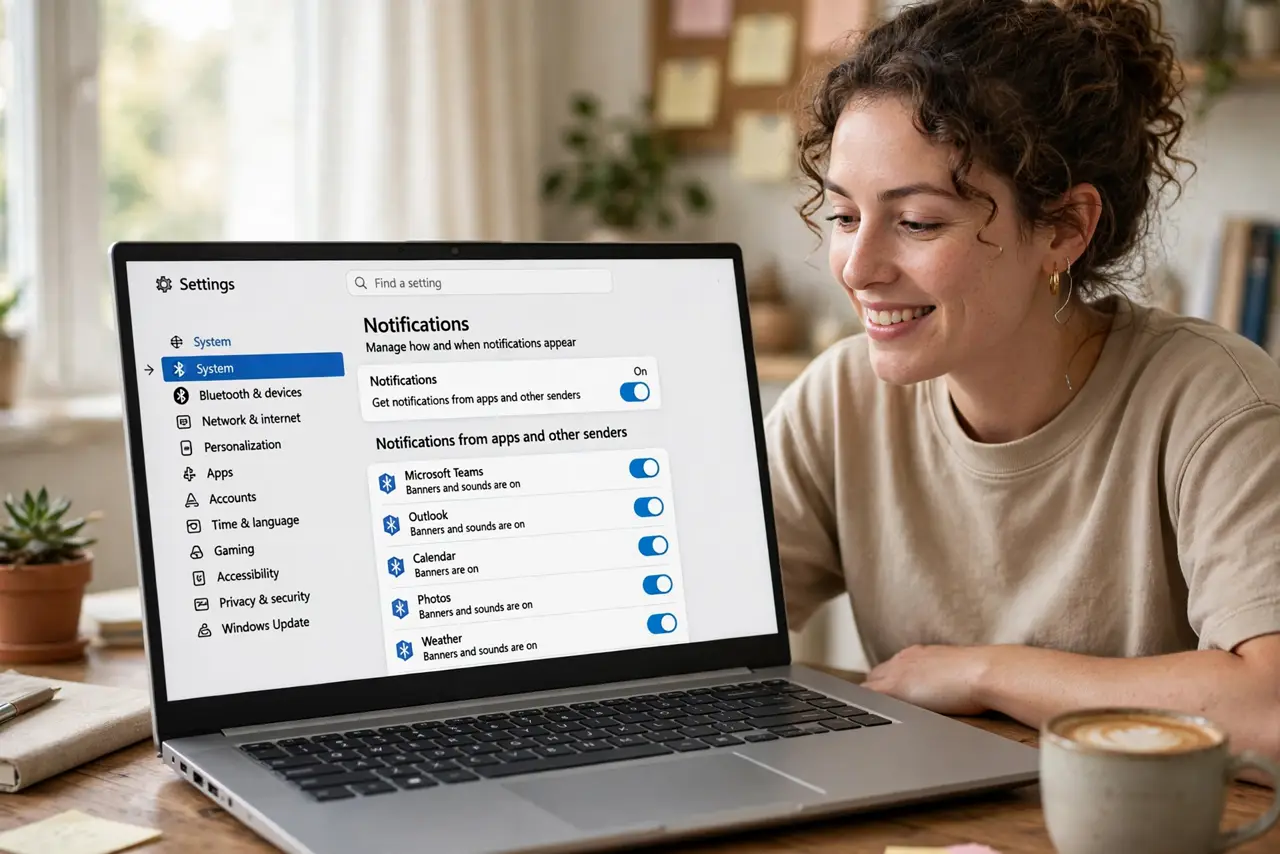
Quick fix: open Settings, go to System, then Notifications, and turn off notifications for each noisy app individually — or click any notification to jump to that app's settings. Keep banners for messaging apps you need; silence news, store, and game launchers entirely.
Follow these steps
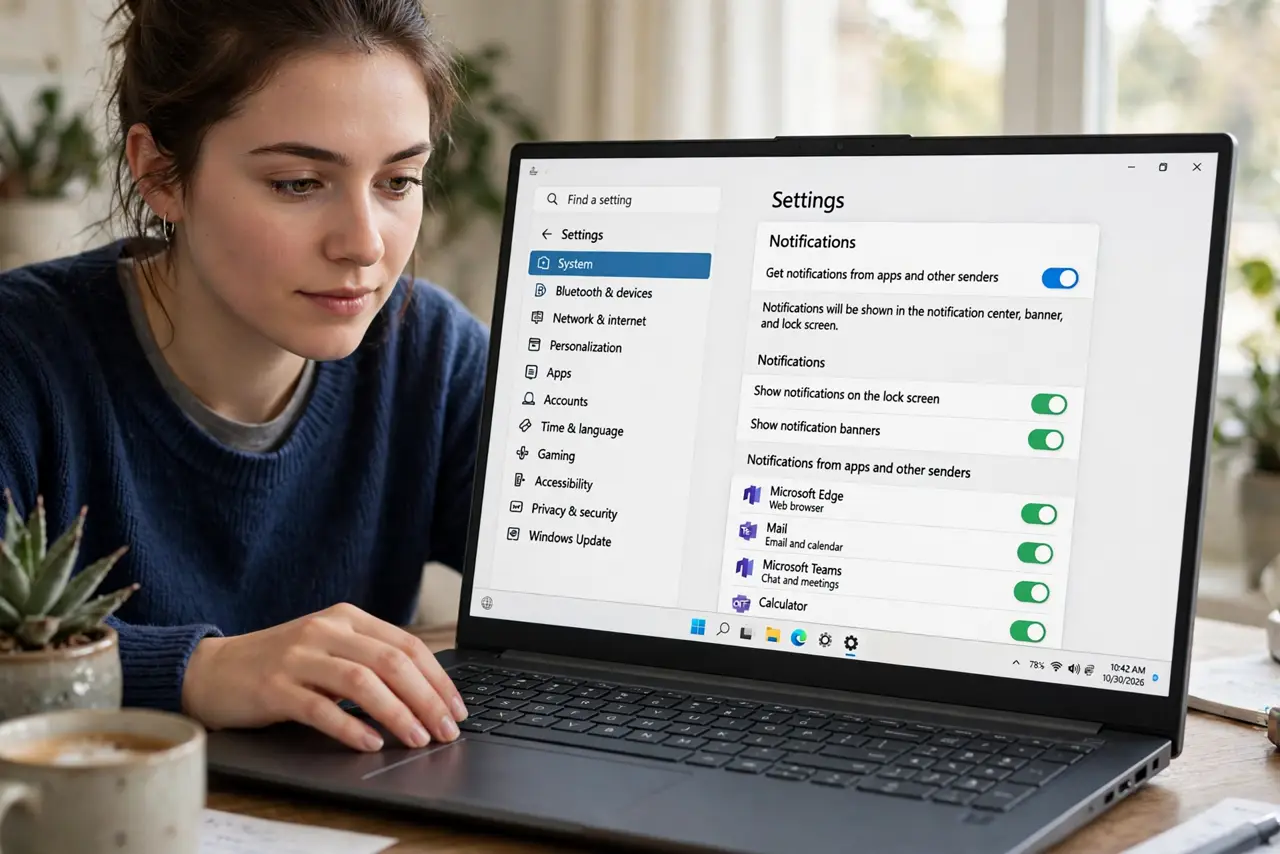
- Open notification settings. Go to Settings, then System, then Notifications. Every app that has ever asked to notify you is listed here with its own toggle.
- Silence the worst offenders. Turn off notifications entirely for news apps, game launchers, the store, and anything you do not remember installing. Be ruthless — you can re-enable later.
- Tune the keepers. For messaging and email, click the app name to fine-tune: banners on, sounds off is the focused person's setting. Notification center history without the interruption.
- Use the notification shortcut. Right-click any notification as it arrives and choose to turn off notifications for that app. Fixing it in the moment beats a settings expedition later.
- Schedule quiet hours. Turn on Do not disturb on a schedule — work hours, evenings, sleep. Per-app rules handle the what; schedules handle the when.
- Audit monthly. New apps ask for notification permission constantly. A monthly thirty-second scan of the list keeps the noise from creeping back.
What NOT to do
- Do not mute everything to solve one noisy app. The per-app toggles exist so important messages still reach you.
- Do not allow notifications during setup without thinking. Every 'allow' is a future interruption — default to no for new apps.
- Do not forget Do not disturb has exceptions. Alarms and priority contacts can break through; configure them before you need them.
- Do not confuse notification settings with the app's own settings. Some apps notify from their own servers regardless — check both.
Frequently asked questions
Why am I still getting notifications from an app I muted?
Some apps use their own notification systems or toast from background services. Check the app's internal settings too.
Where do muted notifications go?
Nowhere — muted means not delivered. If you want history without interruption, keep the app on but disable banners and sounds.
Can I mute notifications only at night?
Yes — Do not disturb on a schedule handles nights. Per-app rules are always-on; schedules add the time dimension.