OneDrive Placeholders Will Not Open Offline
OneDrive placeholders, also called Files On-Demand, show every file without downloading it, which saves space but means a file needs the internet to open. When you are offline, placeholders fail, and the fix is marking the files you need as always available. If your backup strategy needs a rethink, see backing up Windows automatically.
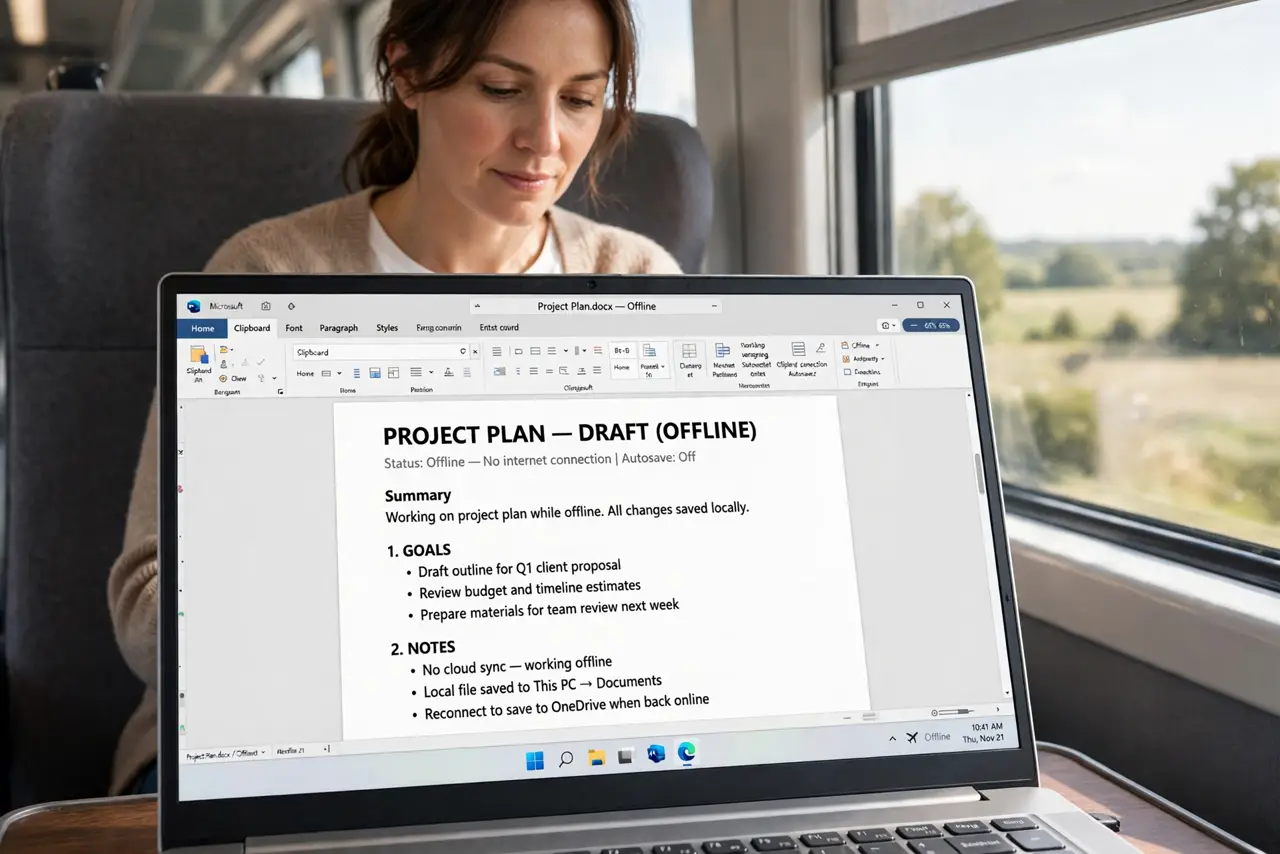
TL;DR / Quick Fix
Quick fix: Tell placeholders from downloaded files. Make key files always available. Then work through the remaining steps in order, checking one change at a time, and stop for a technician if you see damage, swelling, or a burning smell.
Follow these steps
- Tell placeholders from downloaded files. In File Explorer, look at the Status column for OneDrive files. A cloud icon means online-only placeholder, while a green tick means downloaded and available offline.
- Make key files always available. Right-click the files or folders you need offline and choose Always keep on this device. Windows downloads them fully, so they open with no internet.
- Check OneDrive is running and signed in. Click the OneDrive cloud icon in the taskbar and confirm it is signed in and syncing. A paused or signed-out OneDrive cannot download placeholders, even online.
- Free space for offline files. Open Settings, then System, then Storage, and confirm enough free space for the files you mark offline. Always-available files use real disk space, unlike placeholders.
- Test offline before you travel. Turn on airplane mode, then open a file you marked always available. A successful offline open proves the setup, while a failure now is fixable before a trip.
- Use Free up space for files you no longer need offline. Right-click a file you no longer need offline and choose Free up space. It returns to a placeholder, saving disk space while staying visible in File Explorer.
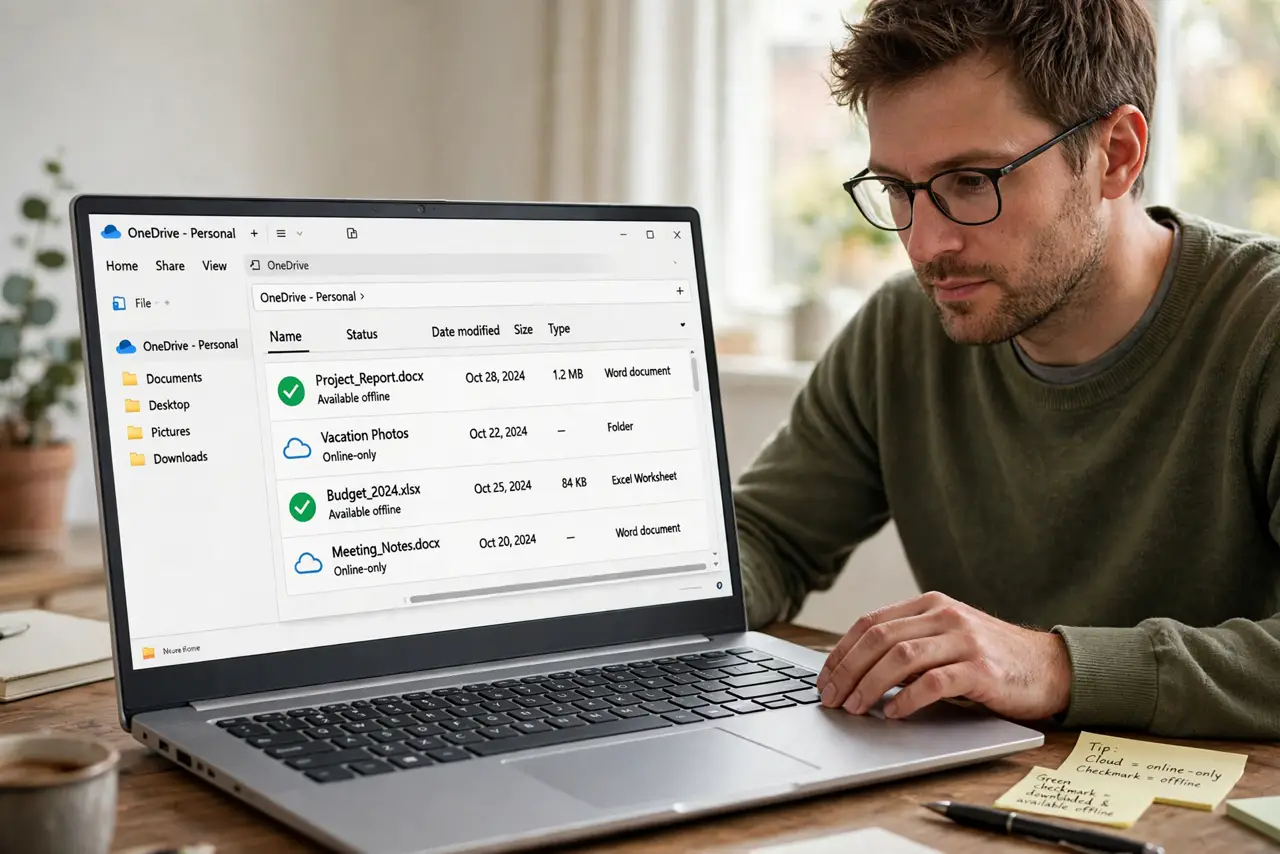
What NOT to do
- Do not mark your whole OneDrive always available. That can fill the disk, so mark only the folders you truly need offline.
- Do not delete placeholders to save space. Deleting a placeholder can delete the online file too, while Free up space only removes the local copy.
- Do not assume a placeholder failure means the file is gone. The file is safe online, and it opens once you are back online or mark it available.
- Do not turn off Files On-Demand entirely without checking disk space. Full downloads of a large OneDrive can fill a small drive fast.
Frequently asked questions
What is the difference between a placeholder and a file?
A placeholder is a pointer that downloads on open, while an always-available file is fully stored on the disk.
Do placeholders use internet when I open them?
Yes, the first open downloads the file, after which it stays cached until you free up space.
Can I see placeholders without OneDrive running?
You can see their names, but opening them needs OneDrive running and, for placeholders, an internet connection.