Try Layers in Paint
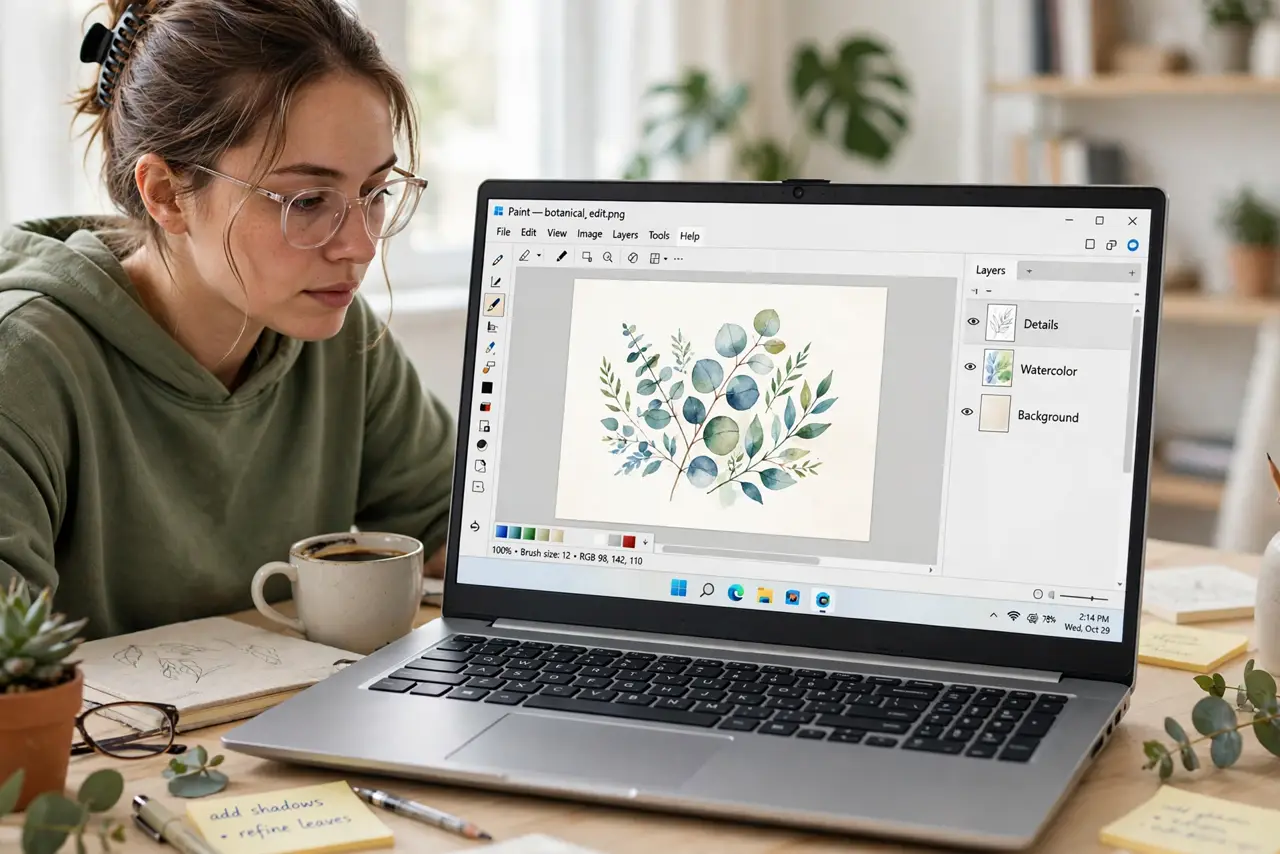
Modern Paint is no longer the toy from the nineties — it has real layers, so you can stack text over shapes over photos and edit each piece without wrecking the rest. If basic edits used to send you hunting for Photoshop, layers change the math. This guide covers the layer workflow that makes Paint genuinely useful.
TL;DR / Quick Fix
Quick fix: the new Paint has layers — open the Layers panel, add a layer for each element, and edit them independently. Reorder layers by dragging; the top layer covers the ones below. Save as PNG to keep transparency, since JPEG flattens everything into one layer.
Follow these steps
- Open the Layers panel. In Paint, click the Layers button to reveal the panel. Every new image starts with one background layer; everything you add stacks on top.
- Add a new layer for each element. Click the plus icon to add a layer, then draw or paste onto it. Text on its own layer can be moved and restyled without touching the photo beneath.
- Reorder layers by dragging. Drag layers up or down in the panel. The top layer covers lower ones — put backgrounds at the bottom and text or stickers at the top.
- Toggle visibility to compare. Click the eye icon to hide a layer temporarily. This is the fastest way to check whether an element actually improves the image.
- Duplicate before risky edits. Right-click a layer and duplicate it before a big change. If the edit goes wrong, delete the copy and the original is untouched.
- Save correctly to keep your work. Save as PNG to preserve transparency between layers. Remember Paint flattens on some exports — keep a copy of the layered file if the format supports it.
What NOT to do
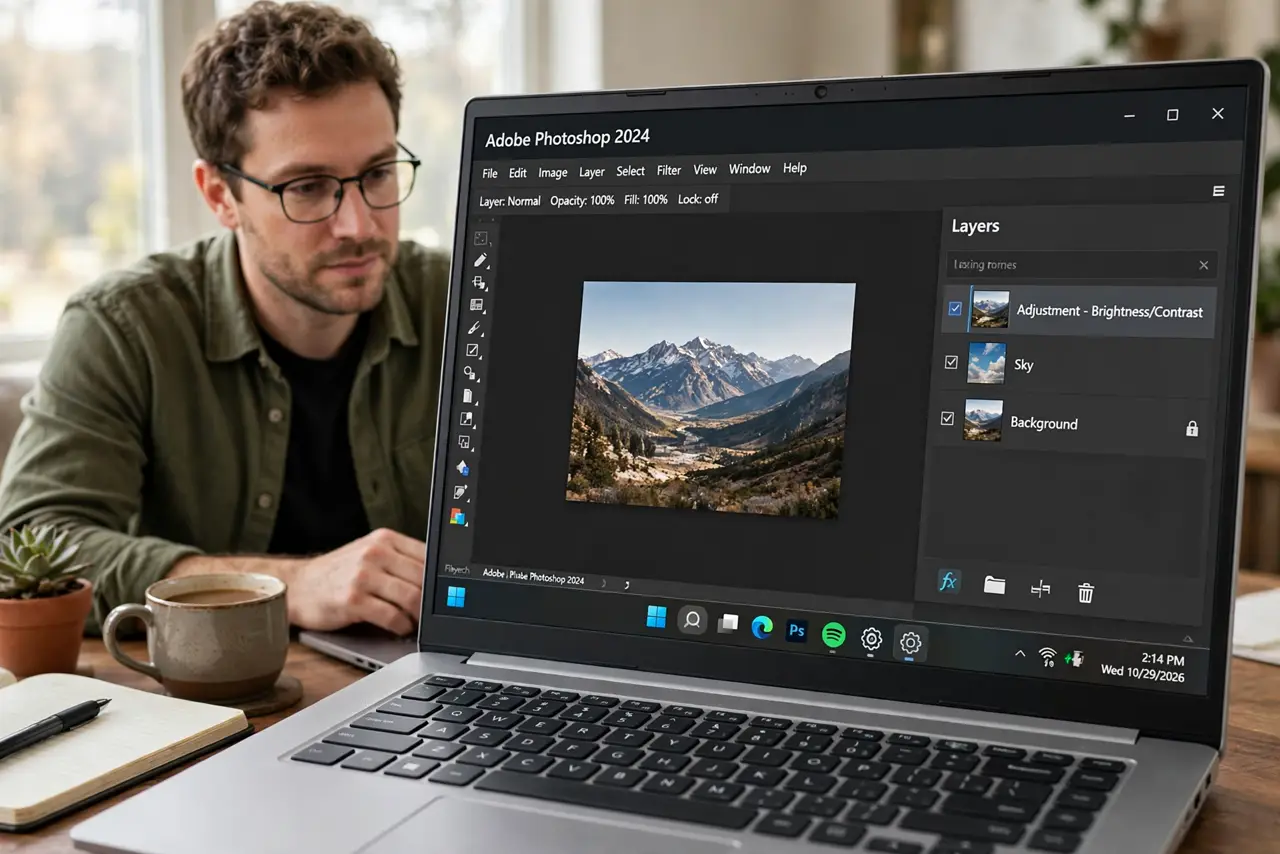
- Do not draw everything on one layer. That is the old Paint trap — one layer means one mistake ruins the whole image.
- Do not save layered work as JPEG. JPEG has no transparency and flattens everything; use PNG.
- Do not expect Photoshop-grade masking. Paint layers are simple stacking — fine for basic edits, not for complex compositing.
- Do not forget which layer is active. Edits land on the highlighted layer; check before you draw or you will paint on the wrong one.
Frequently asked questions
Does the classic Paint have layers?
No — layers came with the redesigned Windows 11 Paint. Update Paint from the Microsoft Store if you do not see the Layers button.
Can I make a transparent background?
Yes — delete or hide the background layer and save as PNG. Transparency survives only in formats that support it.
How many layers can I add?
Plenty for basic work — dozens. But each layer adds memory, so merge finished sections on huge images.