Find Bottlenecks with Perfmon
The PC is slow, but which part is guilty — the processor, the memory, the disk? Guessing leads to buying the wrong upgrade. Performance Monitor lets you measure instead: watch each component under load and see which one flatlines at maximum. For crash patterns rather than slowness, check Reliability History first.
TL;DR / Quick Fix
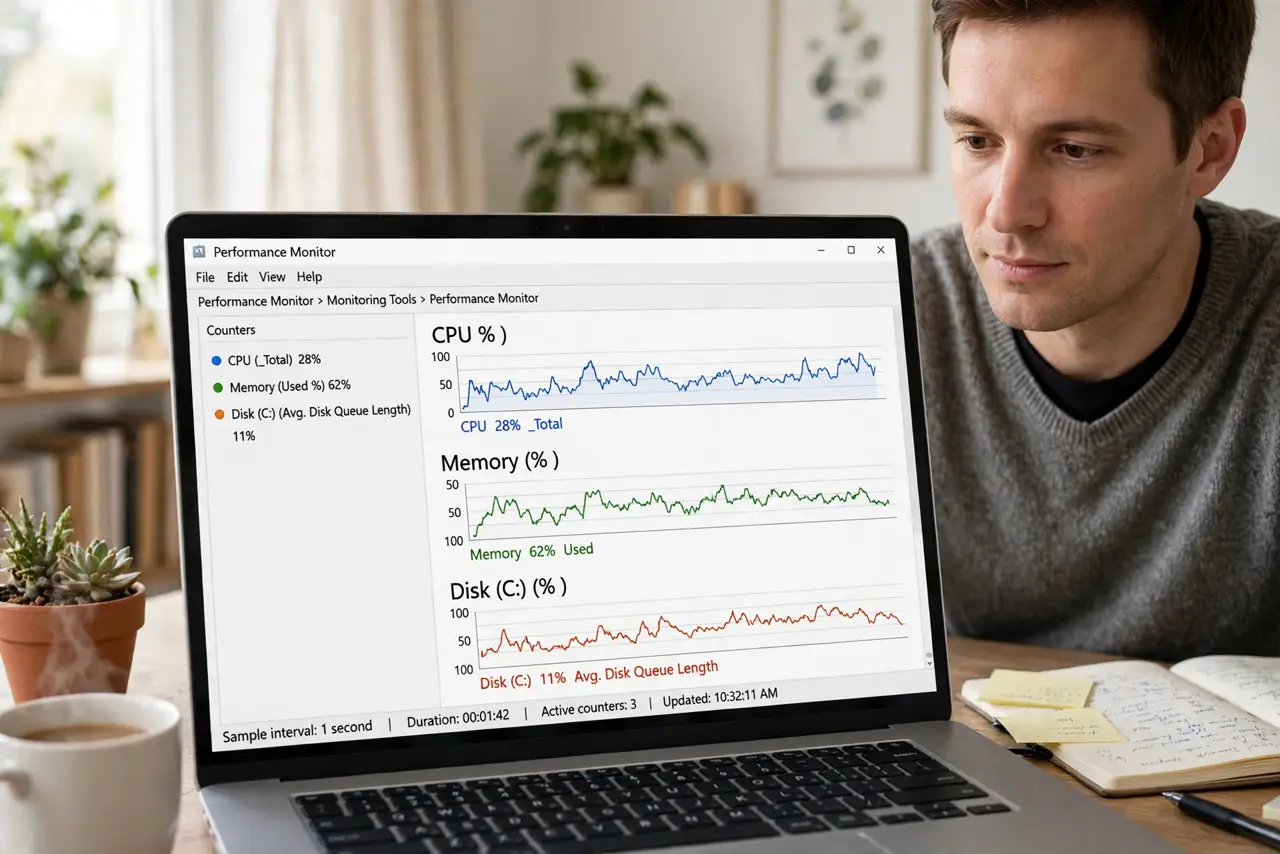
Quick fix: open Performance Monitor, add counters for processor, memory, and disk queue length, then use your PC normally during a slowdown. Whichever counter sits near maximum the whole time is your bottleneck — disk at 100% means storage, RAM maxed means memory. Guess the part never; measure it.
Follow these steps
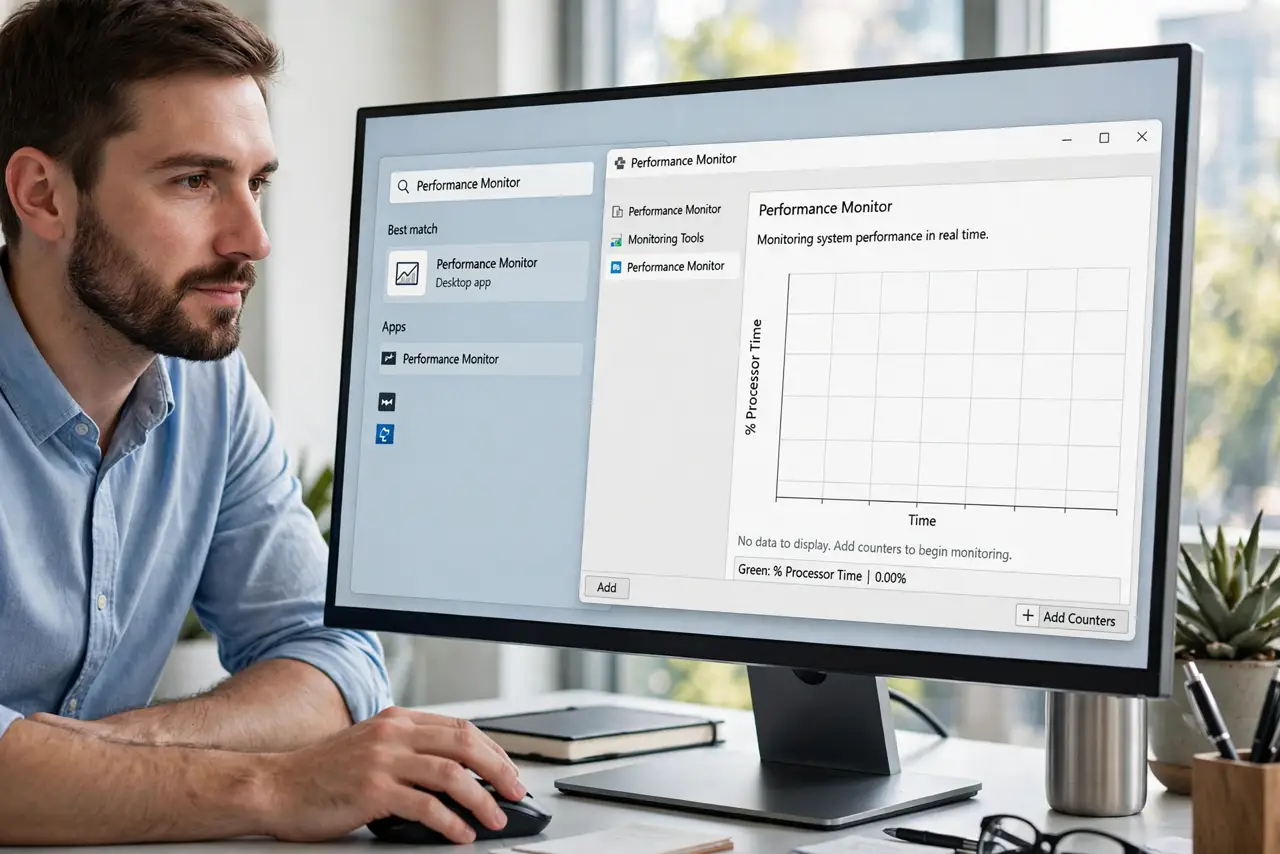
- Open Performance Monitor. Search the Start menu for “Performance Monitor” (perfmon) and open it. The blank graph is your canvas — no setup needed to start.
- Add the key counters. Click the green plus and add: Processor > % Processor Time, Memory > Available MBytes, PhysicalDisk > Avg. Disk Queue Length. These three catch most bottlenecks.
- Reproduce the slowdown. Leave Perfmon running and do the thing that feels slow — open the big project, launch the game, run the usual workload. Measurement needs the real load.
- Read the graphs. A counter pinned near its maximum for the whole slowdown is your bottleneck: CPU at 100% means processor-bound, disk queue climbing means storage-bound, available memory near zero means RAM-bound.
- Confirm it is sustained, not a spike. Brief spikes are normal — every PC spikes opening apps. Bottlenecks show as sustained maximums lasting through the whole task.
- Decide the fix. Disk-bound: an SSD upgrade or finding the disk hog. RAM-bound: more memory. CPU-bound at 100% constantly: a heavier upgrade decision — or lighter software.
What NOT to do
- Do not diagnose from idle graphs. A flatlined counter at rest means nothing — measure under your real workload.
- Do not add fifty counters at once. Three to five clear lines beat a rainbow spaghetti graph nobody can read.
- Do not confuse spikes with bottlenecks. Opening any app spikes CPU briefly; sustained maximums are the diagnosis.
- Do not buy upgrades on vibes. One measured session beats a hundred forum opinions about what “your” bottleneck is.
Frequently asked questions
Perfmon vs Task Manager — which?
Task Manager shows the moment; Perfmon records history with precision. Use Task Manager for a glance, Perfmon for a diagnosis.
What is a good disk queue length?
Sustained values well above 1–2 per disk during your workload signal the disk cannot keep up.
Can Perfmon log overnight?
Yes — Data Collector Sets record for hours. Overkill for most home diagnosis, gold for intermittent slowdowns.