Phone Link Won't Connect to Your Phone
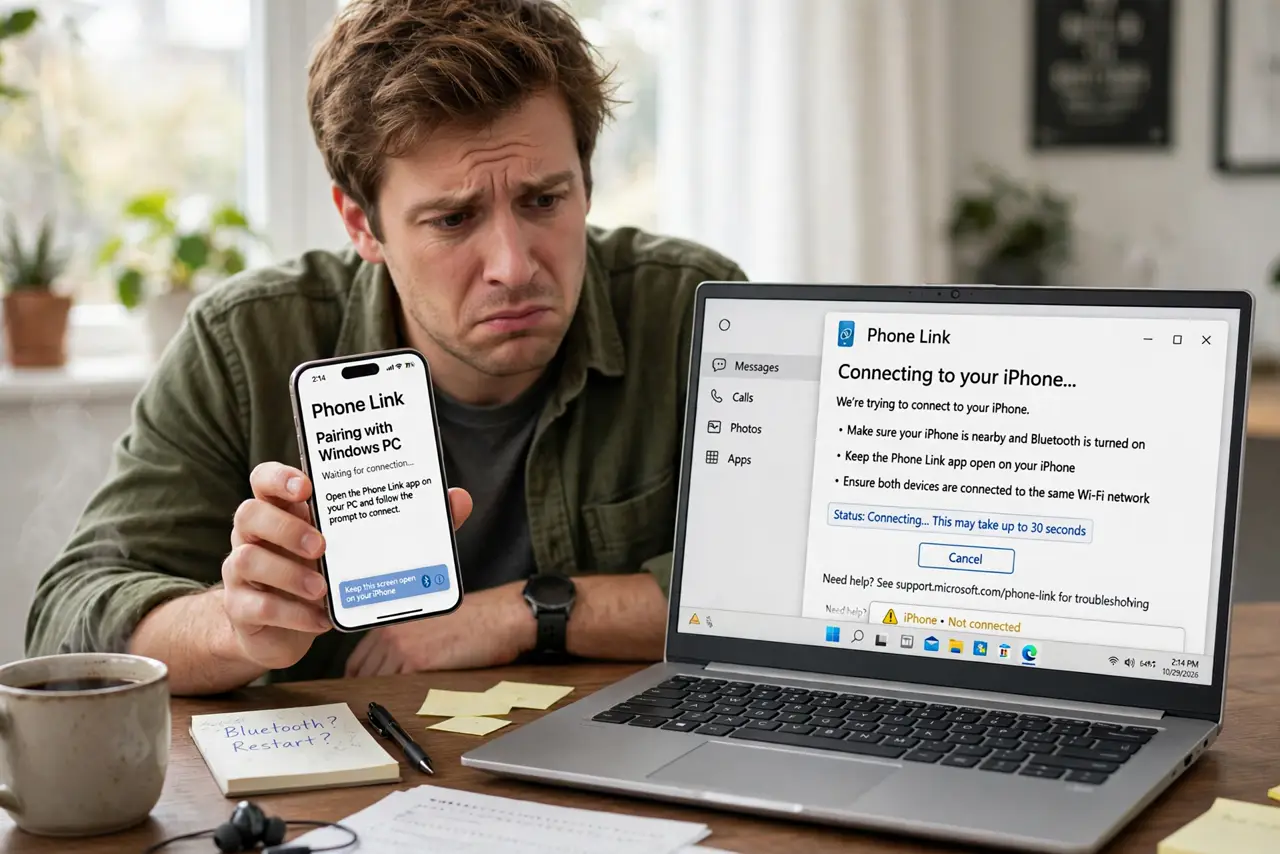
Phone Link spins on Connecting forever and never pairs with your Android phone or iPhone. The link needs Bluetooth, the same Wi-Fi network, the companion app on the phone, and the same Microsoft account on both ends. One missing piece stalls the whole thing, and the checklist below finds it — the Bluetooth pairing guide helps if the wireless link itself is the problem.
TL;DR / Quick Fix
Quick fix: put phone and PC on the same Wi-Fi network, turn Bluetooth on for both, and confirm the Link to Windows companion app is installed and signed into the same Microsoft account as the PC. Restart both devices, then pair fresh. Most stuck connections clear on a clean re-pair.
Follow these steps
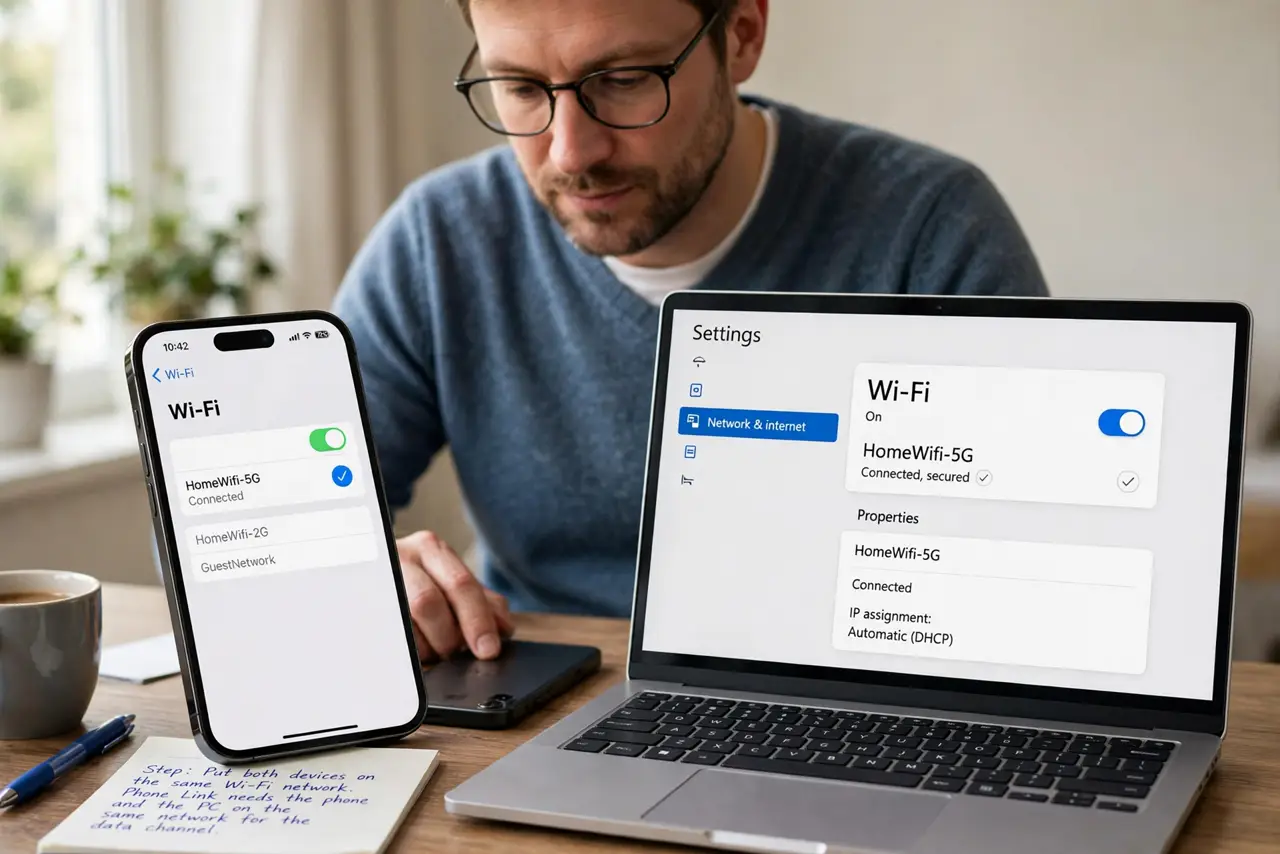
- Put both devices on the same Wi-Fi network. Phone Link needs the phone and the PC on the same network for the data channel. A phone on mobile data or a guest network will never complete pairing.
- Turn Bluetooth on for both devices. The initial handshake and some features use Bluetooth. Enable it on the phone and the PC, and keep the devices within a few meters during pairing.
- Install the companion app on the phone. Android needs Link to Windows and iPhone needs the same companion flow; install it from the official store and grant the permissions it asks for during setup.
- Sign into the same Microsoft account everywhere. The PC's Phone Link and the phone's companion app must use the same Microsoft account. A personal account on one and a work account on the other is a classic silent failure.
- Restart both devices, then pair fresh. Reboot the phone and the PC, remove any half-finished pairing from Bluetooth settings, and run the pairing flow again from the start.
- Check the PC's Phone Link app for updates. An outdated Phone Link app on the PC can refuse to talk to a newer companion app. Update it from the Microsoft Store before deeper troubleshooting.
What NOT to do
- Do not pair through a VPN on either device. A VPN puts the phone on a different virtual network, which breaks the same-network requirement.
- Do not skip the companion app's permissions. Denying contacts, notifications, or nearby-devices permission silently disables the features you wanted.
- Do not expect iPhone features to match Android. iPhone support is more limited by Apple's design, so check what your phone type actually supports first.
- Do not factory reset the phone for a pairing issue. The failure is in the handshake, and a reset is a sledgehammer for a settings problem.
Frequently asked questions
Why is Phone Link stuck on Connecting?
Because one requirement is unmet: different networks, Bluetooth off, missing companion app, or mismatched accounts. The checklist above finds which one.
Does Phone Link work over mobile data?
No. Both devices must share the same Wi-Fi network for the connection to establish.
Why do messages sync but calls do not?
Because calls need the Bluetooth link specifically, while messages use Wi-Fi. A broken Bluetooth pairing gives exactly that split.