Erase Objects in Photos
The sunset is perfect except for the stranger wandering through it. The Windows Photos app can erase unwanted objects — people, signs, trash cans — and fill the gap from the surrounding image. It will not fool a forensic analyst, but it rescues vacation photos beautifully. For softening backgrounds instead, try background blur.

TL;DR / Quick Fix
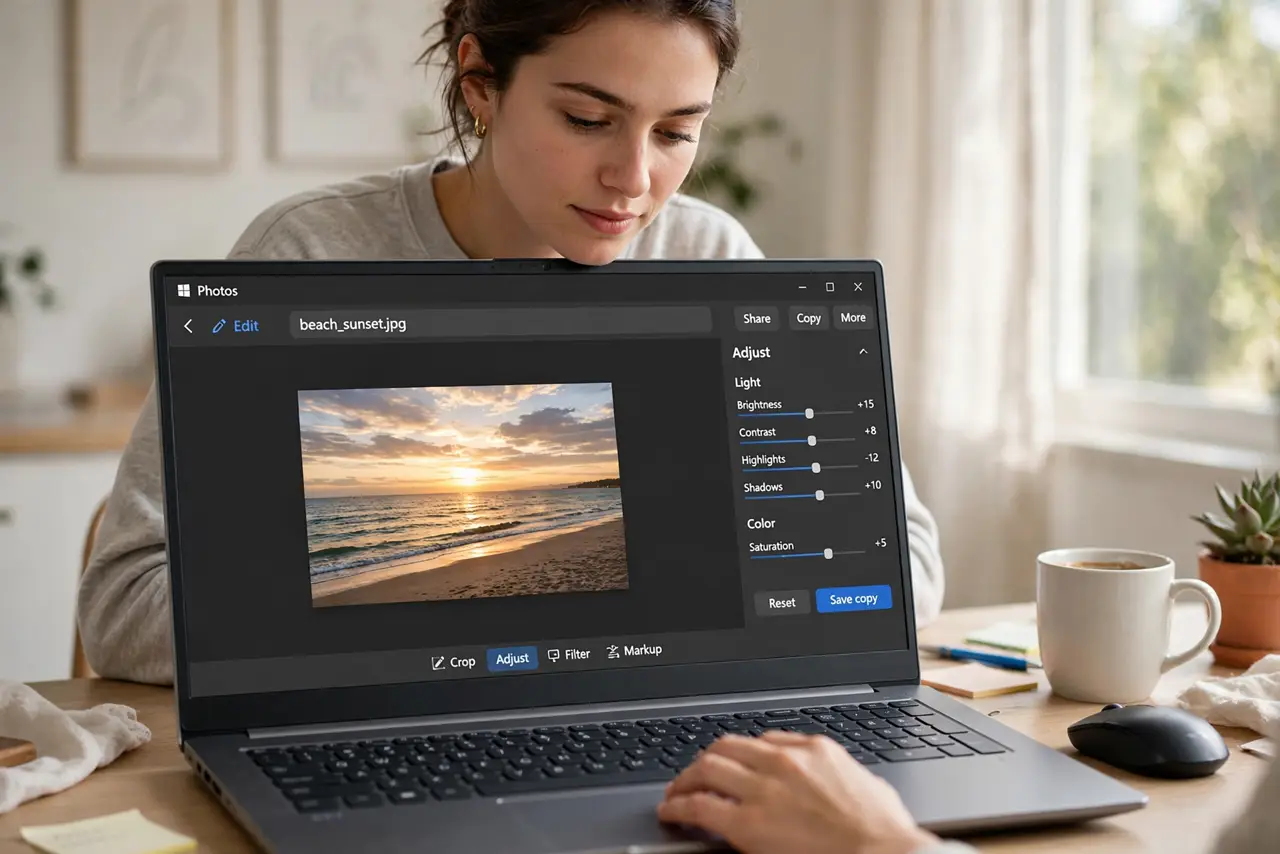
Quick fix: in Windows Photos, open the image, choose the erase or retouch tool, and brush over the photobomber — the app fills the area from the surroundings. It works best on small distractions against simple backgrounds. Save a copy first; erasing is easiest to redo from the original.
Follow these steps
- Open the photo in Photos. Double-click the image to open it in the Windows Photos app and enter edit mode.
- Select the erase tool. Find the retouch or erase option in the editing tools. It is the brush that removes rather than paints.
- Brush over the unwanted object. Paint over the photobomber, sign, or trash can. The app samples the surrounding area and fills in the gap automatically.
- Work in small strokes. Erase bit by bit rather than in one giant swipe. Small strokes give the fill algorithm cleaner material to work with.
- Zoom in to check. Look closely at the repaired area for smudges or repeated patterns. Undo and retry sections that look obviously patched.
- Save as a copy. Keep the original untouched. If the edit looks off later, you can redo it instead of mourning the original.
What NOT to do
- Do not expect invisible results on complex areas. Erasing works on simple backgrounds; busy scenes reveal the patch.
- Do not erase people from photos dishonestly. Removing an ex from a group shot is fine; altering evidence or news is not.
- Do not overwrite the original file. Always save a copy — re-edits need the clean starting image.
- Do not spend an hour on one speck. If the object is tiny, nobody but you will ever notice it.
Frequently asked questions
Why does the erased area look blurry?
The fill is a guess built from nearby pixels. On detailed backgrounds the guess shows — smaller brushes and simpler backgrounds help.
Can I erase text like signs?
Yes, with the same tool. Clean backgrounds erase cleanly; textured ones may leave ghosts.
Is this the same as Photoshop's tool?
Same idea, simpler execution. For casual fixes it is plenty; professionals still reach for heavier tools.