You Forgot Your PIN but Remember the Password
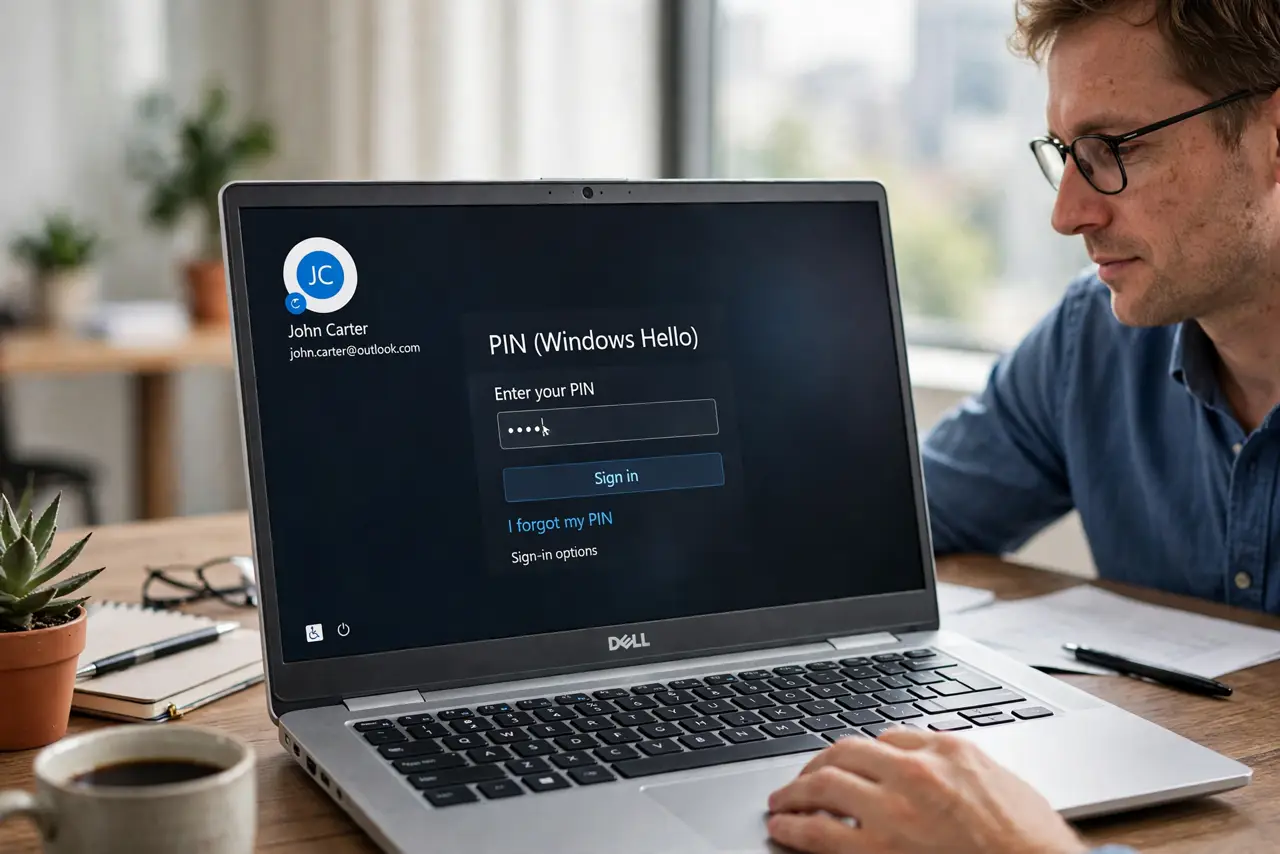
Forgetting a PIN is only a problem if you cannot sign in at all, and a working password solves that completely. This guide signs you in with the password, removes the forgotten PIN, and sets a new one with a memory aid. If fingerprint sign-in is the failing method, see fingerprint sign-in failing after an update.
TL;DR / Quick Fix
Quick fix: Sign in with your password. Open the sign-in options page. Then work through the remaining steps in order, checking one change at a time, and stop for a technician if you see damage, swelling, or a burning smell.
Follow these steps
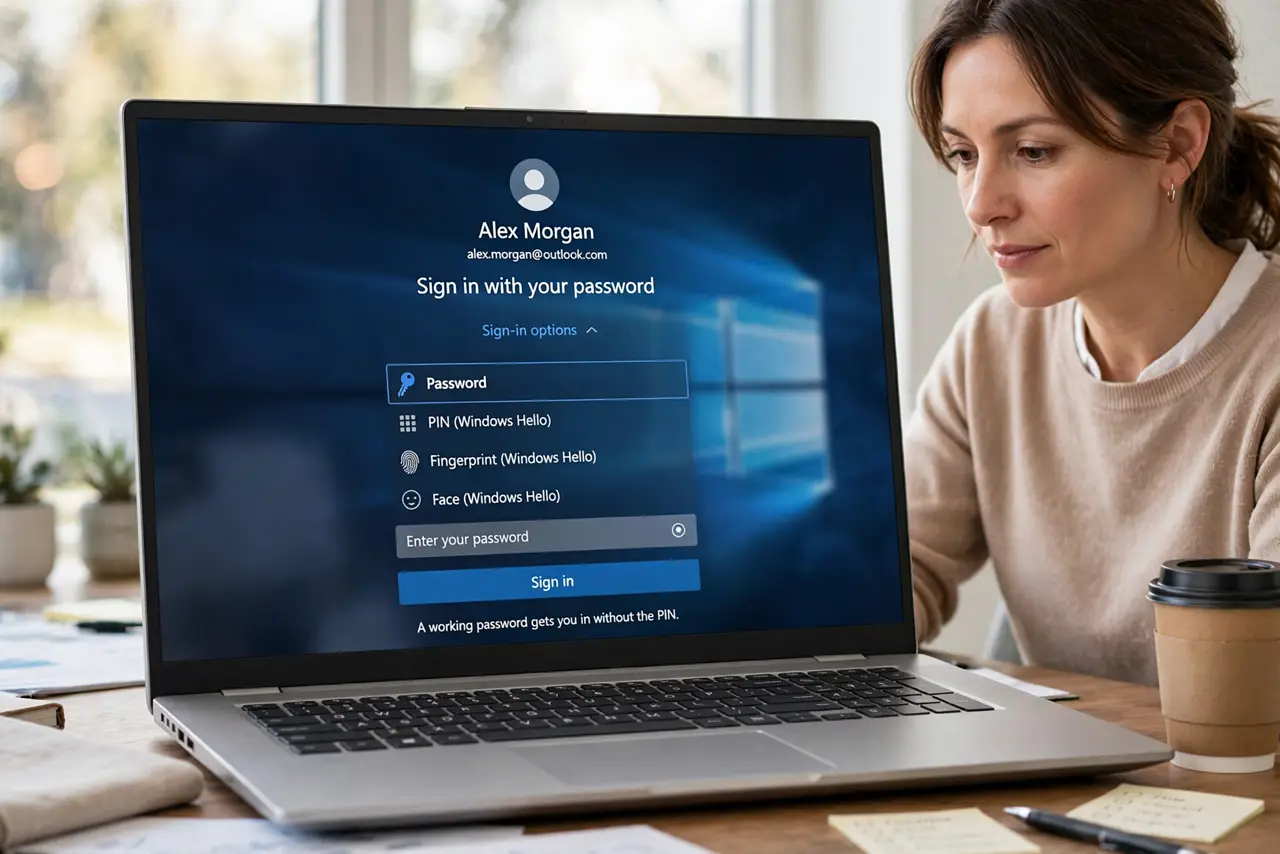
- Sign in with your password. At the sign-in screen, choose Sign-in options and pick the password icon, then sign in with your Microsoft account or local password. A working password gets you in without the PIN.
- Open the sign-in options page. Open Settings, then Accounts, then Sign-in options, and find the PIN section. This is where you remove and replace the PIN, once you are signed in.
- Remove the forgotten PIN. In the PIN section, choose Remove and confirm with your password when asked. Removing a PIN you cannot remember is safe, because the password proves it is your account.
- Set a new PIN you can recall. Choose Add under PIN, verify with your password, and pick a new PIN tied to something memorable but not obvious, such as a pattern on the keypad you can picture. Avoid birth years and simple sequences.
- Test the new PIN from lock. Lock Windows with the Windows key plus L, then sign in with the new PIN. A lock-screen test proves the new PIN works before you rely on it tomorrow.
- Write a private reminder, not the PIN. Store a hint, not the PIN itself, in your password manager or a safe place, such as the pattern name you chose. A hint helps you recall it without exposing it.
What NOT to do
- Do not guess the old PIN repeatedly. Repeated wrong guesses can delay sign-in, while the password route gets you in at once.
- Do not write the PIN on a note stuck to the laptop. A visible PIN defeats the point of having one.
- Do not use the same PIN everywhere. A Windows PIN should be unique to the device, so a leak elsewhere does not open your PC.
- Do not reset Windows over a forgotten PIN. Password sign-in plus PIN removal is the built-in recovery, and it keeps all your files.
Frequently asked questions
Is a PIN less secure than a password?
No, on the device it is safer in practice, because a PIN works only on that PC, while a password can be tried from anywhere.
Can I recover the old PIN?
No, and you do not need to. Removing it and setting a new one is the intended recovery.
What if I forgot the password too?
Use the Microsoft account password reset from another device, or the local account reset options, before trying anything else.