Print Spooler Problems? Fix It
Print jobs vanish, the queue freezes, or Windows says the spooler service is not running — and every printer problem suddenly looks the same. The print spooler is the behind-the-scenes service that feeds jobs to the printer; when it jams, nothing prints. Restarting it clears most jams in under a minute.
TL;DR / Quick Fix
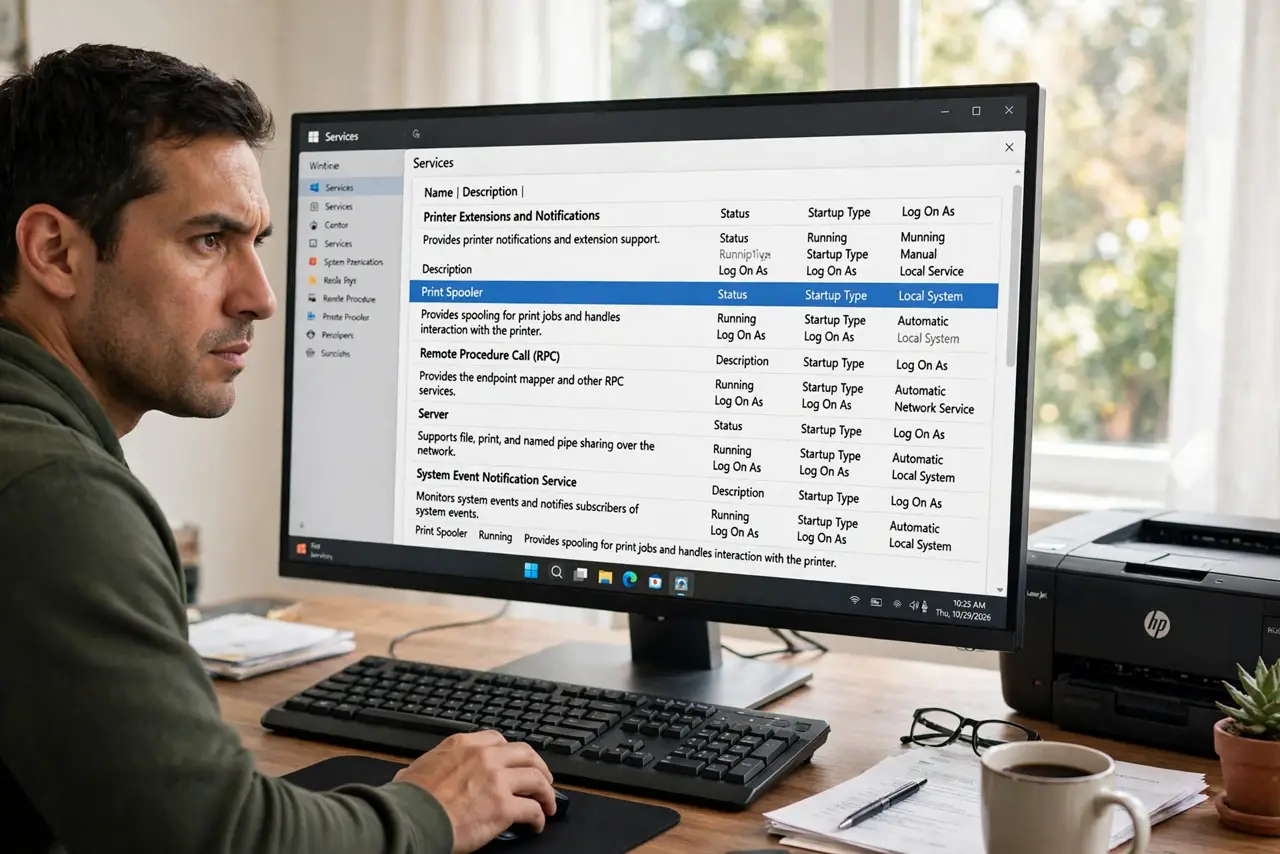
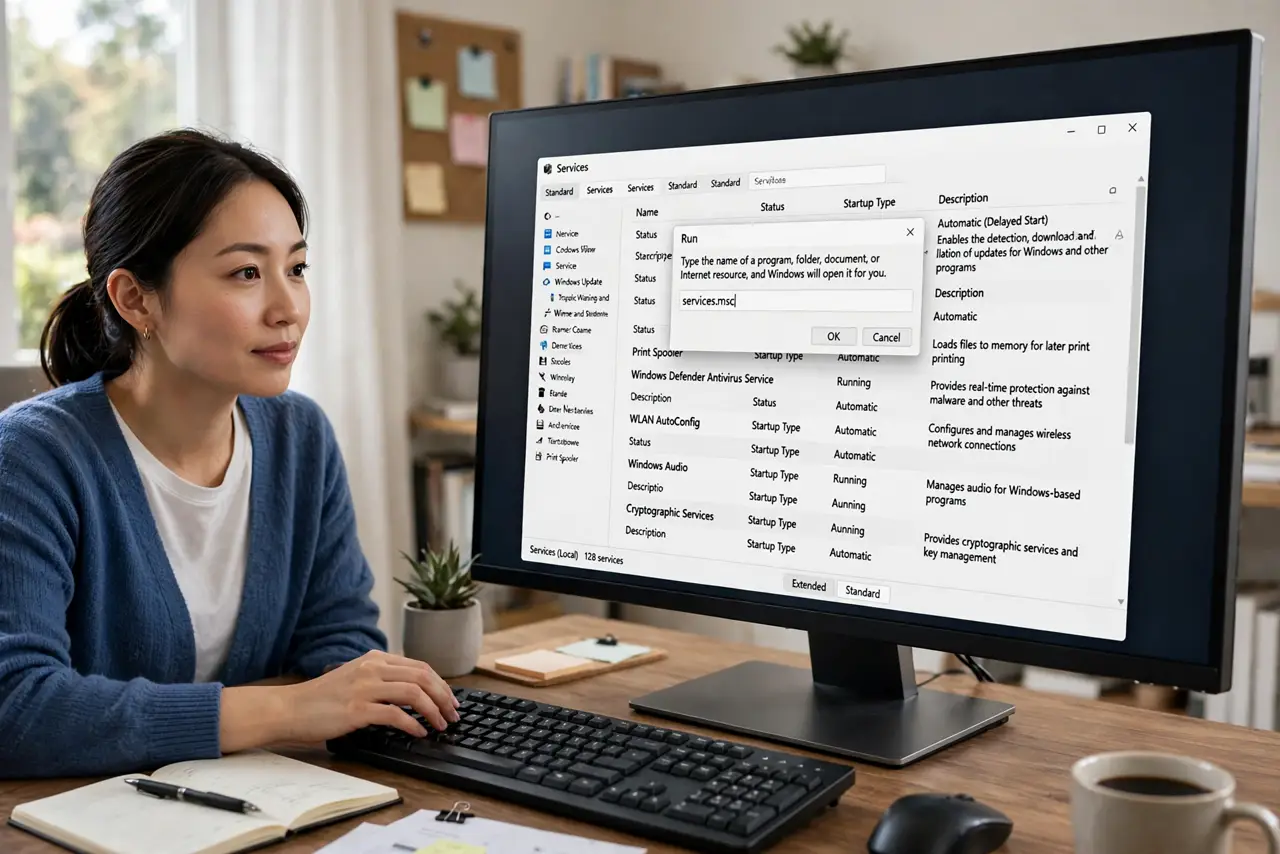
Quick fix: press Win+R, type services.msc, and find Print Spooler — right-click it and choose Restart. That clears the jammed queue in most cases. If jobs keep sticking, stop the service, delete the files in the spool folder, and start it again. Never delete printers to fix a spooler jam.
Follow these steps
- Open Services. Press Win+R, type services.msc, and press Enter. The Services window lists every background service alphabetically.
- Restart Print Spooler. Find Print Spooler, right-click it, and choose Restart. Wait for it to come back up, then try printing again.
- Clear the queue if restart is not enough. Stop the service, open the spool folder (Windows/System32/spool/PRINTERS), delete the stuck job files inside, then start the service again.
- Check the service's startup type. In the service's Properties, set Startup type to Automatic. A spooler set to Manual may simply not be running after reboots.
- Update or reinstall the printer driver. A corrupt driver crashes the spooler repeatedly. Remove the printer, install the maker's latest driver, and add it fresh.
- Watch for the pattern. One jam is bad luck; weekly jams mean a flaky driver or a dying printer. Fix the pattern, not just today's jam.
What NOT to do
- Do not delete and re-add printers to fix a spooler jam. The queue is the problem, not the printer entry — restarting the service is faster.
- Do not delete files from the spool folder while the service runs. Stop the service first, or the files lock and the jam persists.
- Do not disable the Print Spooler 'to save resources.' Disabling it breaks all printing silently and confuses every future diagnosis.
- Do not download 'spooler fixer' tools. The service restart is the fix; third-party tools add risk for zero benefit.
Frequently asked questions
What is the print spooler?
The Windows service that receives print jobs, queues them, and feeds them to the printer in order. When it stalls, everything behind it stalls too.
Why does the queue keep jamming?
Usually one corrupt job or a flaky driver. Clear the queue and update the driver; if jams repeat weekly, suspect the driver or hardware.
Can I print without the spooler?
No — Windows printing depends on it. It must be running, set to Automatic, for any printer to work.