Project Wirelessly
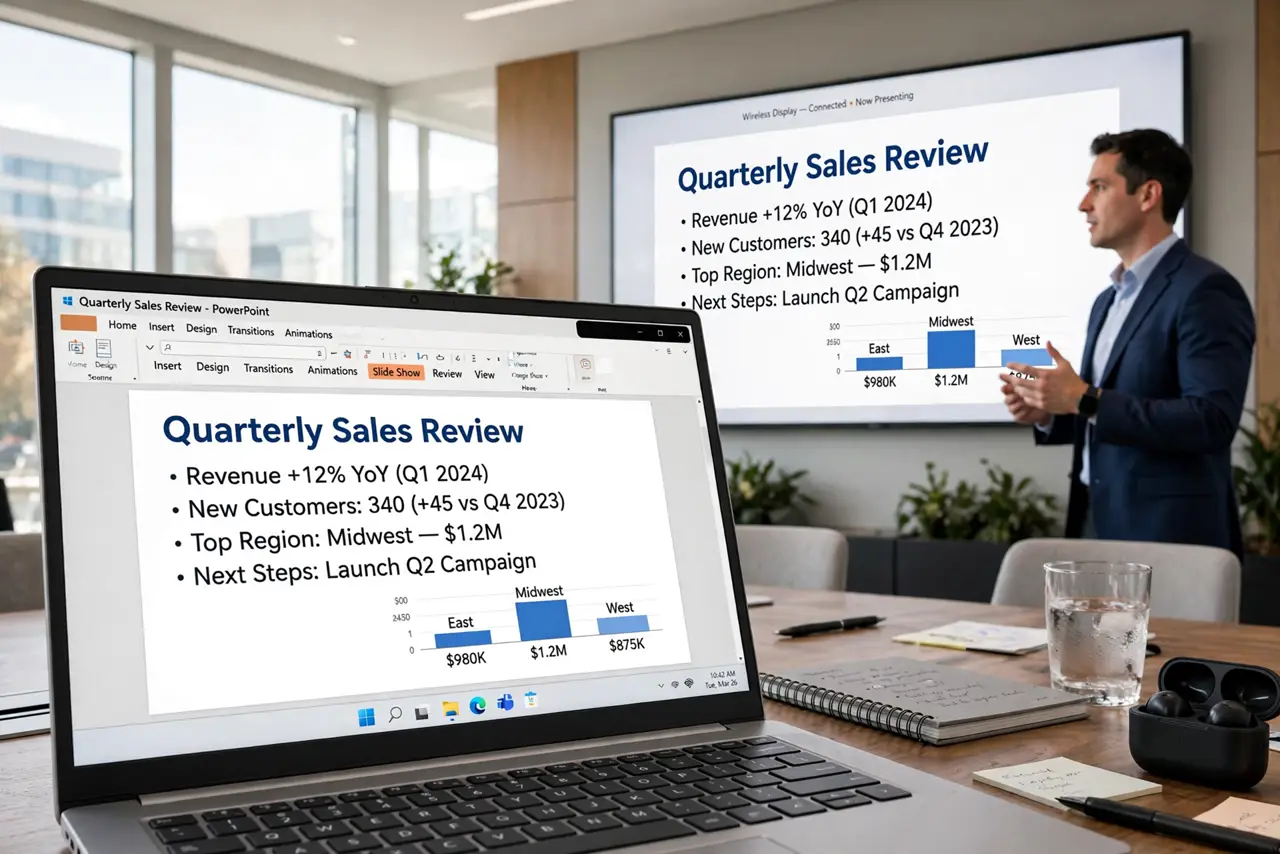
Meeting room, ten people waiting, and you are crawling under the table hunting for the HDMI cable — again. Wireless projection puts your screen on the room display with two keystrokes. This guide makes Windows+K your pre-meeting reflex.
TL;DR / Quick Fix
Quick fix: to project wirelessly in a meeting room, press Windows+K on your laptop and pick the room display — no HDMI cable hunt. The display must support Miracast. For a PC acting as receiver, install the Wireless Display optional feature first.
Follow these steps
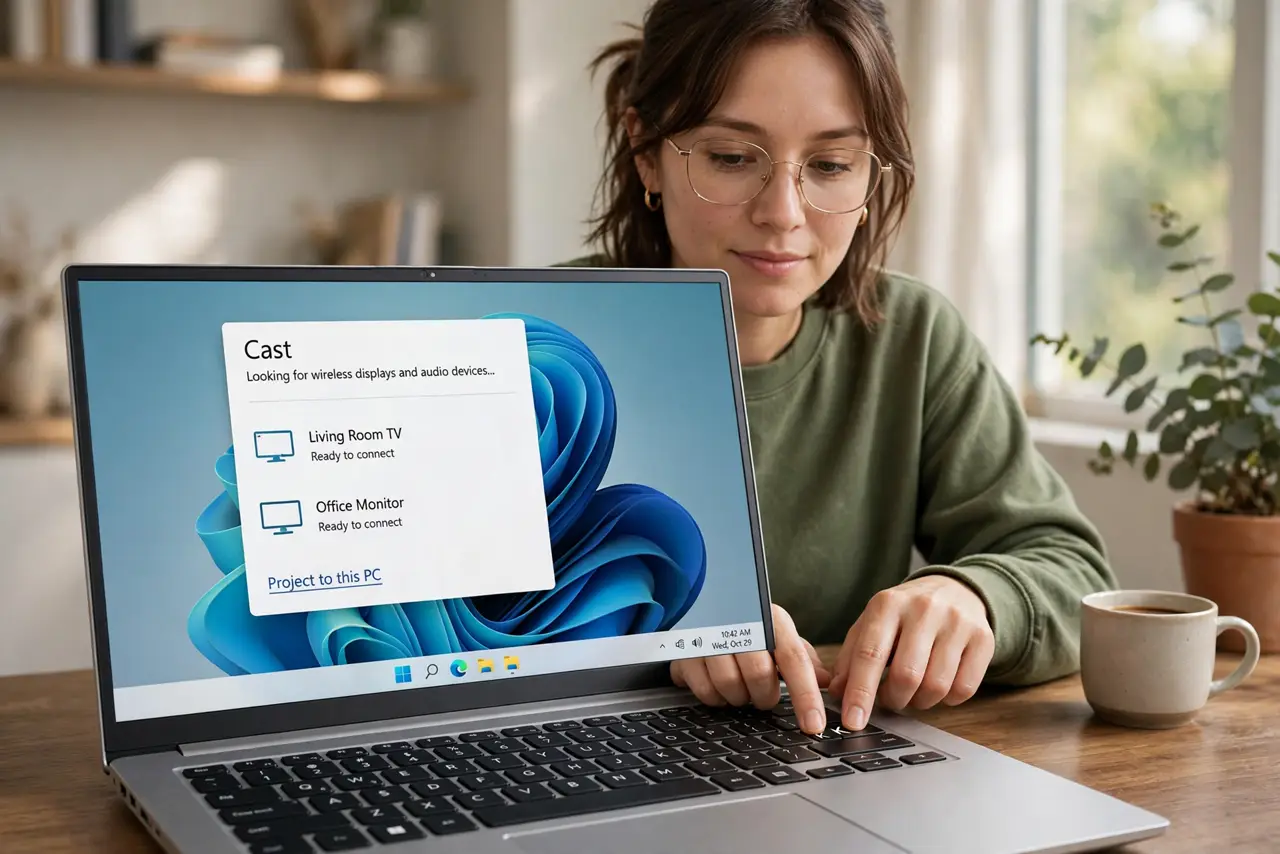
- Press Windows+K. The Cast panel lists nearby wireless displays. This is the whole trick — one shortcut, no cables, no adapters.
- Pick the room display. Select the meeting room's display or adapter from the list. First connection may ask for a PIN shown on the display — enter it once.
- Choose Duplicate or Extend. Duplicate mirrors your screen for presenting; Extend gives you presenter notes on the laptop and slides on the wall. Pick per meeting.
- Check the display supports it. The room display needs Miracast built in or a wireless display adapter dongle. No support, no cast — confirm before the meeting, not during.
- Stabilize the connection. Stay within range, keep the laptop's Wi-Fi on, close bandwidth hogs. Wireless projection hates congested airwaves — arrive early and test.
- Know the receiver side. Projecting TO a Windows PC? That PC needs the Wireless Display app installed — the two guides are a pair.
What NOT to do
- Do not arrive untested. First-time pairing in front of an audience is how meetings lose their first ten minutes.
- Do not present over a dying battery. Wireless projection plus presenting drains fast — plug in.
- Do not forget to disconnect after. A still-connected laptop keeps casting — end the session when you leave.
- Do not expect gaming-grade latency. Slides and video fine; fast interaction lags — match the tool to the content.
Frequently asked questions
Why is my laptop not finding the display?
Display not in pairing mode, Wi-Fi off, or out of range. Put the display in screen-mirroring mode first.
Can I project to a TV at home?
Yes, if the TV supports Miracast or has a wireless display adapter. Many smart TVs do.
Is it secure?
The first connection pairs with a PIN; subsequent ones are encrypted. In sensitive meetings, use a cable anyway.