Windows Is Stuck in Projector-Only Mode
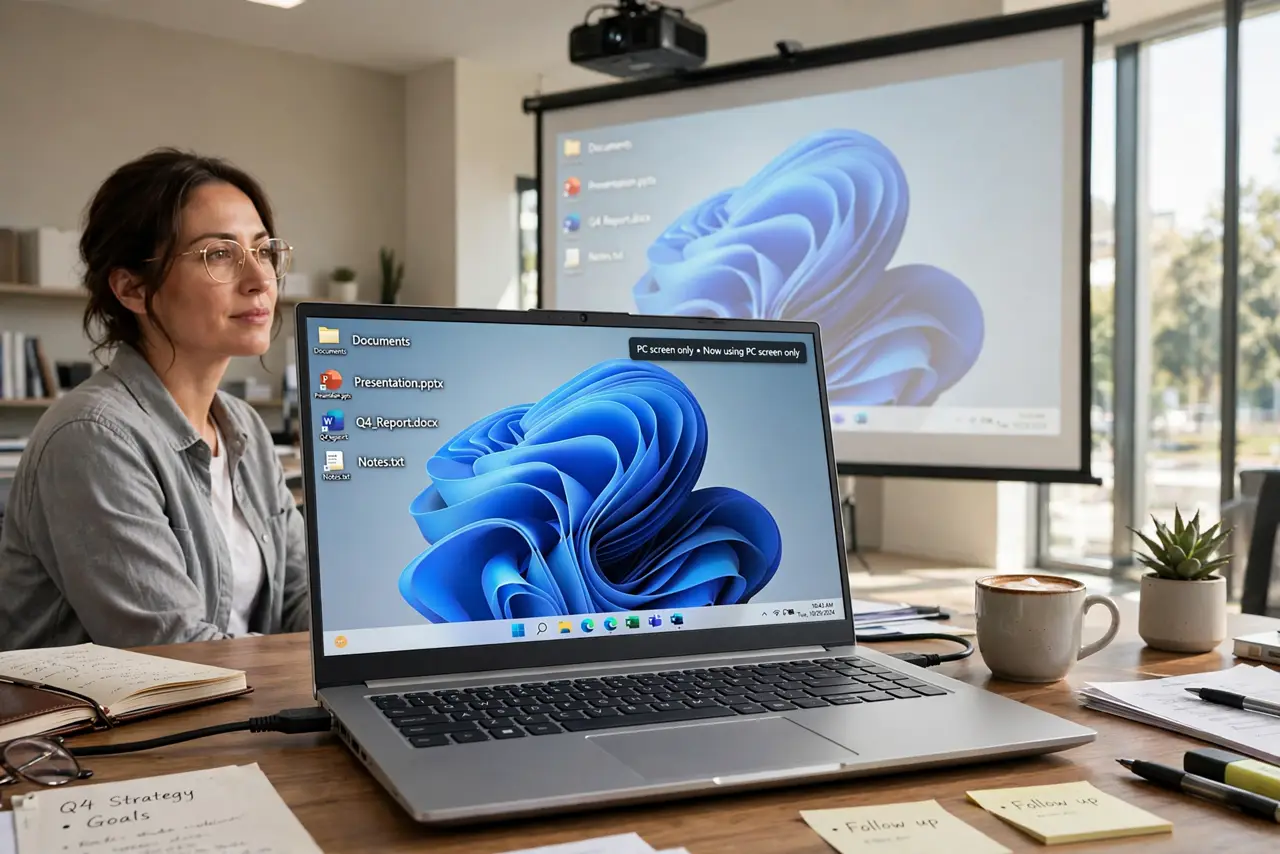
Projector-only mode, also called Second screen only, shows your desktop on the projector or second display and leaves the main screen dark. It is easy to enter by accident with a keyboard shortcut, and confusing to leave if you cannot see the menu. This guide gets you back with shortcuts you can use blind. If the second screen halves your resolution instead, see duplicate screen cutting resolution.
TL;DR / Quick Fix
Quick fix: Open the Project menu blind. Choose the PC screen only option. Then work through the remaining steps in order, checking one change at a time, and stop for a technician if you see damage, swelling, or a burning smell.
Follow these steps
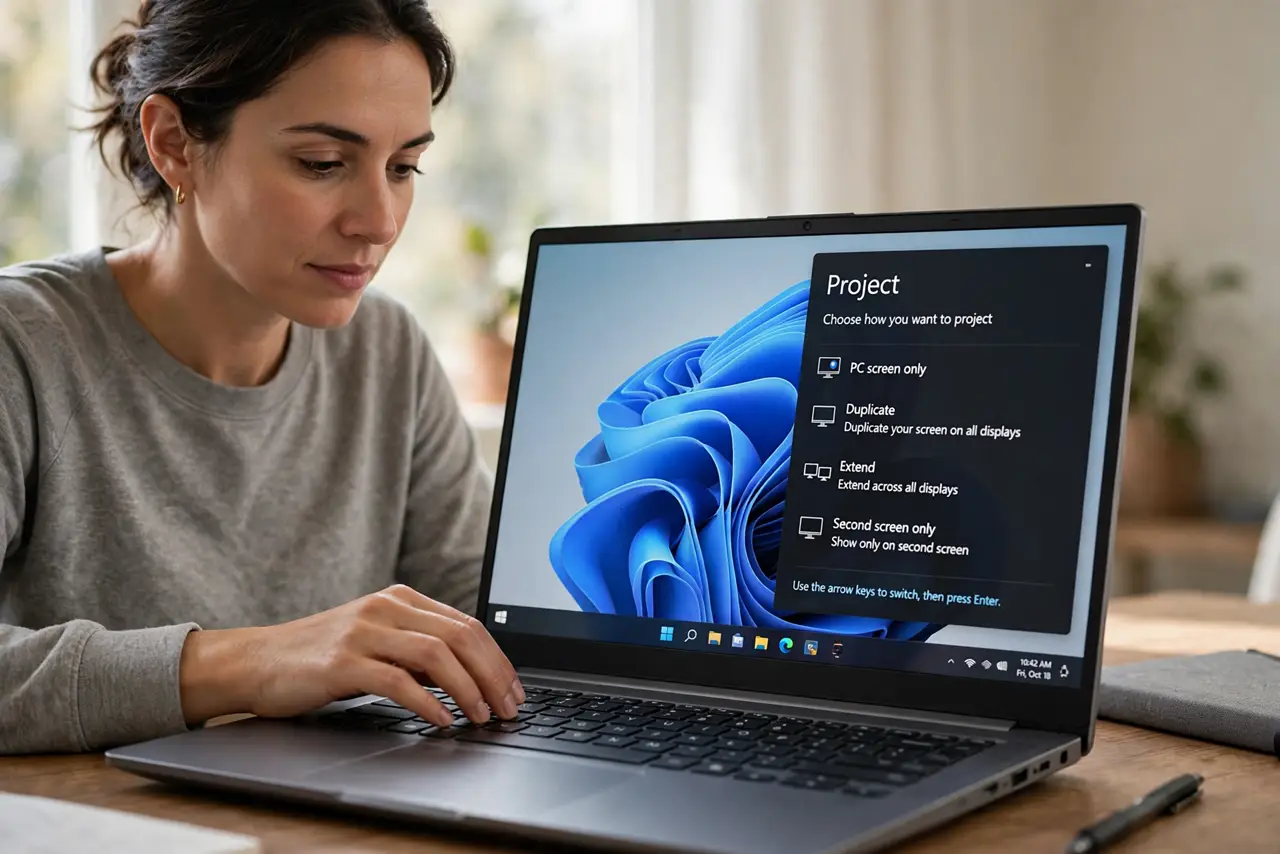
- Open the Project menu blind. Press the Windows key plus P, even if your main screen is dark. The Project menu opens on the active display, so listen for the change and use the arrow keys if you cannot see it.
- Choose the PC screen only option. In the Project menu, choose PC screen only to return the desktop to your main display. This is the fastest exit from projector-only mode, and it works even if the second display stays connected.
- Try Extend if PC only fails. Press the Windows key plus P again and choose Extend. Extend shows the desktop across both displays, which proves both screens work and lets you see the Display settings.
- Disconnect the second display cable. Unplug the projector or second monitor cable from the PC, wait a few seconds, and watch the main screen. With no second display, Windows must return to the main screen.
- Check Display settings for the mode. Open Settings, then System, then Display, and confirm the multiple displays option is the one you want. A stuck Project choice shows here as Second screen only, so change it to your normal mode.
- Restart with only the main screen. Restart the PC with the second display disconnected, then reconnect it after sign-in. A clean boot on one screen clears a Project mode that survived cable changes.
What NOT to do
- Do not restart repeatedly hoping the mode changes. The Project choice persists across restarts, so use the Project menu or disconnect the cable.
- Do not unplug the main monitor by mistake. Disconnect the projector or second display, keeping the screen you want to use plugged in.
- Do not change resolution to escape projector mode. Resolution and Project mode are separate settings, and changing both at once confuses the fix.
- Do not assume the main screen is broken. A dark main screen in projector-only mode is expected, because Windows is sending the picture elsewhere.
Frequently asked questions
What is the Windows plus P shortcut?
It opens the Project menu, where you choose PC screen only, Duplicate, Extend, or Second screen only.
Why did projector mode turn on by itself?
Usually a shortcut press, a dock, or a cable connection applied the last used Project mode automatically.
Does projector mode hurt the main screen?
No. It only redirects the picture, so the main screen is dark but unharmed.