Quick Settings? Basics
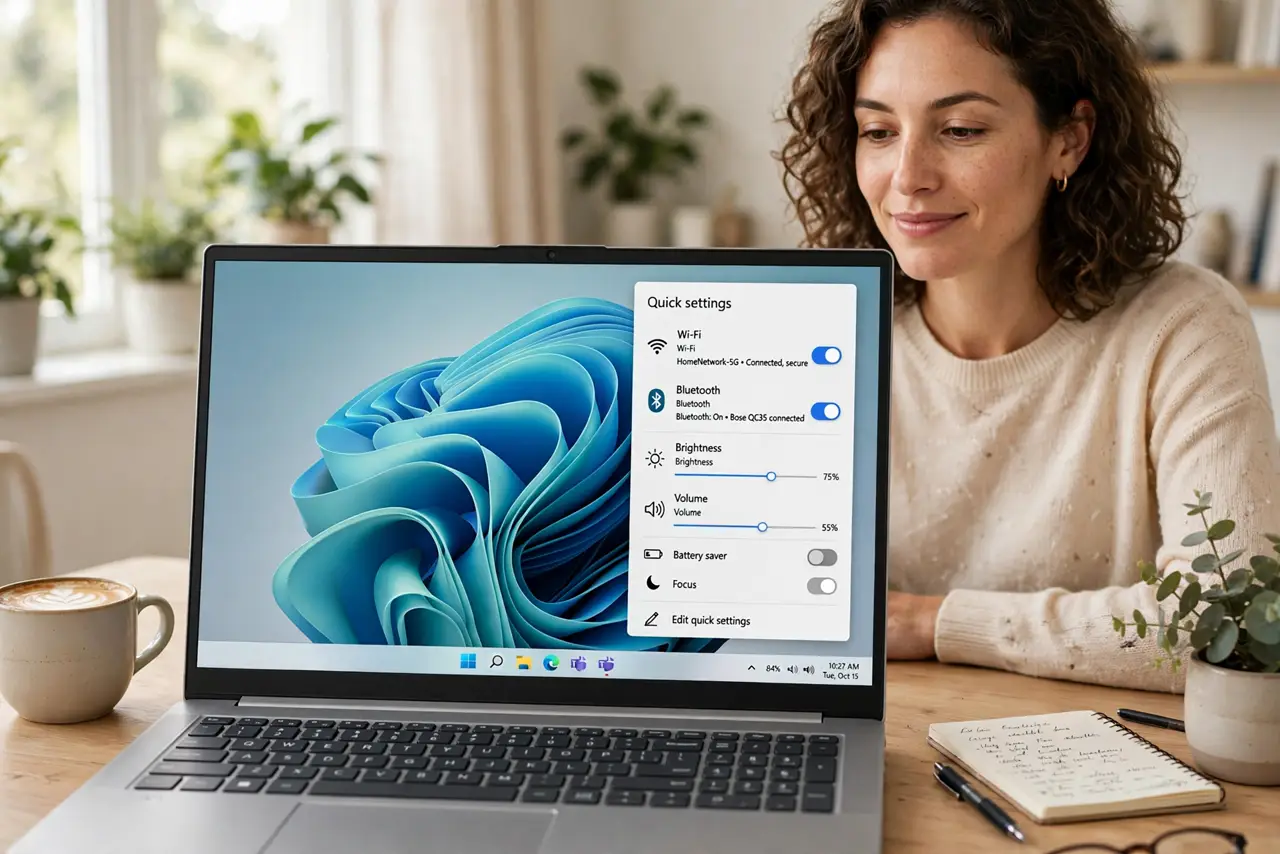
You need to toggle Wi-Fi, flip on Bluetooth, or crank the brightness — and digging through Settings every time is tedious. Quick Settings is the little panel that pops up from the taskbar corner (Windows key + A): your most-used toggles in one place, customizable in seconds. Here is how to open it, use it, and make it yours.
TL;DR / Quick Fix
Quick fix: press Windows key + A (or click the network/volume icons) to open Quick Settings. Click toggles to switch Wi-Fi, Bluetooth, and more; drag sliders for brightness and volume. Click the pencil icon to add, remove, or reorder toggles to taste.
Follow these steps
- Open Quick Settings. Press Windows key + A, or click the network, volume, or battery icons in the taskbar corner. The panel slides up with your toggles, sliders, and the battery status.
- Use the toggles. Click Wi-Fi, Bluetooth, Airplane mode, Focus assist, and the rest to flip them instantly. Long-press or right-click some toggles (like Wi-Fi) to jump to their full Settings page.
- Adjust brightness and volume. The sliders at the bottom control screen brightness and system volume. Faster than opening Settings, and they work while you are in any app.
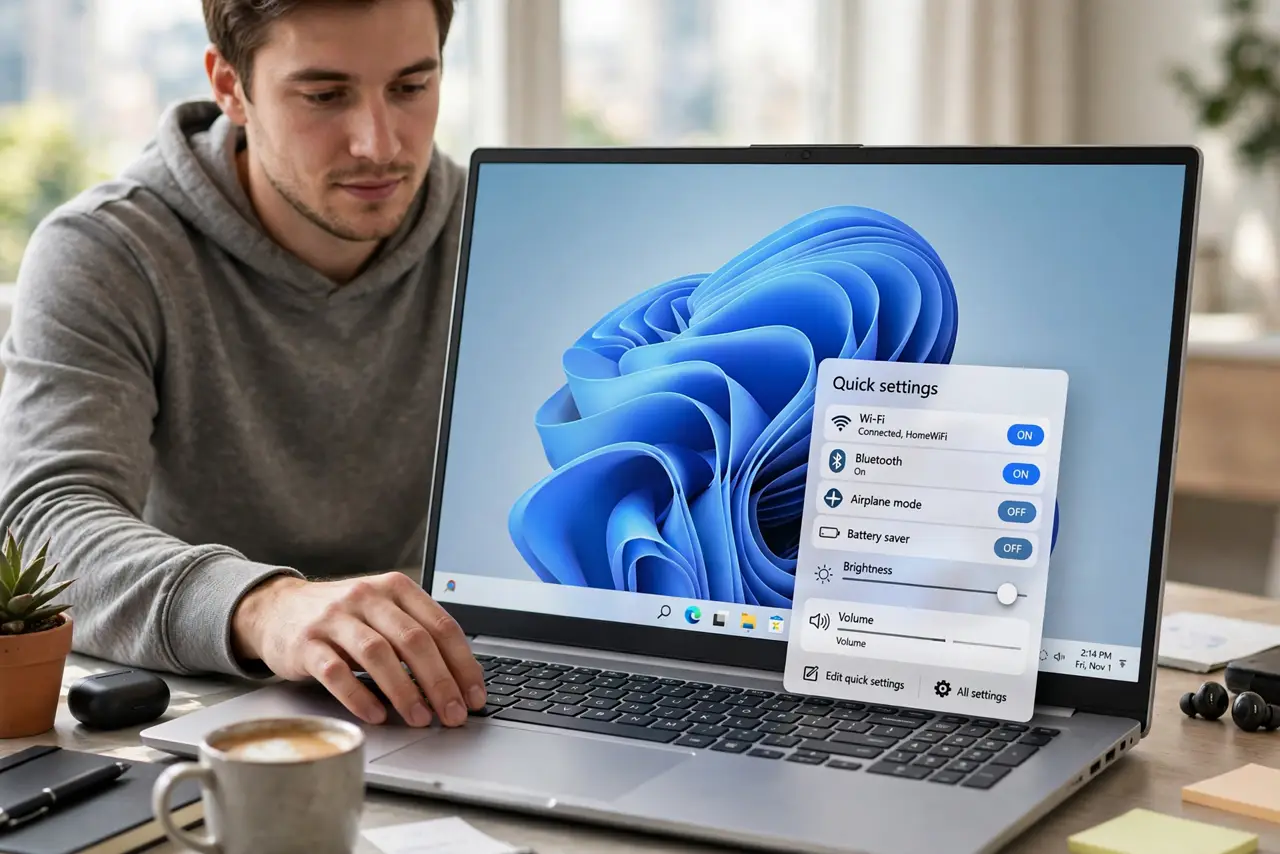
- Customize the panel. Click the pencil (edit) icon to add toggles you use, remove ones you do not, and drag them into your preferred order. Put daily toggles first — muscle memory does the rest.
- Know what is NOT here. Quick Settings covers fast toggles only — deeper options live in the Settings app. If a toggle is missing something you need, its full page is one right-click away.
- Use it with the notification center. Windows key + N opens notifications; Windows key + A opens Quick Settings. Learn both shortcuts and you will rarely open the Settings app for daily adjustments.
What NOT to do
- Do not confuse Quick Settings with the full Settings app. Toggles are shortcuts — real configuration still lives in Settings.
- Do not clutter the panel with everything. Six to eight toggles you actually use beat a wall of icons you scroll past.
- Do not forget the pencil icon exists. Most people never customize the panel and live with the defaults — thirty seconds of editing fixes that.
- Do not expect Airplane mode to kill everything silently. It disables radios, but check Bluetooth separately if your devices keep reconnecting.
Frequently asked questions
Why is Wi-Fi missing from Quick Settings?
It may have been removed in customization — click the pencil icon and re-add it. If it is there but grayed out, check Airplane mode and your network adapter.
Can I open Quick Settings with the keyboard?
Yes — Windows key + A, from anywhere. It is the fastest way to toggle Wi-Fi or brightness mid-task.
What's the difference from the old Action Center?
Windows 10 combined notifications and toggles; Windows 11 split them — Quick Settings (Win+A) for toggles, notification center (Win+N) for alerts.