Your Monitor Is Stuck at 60Hz on Windows
A monitor that supports 120Hz or 144Hz but only offers 60Hz in Windows is usually held back by its cable, port, or a display setting, not by the panel itself. This guide checks that chain in order, so you do not buy a new monitor for a cable problem. If the screen looks wrong in other ways, see changing screen resolution correctly.
TL;DR / Quick Fix
Quick fix: Confirm the monitor refresh rate. Use a port and cable rated for it. Then work through the remaining steps in order, checking one change at a time, and stop for a technician if you see damage, swelling, or a burning smell.
Follow these steps
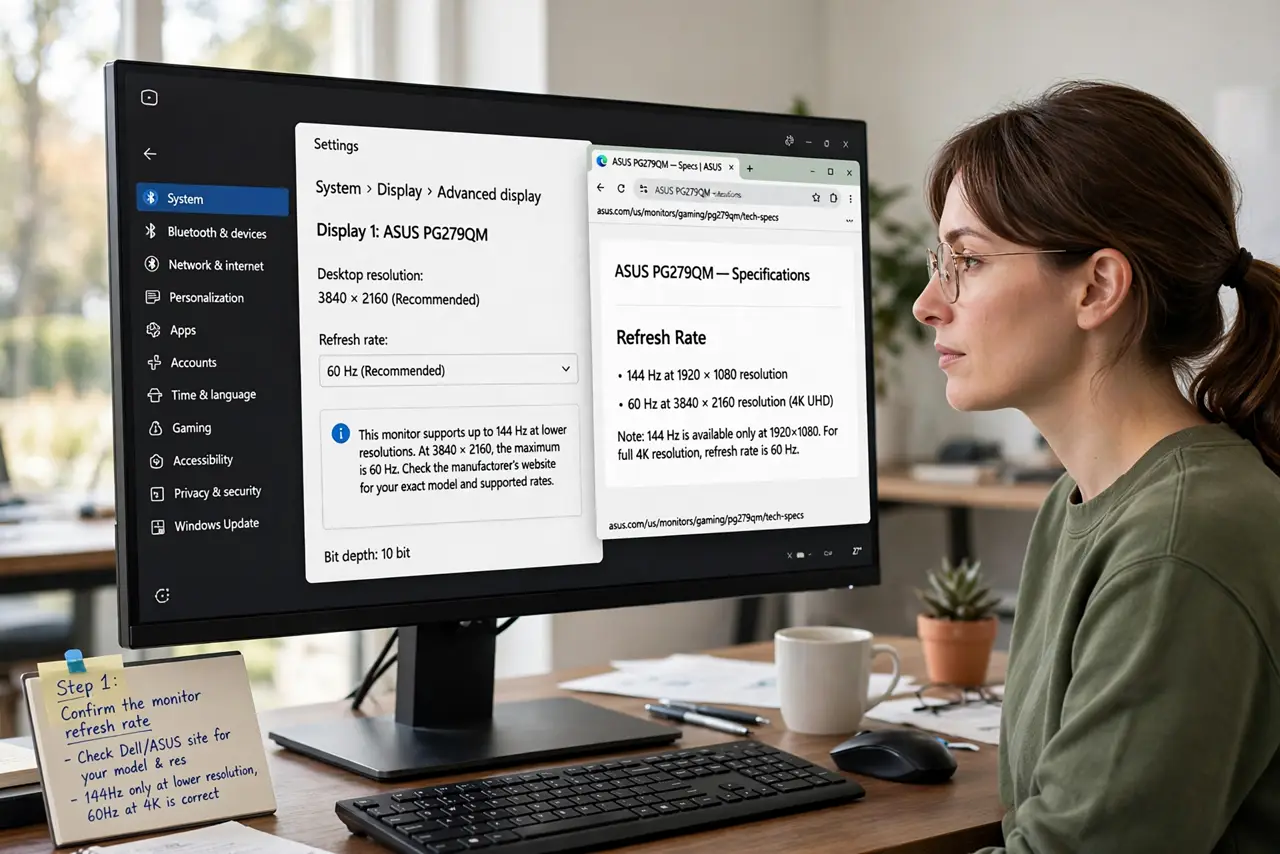
- Confirm the monitor refresh rate. Check the monitor maker page for your exact model and its refresh rates at your resolution. A monitor may offer 144Hz only at lower resolutions, so 60Hz at full resolution can be correct.
- Use a port and cable rated for it. Connect with a DisplayPort or HDMI port and cable rated for your resolution and refresh rate. Older ports and cables cap the rate, even when the monitor itself supports more.
- Check the Windows refresh rate setting. Open Settings, then System, then Display, then Advanced display, select the monitor, and open the refresh rate list. If a higher rate appears, choose it and keep the change when Windows asks.
- Lower the resolution as a test. In Display settings, temporarily choose a lower resolution and check the refresh rate list again. If higher rates appear at lower resolution, the cable or port bandwidth is the limit.
- Update the graphics driver from the maker. Get the newest driver from the graphics chip maker or PC maker site for your exact model. An old driver can hide refresh rates that the hardware supports.
- Test with one monitor only. Disconnect other monitors, restart, and check the refresh rate list on the single display. If the higher rate appears, an adapter or second display in the chain was limiting it.
What NOT to do
- Do not buy a new monitor before testing cable and port. A rated cable costs far less and is the most common fix.
- Do not install driver updater tools. Get drivers from the maker site, since updater tools can install the wrong driver.
- Do not force a custom refresh rate beyond the maker rating. Overdriving a panel can cause flicker or a blank screen.
- Do not judge smoothness from the desktop alone. Test with movement, such as scrolling a page, after choosing the higher rate.
Frequently asked questions
Does refresh rate affect battery life on a laptop?
Yes, higher rates can use more power, so laptops sometimes offer a dynamic rate that rises only when you need it.
Why does the rate drop in games?
Games use their own display settings, so check the game video options as well as Windows Advanced display settings.
Is 60Hz bad for office work?
No. For documents and browsing, 60Hz is fine, and higher rates matter most for fast motion and games.