Check Your PC's Reliability
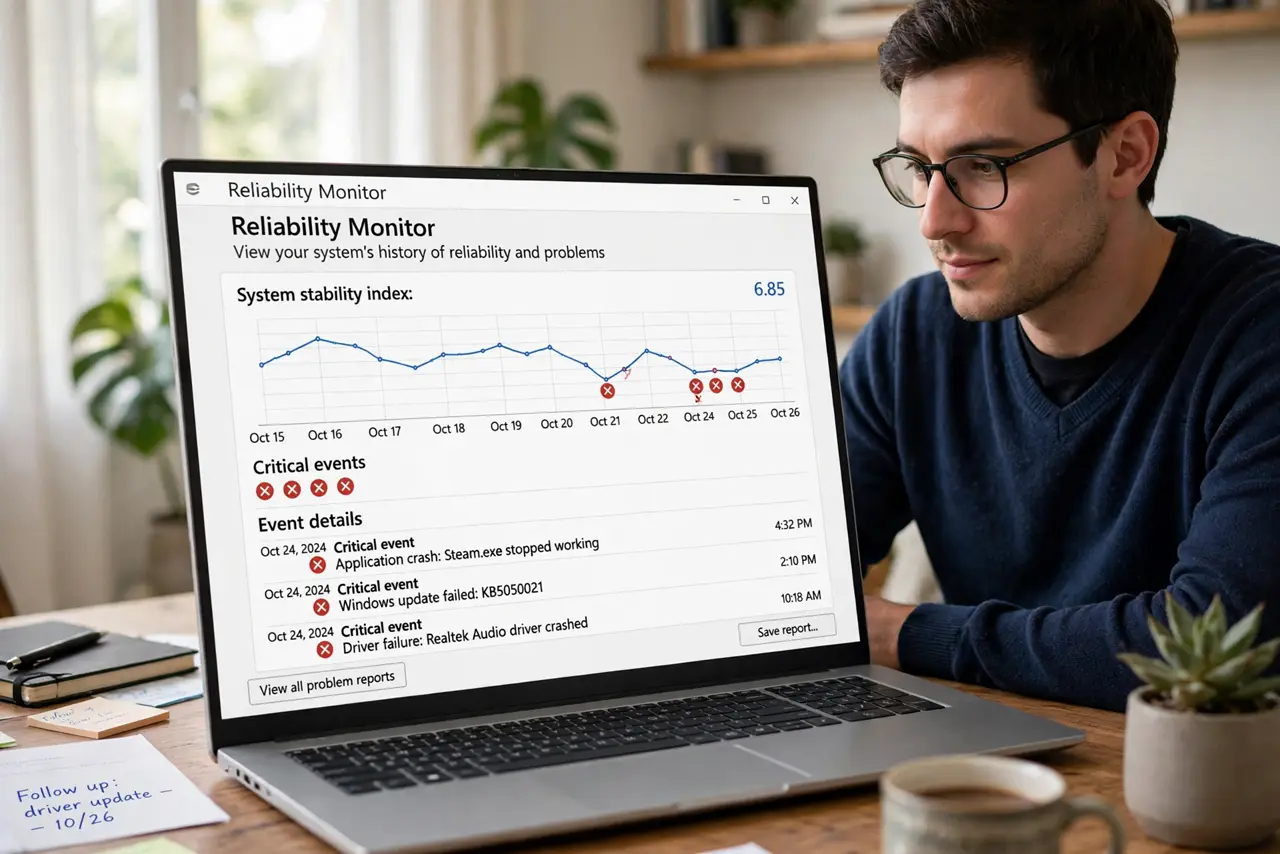
Your PC crashes at random times — no pattern you can see, no error you can catch. Windows has been quietly keeping score: Reliability Monitor logs every crash, freeze, and failed update on a day-by-day timeline. Ten minutes with it turns “my PC is haunted” into a named culprit. For raw log diving afterward, see Event Viewer filtering.
TL;DR / Quick Fix
Quick fix: search for 'View reliability history' in Windows and study the timeline — red X marks show exactly when crashes happened and which app or driver caused them. Click a day to see details. Patterns (same driver, after an update) tell you what to fix instead of guessing.
Follow these steps
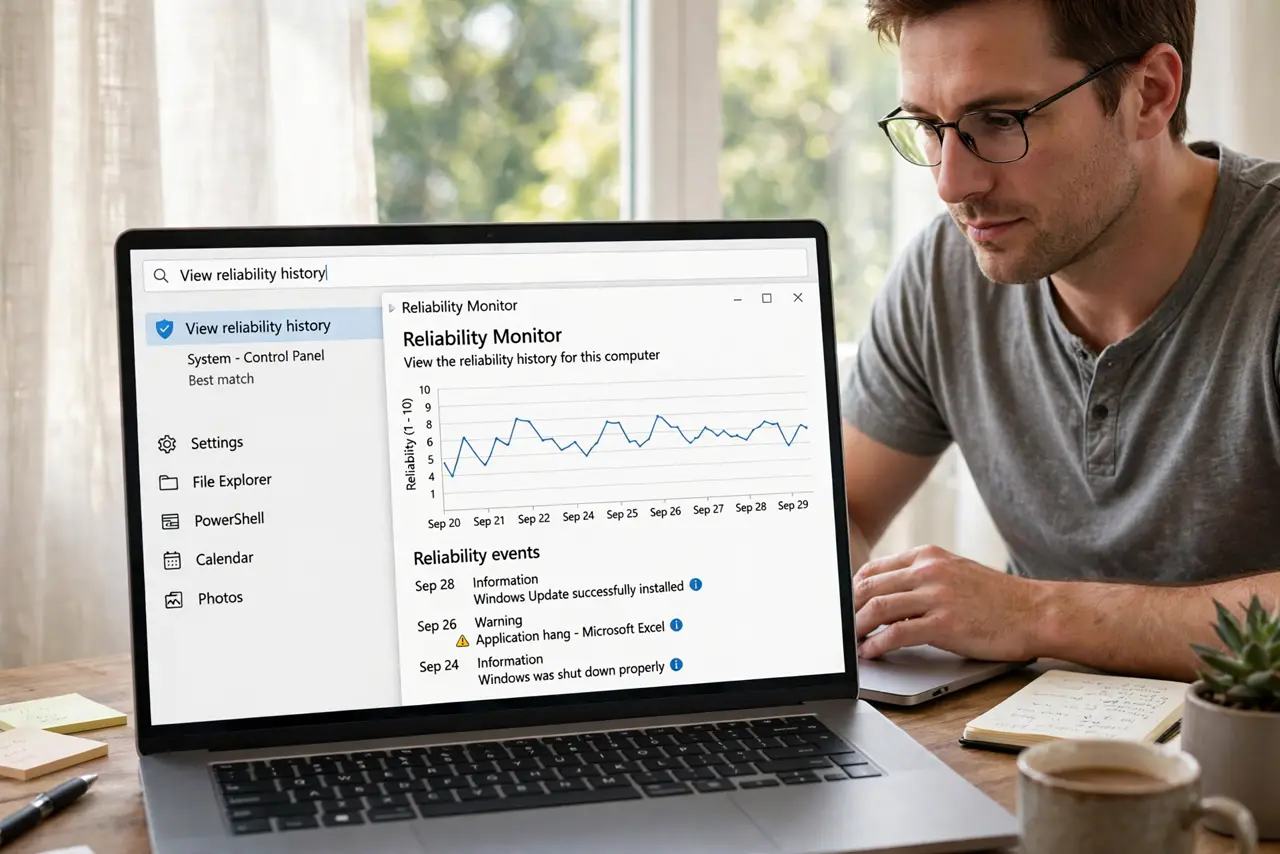
- Open Reliability Monitor. Search the Start menu for “View reliability history” and open it. No installs, no admin rights needed — it is built into every Windows copy.
- Read the timeline. Each day gets a stability score from 1 to 10 with icons: red X for critical failures, yellow warnings, blue informational events. A healthy PC hovers high with occasional blips.
- Click the bad days. Click any column to expand that day's events. Each entry names the failing application or component and the failure type — that name is your lead.
- Look for patterns. Same driver crashing weekly? Failures starting right after an update? Patterns beat single events — one random crash is noise, three identical ones are a diagnosis.
- Check what changed before the crashes. Blue “i” events log installs and updates. A crash storm that starts the day after a driver update is practically a confession.
- Decide the next action. A misbehaving app: reinstall it. A driver: roll it back or update it. Hardware-ish patterns (crashes under load, no single culprit): time for bottleneck testing.
What NOT to do
- Do not panic over a single red X. Every PC crashes occasionally — patterns matter, not isolated incidents.
- Do not “fix” things at random. The timeline exists so you stop reinstalling Windows for a bad printer driver.
- Do not ignore the informational events. They timestamp updates and installs — the context that explains the crashes.
- Do not confuse Reliability Monitor with Task Manager. One shows history, the other shows right now — you need the history here.
Frequently asked questions
How far back does the history go?
About a year of daily data, rolling. Old enough to spot slow-developing patterns.
My score dropped but nothing crashes — why?
Failed updates and app hangs count too. Check the yellow and blue events for the story.
Can I clear the history?
Yes via the control panel options, but do not — the history is the diagnostic tool. Clearing it blinds you.