Check PC Reliability History
When your PC crashes out of nowhere, guessing is the slowest way to fix it. Windows keeps a quiet diary called Reliability Monitor that logs every crash, failed update, and app hang with a date stamp, so you can see exactly when the trouble started and what changed that day. Here is how to read that diary like a technician.

TL;DR / Quick Fix
Quick fix: open Reliability Monitor and look for red X marks on the timeline — each shows which app, driver, or update failed and when. If crashes started the day a driver or update installed, that is your prime suspect. Match the dates, update or roll back that item first.
Follow these steps
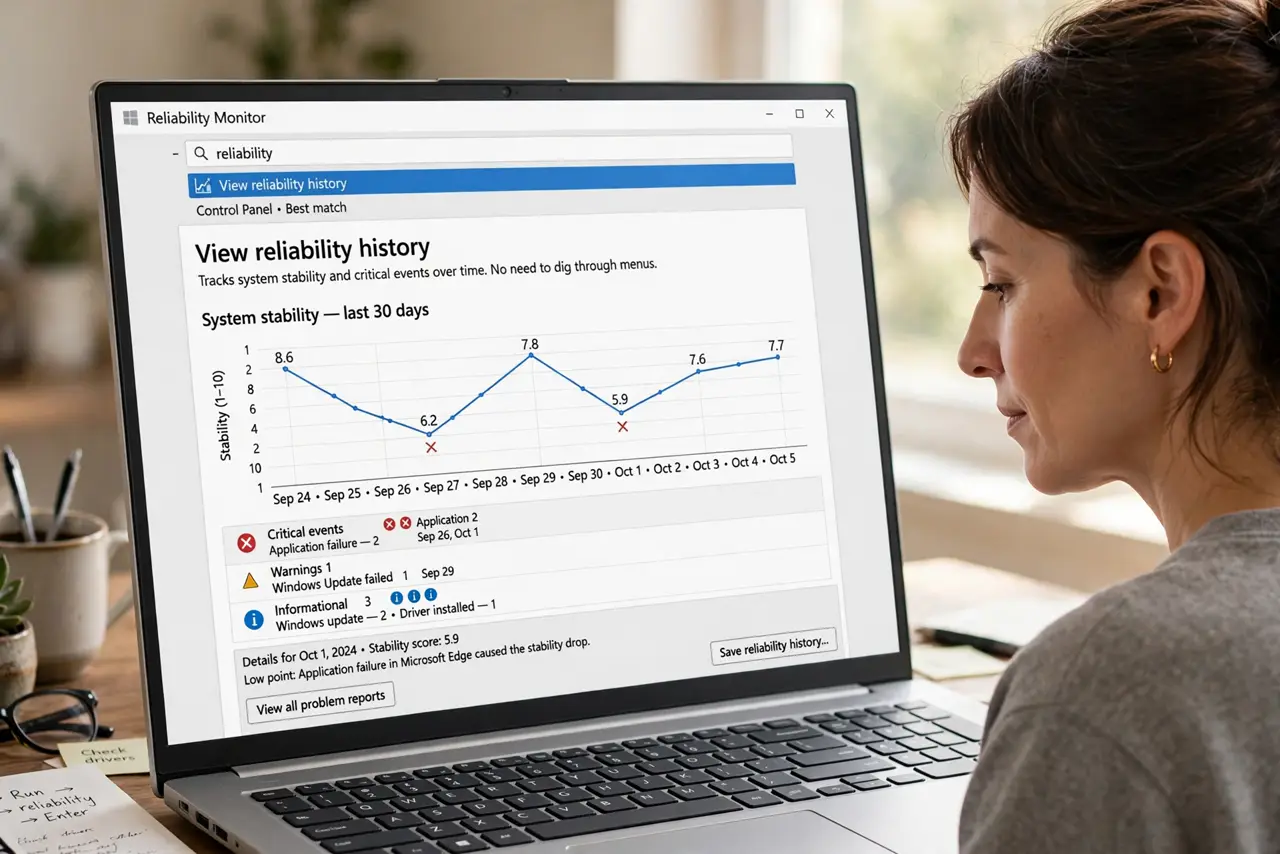
- Open Reliability Monitor the fast way. Press the Windows key, type reliability, and open View reliability history. The chart shows a stability score over time, with icons marking every failure — no digging through menus required.
- Read the red X marks first. Red X marks are critical events like crashes; yellow warnings are lesser hiccups. Click any column for a single day and the details list tells you exactly which program or driver failed, in plain language.
- Match the first failure to a change. Look at the day the red marks started. If a driver update or Windows update landed that same day, you have your prime suspect — this date-matching solves most mystery crashes faster than any scan.
- Click a failure for the details. Double-click an entry to see the faulting module and error code. You do not need to understand every code — copy the module name and search it, or note it before updating that driver.
- Use it to test your fix. After you update or roll back the suspect driver, watch the chart for a few days. A clean stretch with no new red marks means the fix worked — the monitor doubles as your proof.
- Save the report for a technician. Click Save reliability history at the bottom to export an XML report. If you ever hand the PC to a repair shop, this file tells them in seconds what you spent hours discovering.
What NOT to do
- Do not panic over a single old red X. One crash months ago is normal noise — patterns of repeated failures are what matter.
- Do not delete or 'fix' random entries. Reliability Monitor is read-only history; there is nothing to clean, and registry cleaners will not help.
- Do not reinstall Windows on the first crash. Check the timeline first — a dated cause usually has a targeted, much smaller fix.
- Do not ignore yellow warning clusters. A growing pile of warnings often precedes the red X marks — treat them as early smoke.
Frequently asked questions
Where is Reliability Monitor in Windows 11?
Same place: press the Windows key, type reliability, and open View reliability history. It is a classic Control Panel tool that still ships with every modern Windows.
Why is my stability score dropping?
Each failure lowers the score, and it recovers slowly as clean days pass. A falling line means new problems are appearing — a flat low line means old ones unresolved.
Can Reliability Monitor fix anything itself?
No, it only reports. But knowing exactly which driver or update failed tells you what to update, roll back, or reinstall — and System File Checker repairs the files when the OS itself is damaged.