Remove Old Printer Drivers
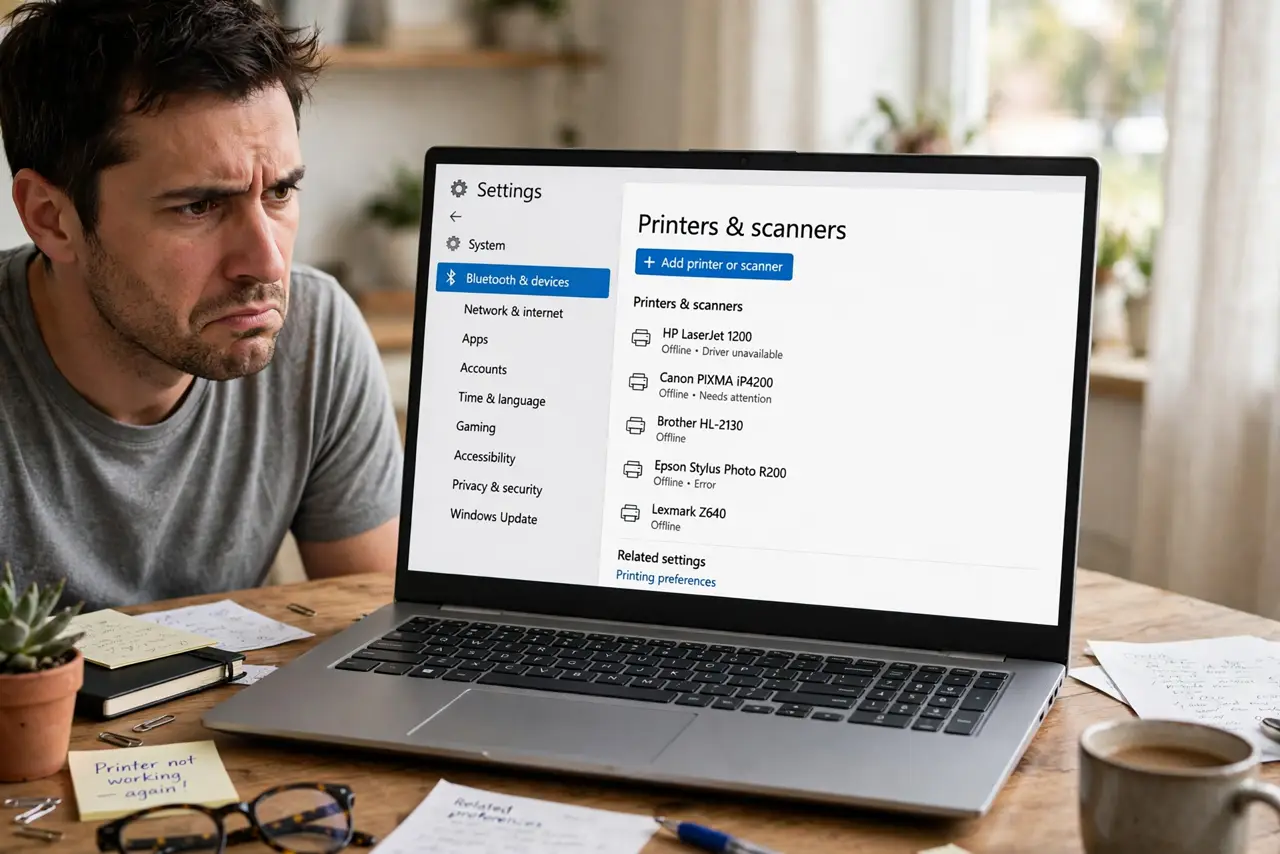
You replaced a printer months ago, yet its name still haunts the printer list — sometimes twice. These ghost printers are leftover entries whose driver packages were never removed, so Windows keeps resurrecting them. The fix is a two-layer cleanup: delete the printer, then delete its driver. If the printer itself misbehaves too, see the printer troubleshooting guide.
TL;DR / Quick Fix
Quick fix: remove ghost printers in Settings under Printers & scanners, then open Print Server Properties and delete the old driver packages too. That stops deleted printers from coming back. If a printer still misbehaves, the driver cleanup usually fixes it.
Follow these steps
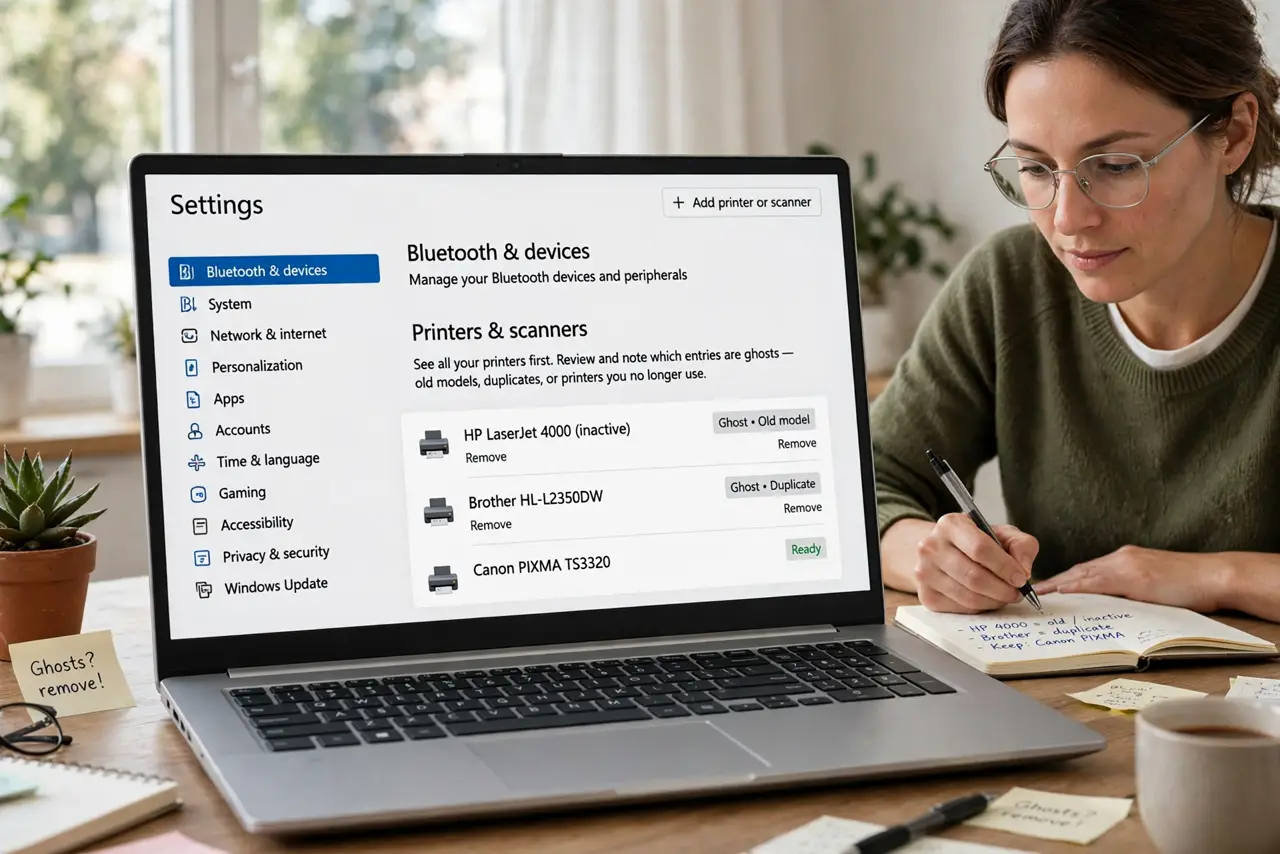
- See all your printers first. Open Settings > Bluetooth & devices > Printers & scanners and note which entries are ghosts — old models, duplicates, or printers you no longer own. Do not touch the one you actually use.
- Remove the ghosts from Settings. Click each ghost printer and choose Remove device. If an entry comes back after a restart, its driver package is still installed — that is why step 4 exists.
- Open Print Server Properties. On the same Printers & scanners page, select any remaining printer, open Printer properties, and switch to the Sharing tab — or search for “Print Management” and open Print Server Properties from there. Go to the Drivers tab.
- Remove the old driver packages. Select the driver for the ghost printer, click Remove, and choose “Remove driver and driver package.” This is the layer most people miss, and it is what stops the resurrection.
- Restart the Print Spooler if entries stick. Open services.msc, find Print Spooler, and restart it. This clears stuck queue references that can keep a deleted printer visible.
- Re-add only the printer you use. Add your current printer fresh so it installs a clean driver. A tidy list with one working printer beats a museum of old ones.
What NOT to do
- Do not delete printers from the Windows registry directly. The supported tools above do the job without risking the system.
- Do not remove a driver your current printer shares. Check the driver name matches the old printer before deleting the package.
- Do not remove driver packages while print jobs are queued. Clear or cancel pending jobs first.
- Do not disable the Print Spooler service permanently. Some guides suggest it; it breaks all printing, including PDF.
Frequently asked questions
Why do removed printers keep coming back?
Because Windows removed only the device entry, not the driver package. Deleting the package in Print Server Properties ends the cycle.
Can removing old drivers speed up my PC?
Marginally — it mainly declutters. If the PC itself feels slow, the bottleneck guide finds the real culprit.
What is a ghost printer, exactly?
A leftover printer entry from a replaced or reinstalled printer, kept alive by its still-installed driver package.