Right-Click Menu Slow on Windows? Fix It
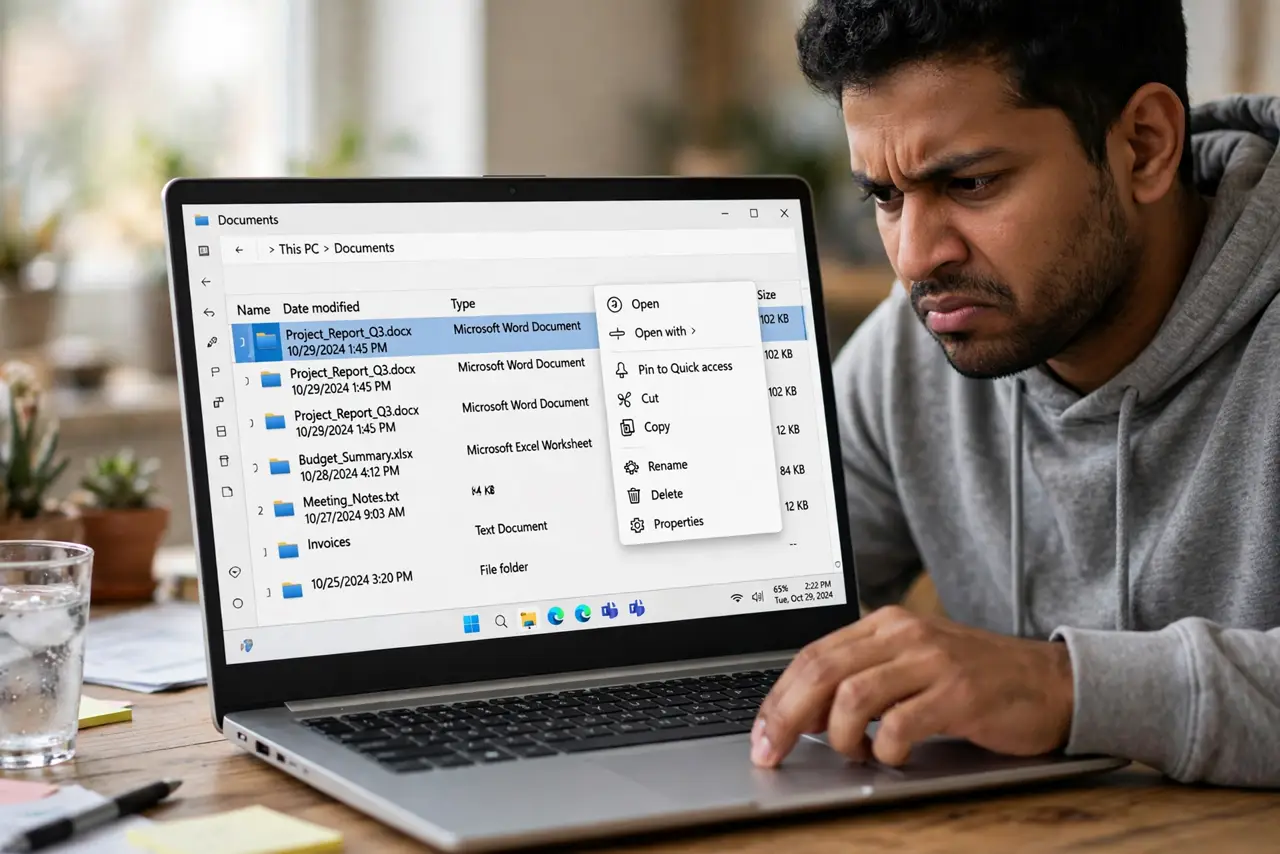
When right-clicking a file takes several seconds to show the menu, a third-party shell extension is almost always the cause. Each installed program can add its own menu entry, and one badly written entry stalls the whole menu. The fix is finding and disabling that entry, not reinstalling Windows — the full classic menu guide covers the separate question of getting the old menu back.
TL;DR / Quick Fix
Quick fix: the delay comes from third-party entries added to the right-click menu. Disable non-Microsoft shell extensions one group at a time with a free extension manager, testing the menu after each change. When the delay vanishes, you have found the culprit to leave disabled.
Follow these steps
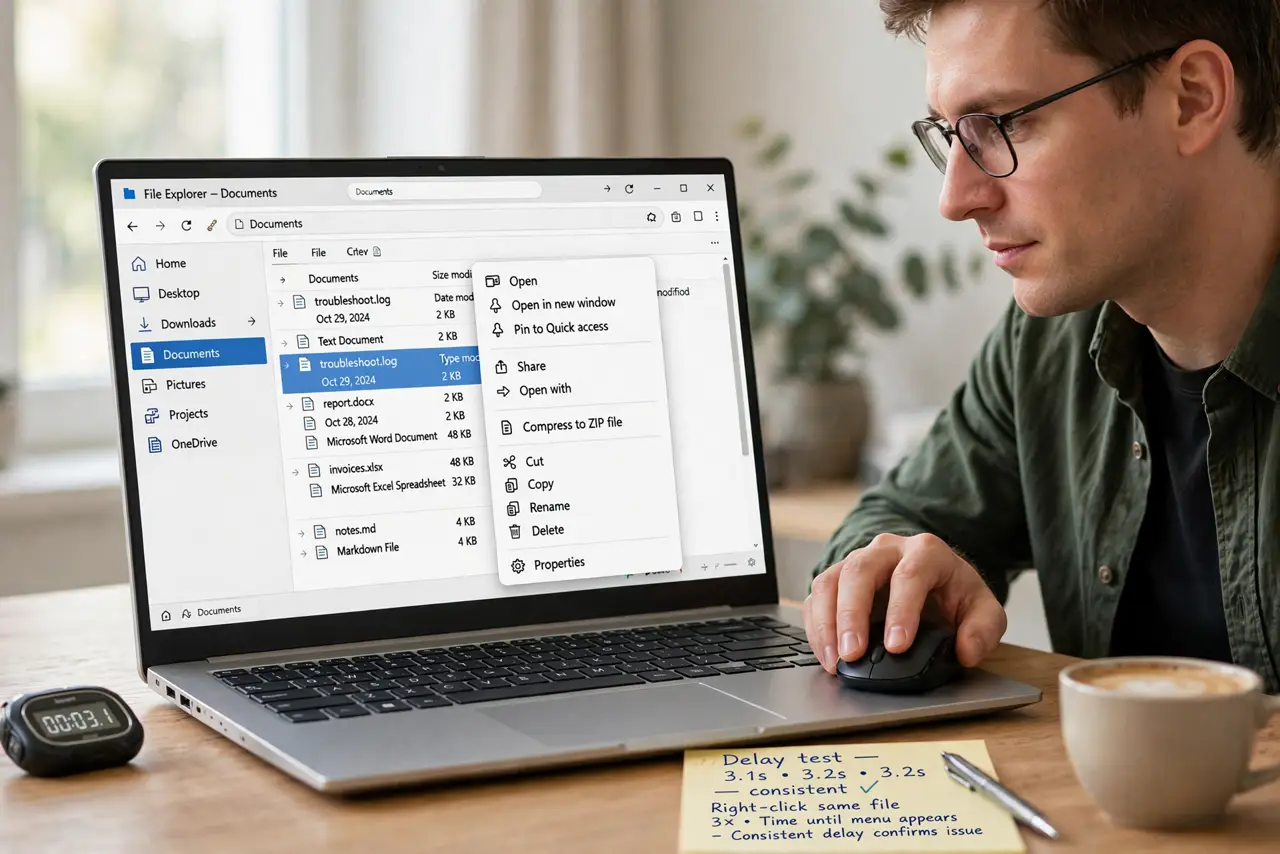
- Time the delay so you can measure the fix. Right-click the same file three times and count the seconds until the menu appears. A repeatable delay of several seconds confirms the problem is real and gives you a baseline to compare against.
- Test in a clean boot state. Use a clean boot to start Windows with third-party startup items off, then right-click again. If the menu is suddenly fast, a third-party program is confirmed as the cause.
- List your shell extensions. Open a free shell-extension manager such as Microsoft's Autoruns and look at the Explorer context-menu entries. Every non-Microsoft entry is a program that injected itself into your right-click menu.
- Disable non-Microsoft entries in groups. Turn off the third-party context-menu entries in small groups, then right-click the same test file again. Working in groups finds the culprit faster than toggling one at a time.
- Leave the culprit disabled or update it. When the delay disappears, you have found it. Leave that entry disabled, or update the program that owns it — newer versions often fix the slow handler.
- Recheck the menu after a day of normal use. Use the computer normally for a day and right-click often. If the delay is gone in real use, the fix holds; if it creeps back, another entry is slowing things down.
What NOT to do
- Do not delete registry keys to remove menu entries. Disabling an extension through a manager is reversible, while a deleted key is not.
- Do not disable Microsoft's own shell extensions. The built-in entries are rarely the cause, and disabling them can break core Explorer behavior.
- Do not reinstall Windows for a slow menu. This is a ten-minute extension hunt, not a system failure, and a reinstall would bring the same programs back anyway.
- Do not install a second context-menu cleaner on top of the first. Stacking cleanup tools creates more extensions to fight, not fewer.
Frequently asked questions
Why is only the right-click menu slow, not the whole PC?
Because the menu loads every registered shell extension before it draws. One slow extension stalls the menu while the rest of the system runs fine.
Can a cloud storage app cause this?
Yes, very commonly. Cloud and antivirus programs add context-menu entries that check files online, and a slow network makes the menu wait.
Will disabling an extension break the program?
No. Disabling only removes its menu entry; the program itself keeps working normally.