Scan with the Windows Scan App
Your scanner's manufacturer software is a 400 MB suite from 2016 that wants an account. Windows Scan is the alternative: Microsoft's free, lightweight scanning app that handles the essentials — pick the scanner, pick PDF or JPEG, hit scan. For basic document and photo scanning, it is all most people need.
TL;DR / Quick Fix
Quick fix: Windows Scan is the free built-in app for scanners — install it from the Microsoft Store, select your scanner, pick PDF or JPEG, and hit Scan. It handles the basics: single pages, simple settings, direct to file. For batch scanning or OCR, use your scanner maker's software instead.
Follow these steps
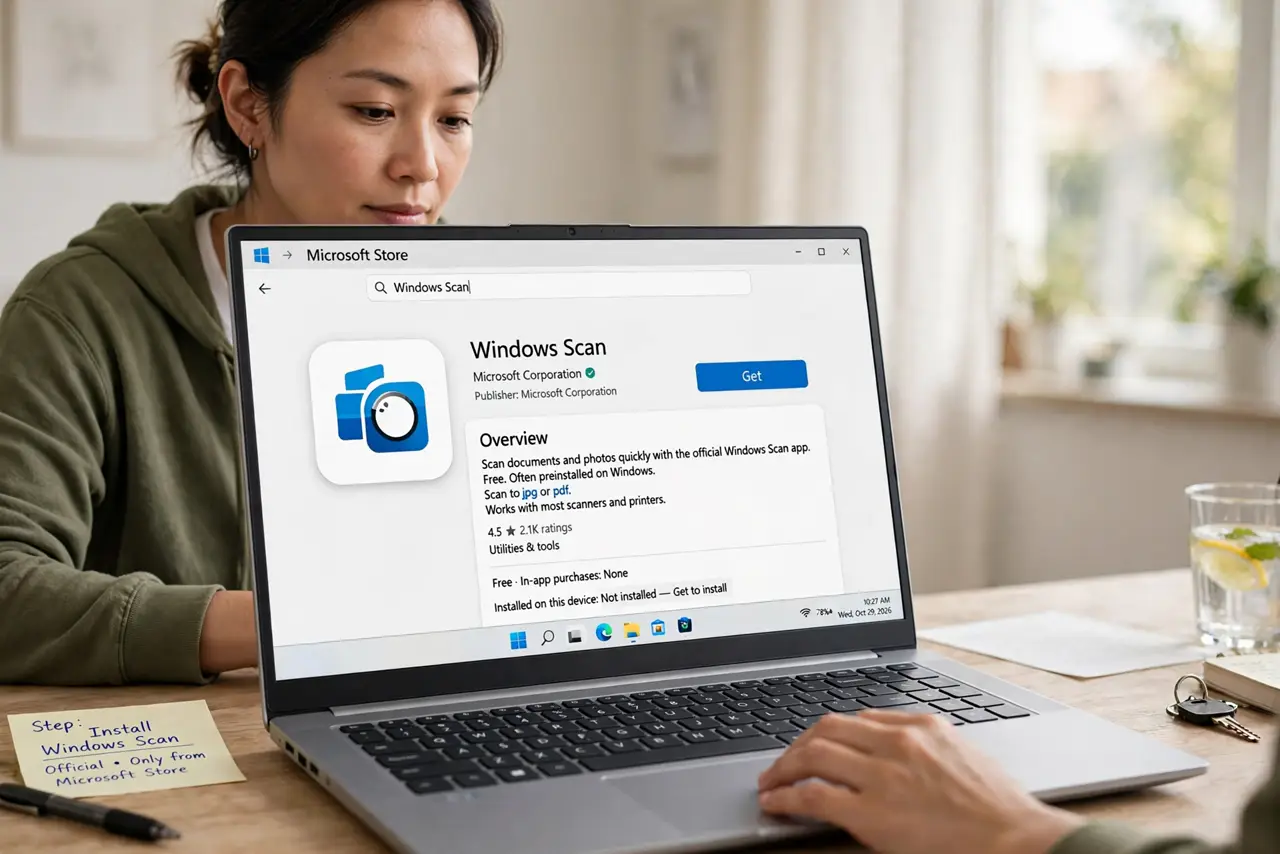
- Install Windows Scan. It is often preinstalled; if not, get Windows Scan free from the Microsoft Store. Do not confuse it with Scan apps from random publishers — the Microsoft one is the official tool.
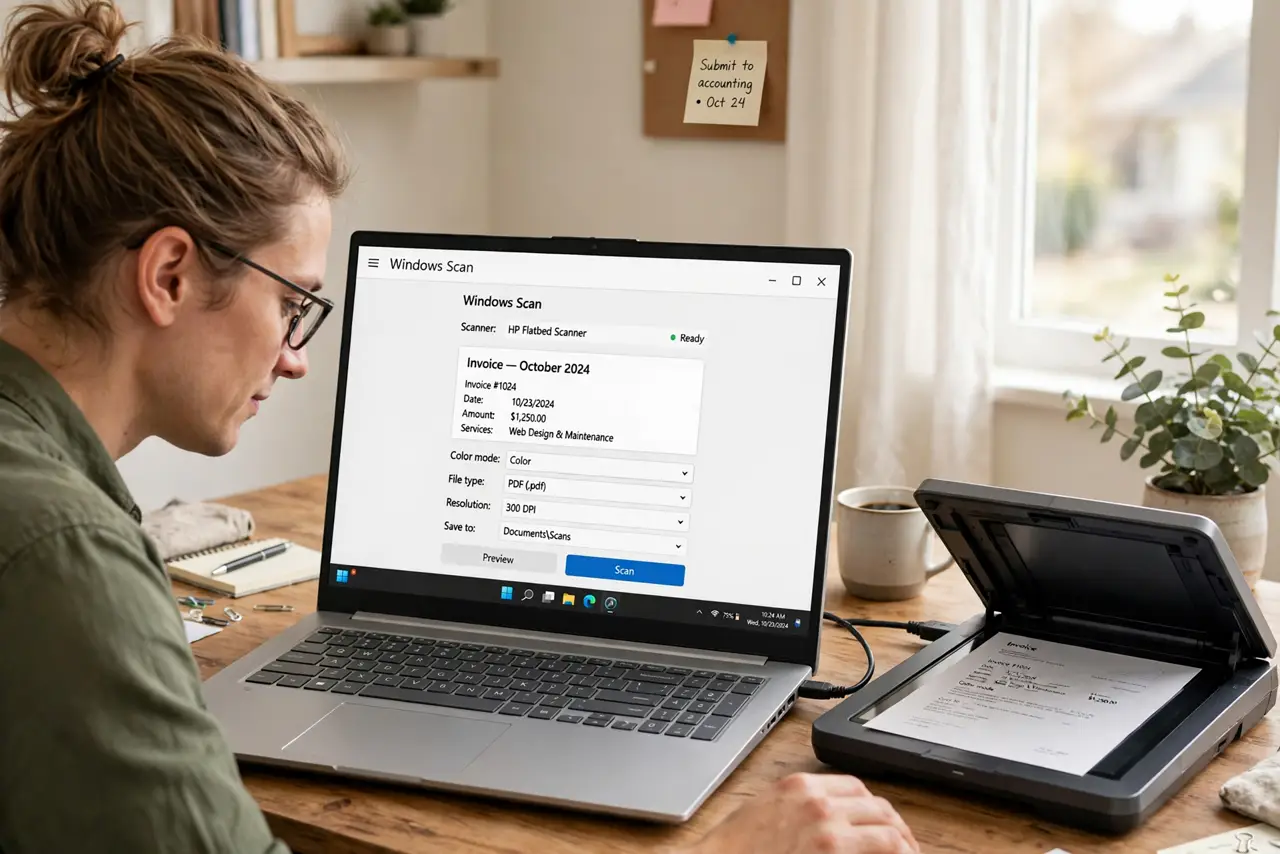
- Connect and select your scanner. USB or network — Windows should detect it. In the app, the scanner dropdown lists what is available; if yours is missing, check the manufacturer's driver first.
- Choose the source and type. Flatbed for single pages and books; feeder for stacks. Pick Color, Grayscale, or Black & White — and PDF for documents, JPEG for photos.
- Set resolution sensibly. 300 DPI is the sweet spot for documents — crisp and small. Use 600+ only for photos you will enlarge; higher DPI just makes giant files.
- Preview, then scan. The preview shows what the scanner sees — straighten the page now, not in an editor later. Then Scan, and save where you will find it.
- Know when to upgrade tools. Multi-page PDFs, automatic OCR, batch naming — that is the scanner maker's software (or a dedicated app). Windows Scan is the simple screwdriver, not the toolbox.
What NOT to do
- Do not scan documents at maximum DPI by default. A 1200-DPI scan of a text page is a 50 MB file with zero visible benefit — 300 DPI, always, unless it is a photo.
- Do not save everything as BMP or TIFF. PDF for documents, JPEG for photos — the defaults exist for good reasons.
- Do not ignore the feeder option. Scanning a 20-page stack one page at a time on the flatbed is a special kind of suffering — use the document feeder.
- Do not expect OCR from Windows Scan. It captures images of pages, not text — searchable PDFs need the maker's software or a separate OCR step.
Frequently asked questions
Windows Scan cannot find my scanner — why?
Usually a missing manufacturer driver or a network discovery issue. Install the maker's driver package, then check the scanner appears in Windows Settings > Printers & scanners.
Can I scan multiple pages into one PDF?
With a document feeder, yes — the app combines feeder pages into one file. On a flatbed, it is one scan per file; combine them later in a PDF tool.
Is Windows Scan the same as Windows Fax and Scan?
No — Fax and Scan is the ancient legacy tool; Windows Scan is the modern Store app. Use Windows Scan unless you specifically need fax.