Scan From Your Printer? How To
Your printer has a scanner on top that you have never used, and now you need a document digitized. Windows includes scanning built in — no need to hunt for the printer maker's bloated software. The Windows Scan app finds most scanners automatically and handles the common jobs in minutes.
TL;DR / Quick Fix
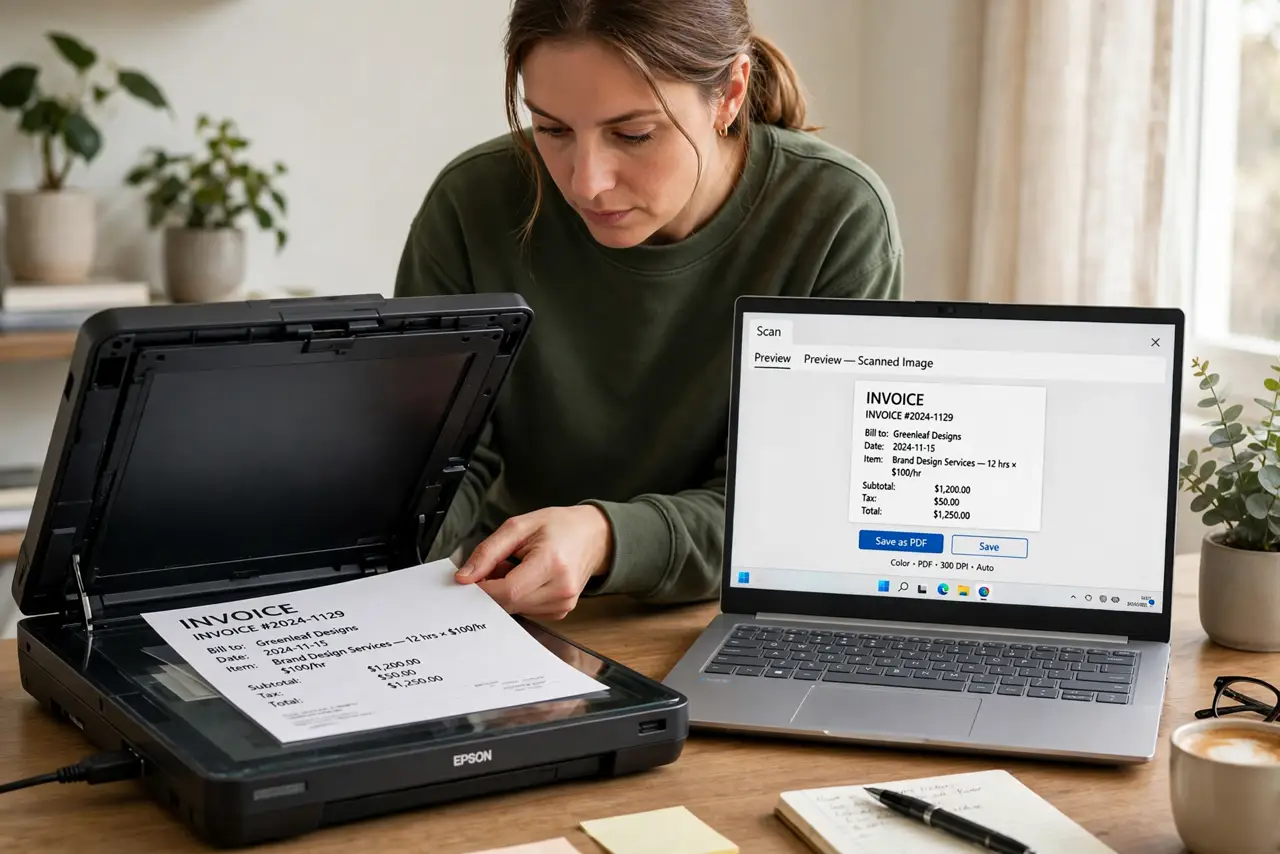
Quick fix: open the Microsoft Store app called Windows Scan (install it free if missing) — it detects your scanner automatically. Place the document face-down, choose your file type and resolution, and click Scan. For 300 DPI documents, the default settings are already right. Save where you will find it.
Follow these steps
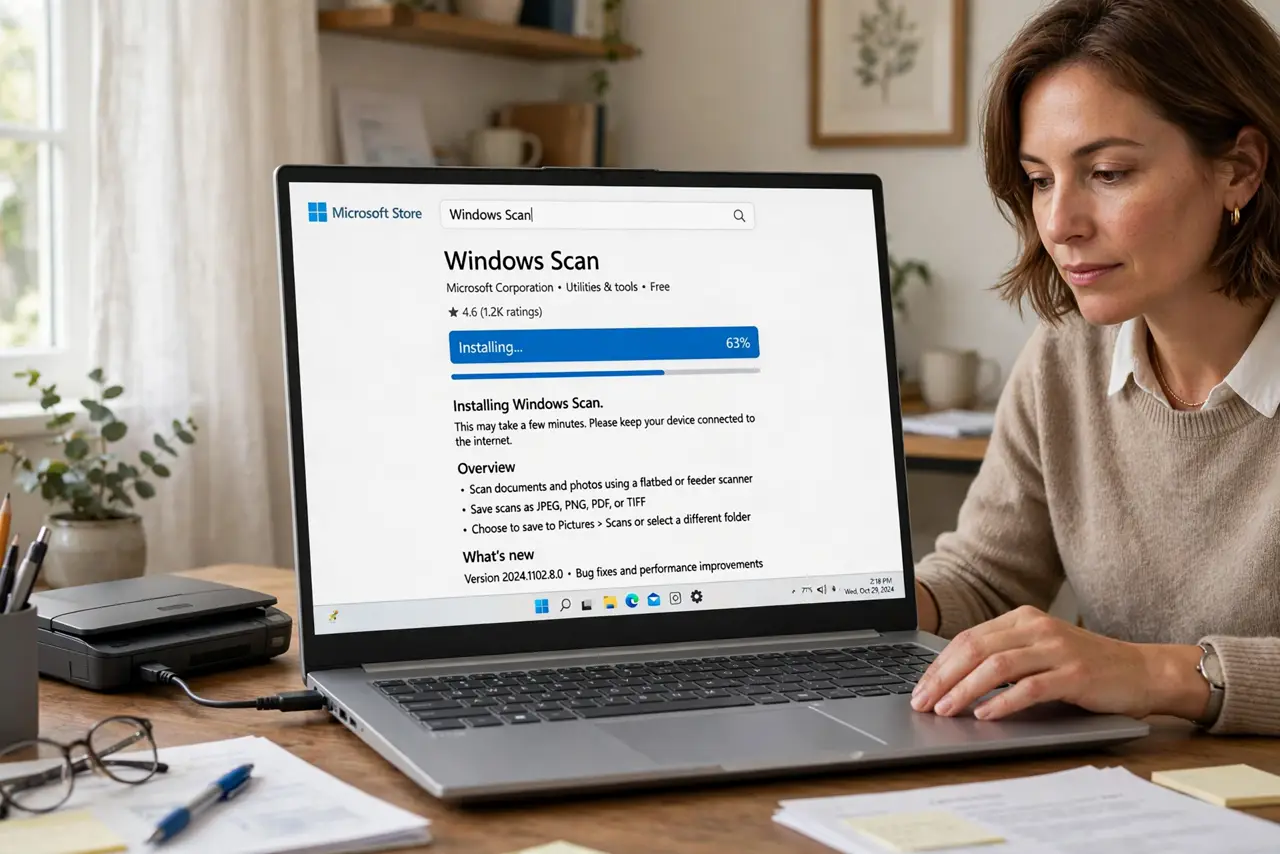
- Install Windows Scan if needed. Search the Microsoft Store for Windows Scan and install it. It is Microsoft's official, lightweight scanning app — no maker bloatware required.
- Place the document correctly. Face-down on the glass, aligned to the corner arrow. For multi-page jobs, use the automatic document feeder if your printer has one.
- Select your scanner. The app lists detected scanners at the top. If yours is missing, confirm the printer is on and connected — then check the offline fixes.
- Choose file type and resolution. PDF for documents, JPEG for photos. 300 DPI is the sweet spot for readable documents; higher only for archival quality.
- Preview, then scan. The preview shows exactly what you will get. Straighten the page now — re-scanning beats rotating a crooked PDF later.
- Name and save deliberately. Scans default to vague names in Pictures. Rename immediately and file it where it belongs — future-you searches, not scrolls.
What NOT to do
- Do not install the maker's full software suite just to scan. Windows Scan does the job without the background services and popups.
- Do not scan everything at maximum DPI. A 10-page document at 1200 DPI is a hundred-megabyte monster nobody can email.
- Do not leave the lid open during scans. Ambient light washes out the edges — close it for clean results.
- Do not forget the feeder for stacks. Scanning twenty pages one by one on the glass is a chore the feeder was built to erase.
Frequently asked questions
My scanner is not detected — why?
The printer is off, on the wrong network, or its scan function needs the maker's driver. Fix the connection first — scanning rides on it.
PDF or JPEG for documents?
PDF for anything with text — it stays sharp and prints well. JPEG for photos where file size matters more than crispness.
Can I scan double-sided automatically?
Only with a duplexing feeder. Otherwise flip the stack manually — the app will happily scan side two as new pages.