Scan Many Pages to One PDF
You scan a ten-page contract and end up with ten separate files named scan001 through scan010. The scanner is not broken — Windows just needs to be told the pages belong together. Whether you use the classic Fax and Scan or the newer Scan app, one extra step turns the pile into a single PDF.
TL;DR / Quick Fix
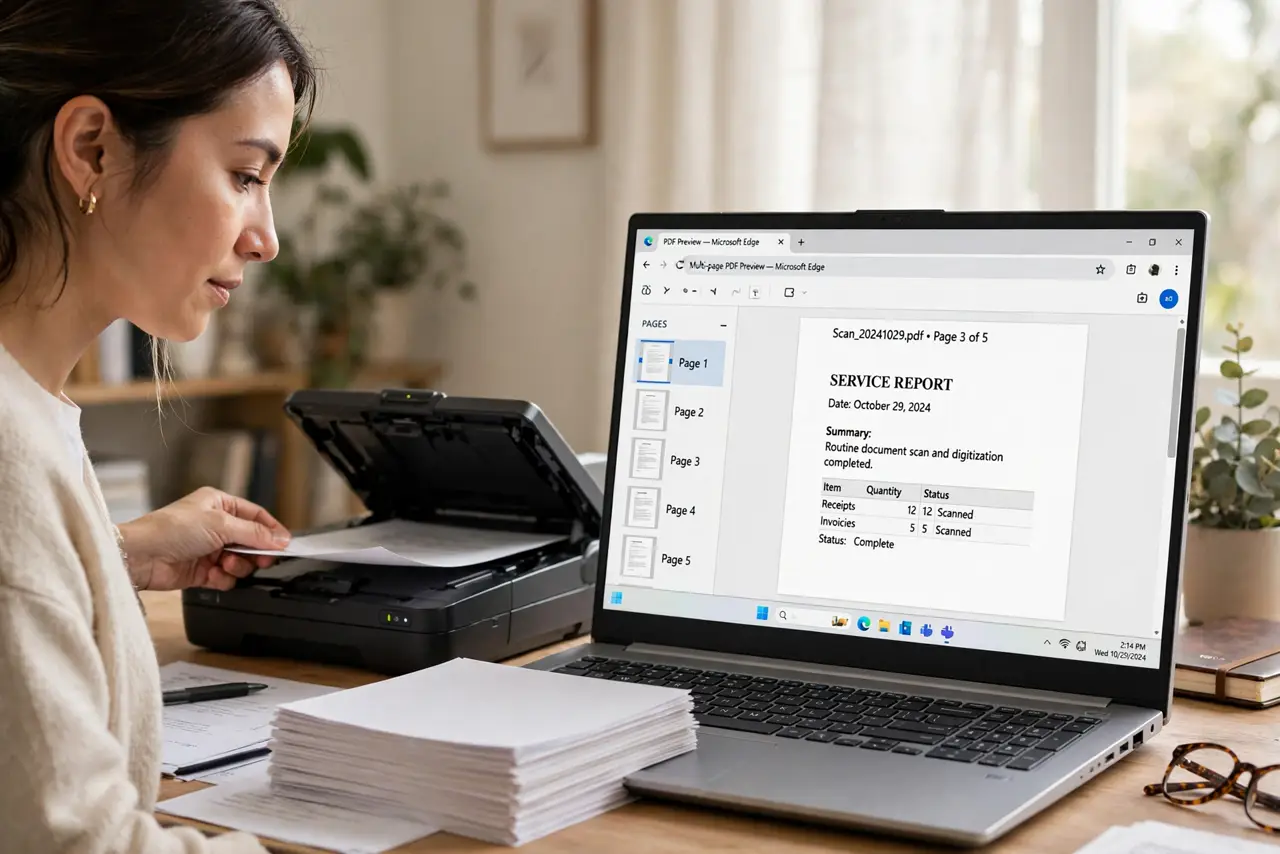
Quick fix: scan every page into Windows Fax and Scan, then print the whole set to Microsoft Print to PDF. In the newer Scan app, scan pages one by one and merge them. Use 300 DPI for text — sharp enough to read, small enough to email.
Follow these steps
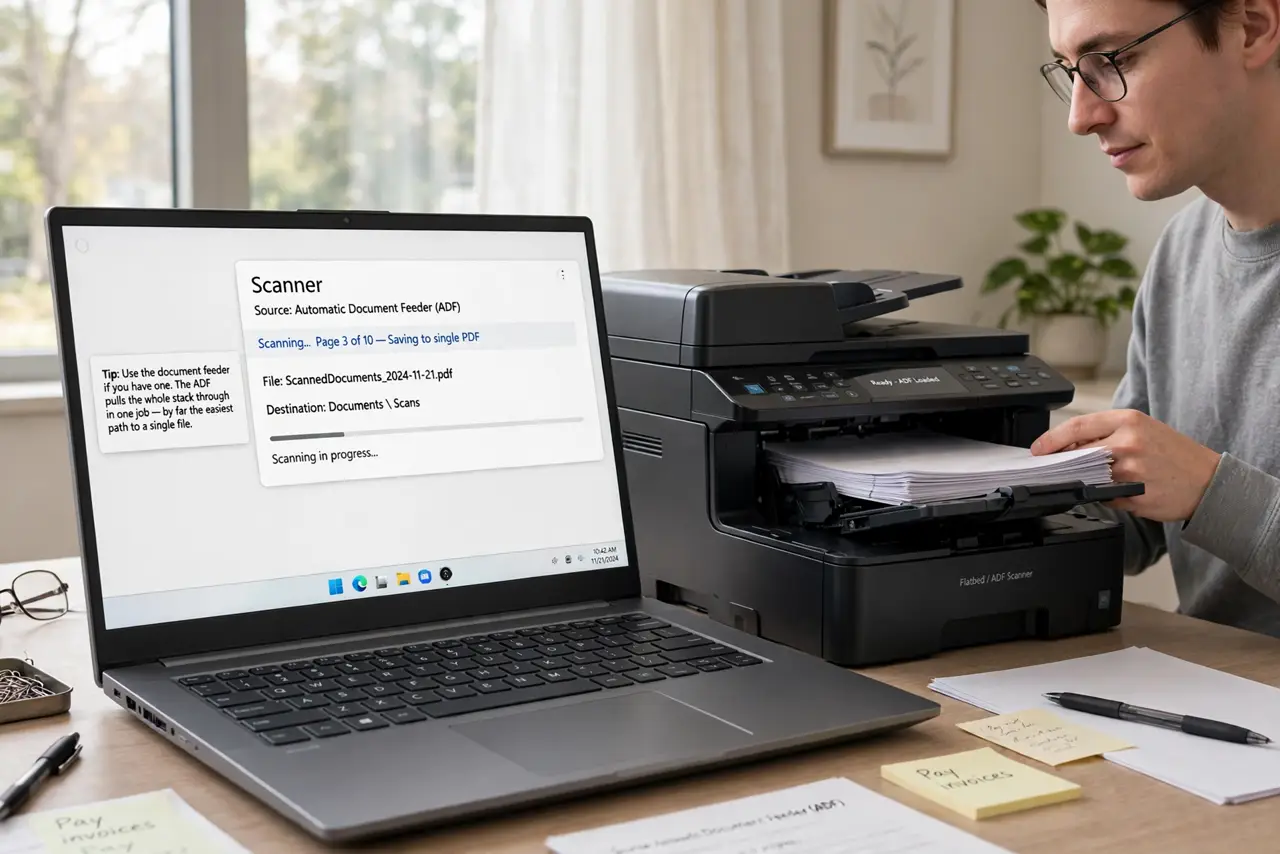
- Use the document feeder if you have one. An automatic document feeder (ADF) pulls the whole stack through in one job — by far the easiest path to a single file. Flatbed users: patience, one page at a time.
- Scan with Windows Fax and Scan. Open Windows Fax and Scan, click New Scan, set the profile, and scan each page into the same session. The pages accumulate in the viewer instead of saving separately.
- Print the set to PDF. With all pages in the viewer, choose Print and select Microsoft Print to PDF. One print job, one PDF — the pages stay in order.
- Or merge files from the Scan app. The newer Scan app saves per scan, so scan every page, then open them together and print to Microsoft Print to PDF to combine them into one file.
- Check the page order. Flip through the preview before saving. A page scanned upside down now is a ten-minute fix; after emailing, it is embarrassment.
- Name it and file it. Give the PDF a real name — contract-2026.pdf, not scan_final2.pdf — and save it where you will actually find it.
What NOT to do
- Do not scan text at maximum DPI. 600+ DPI makes bloated files with no readability gain — 300 DPI is the sweet spot for documents.
- Do not close the scanning app between pages. That is exactly how separate files happen; keep one session open.
- Do not save as images and forget to combine. JPGs in a folder are not a document — merge before you call it done.
- Do not email a 200 MB scan. Compress or re-scan at 300 DPI; nobody's inbox deserves that.
Frequently asked questions
My scanner has no feeder — now what?
Flatbed works fine, just slower: scan each page into one Fax and Scan session and print the set to PDF.
Can I make the PDF searchable?
Windows will not OCR it for you, but for quick text grabs from any image the Snipping Tool OCR trick helps.
The PDF is huge — how do I shrink it?
Re-scan at 300 DPI grayscale for text documents. Color at high DPI is what explodes file sizes.