Scanner Not Detected on Windows? Fix It
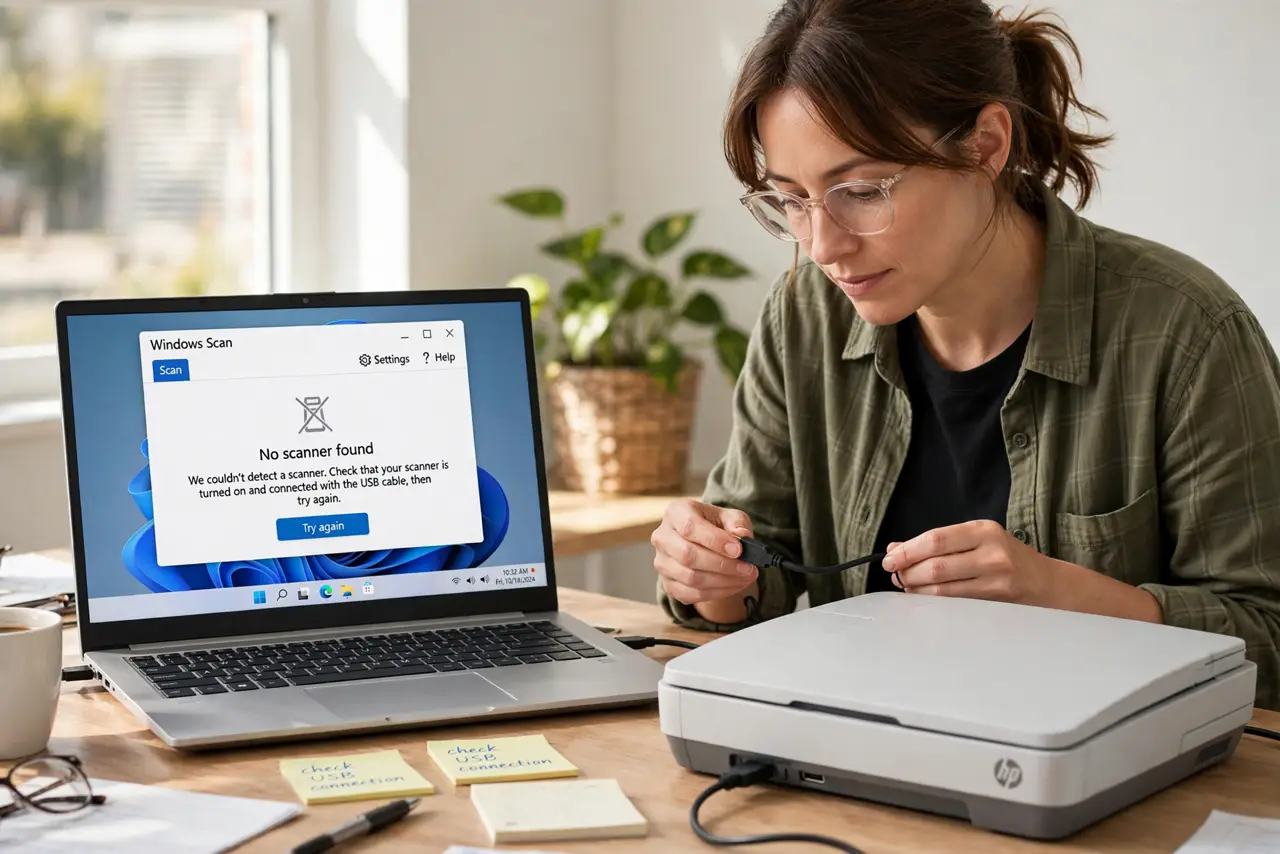
The scanner does not appear in Windows at all — not in the Scan app, not in Devices, nowhere. The cause is usually the connection, the maker's driver, or the Windows Image Acquisition service not running. The fix walks that chain in order, and the scanner driver missing after update guide covers the case where an update removed a working driver.
TL;DR / Quick Fix
Quick fix: check the scanner's USB cable and power first — reseat both ends and confirm its ready light is on. Then open the Windows Scan app. If still missing, install the driver from the scanner maker's site and confirm the Windows Image Acquisition service runs.
Follow these steps
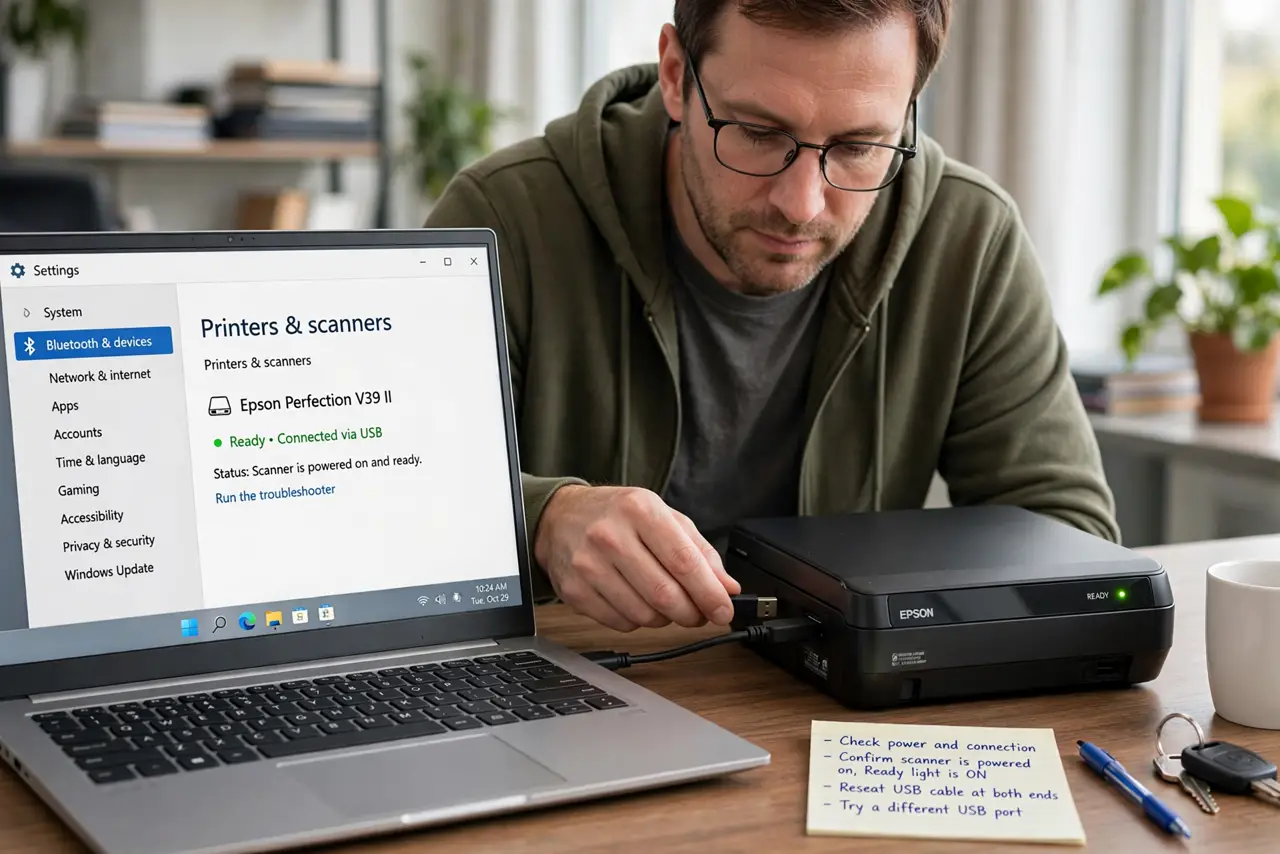
- Check power and the physical connection. Confirm the scanner is powered on with its ready light lit, and reseat the USB cable at both ends. Try a different USB port, avoiding unpowered hubs.
- Look in the Windows Scan app. Open the Scan app from the Start menu and check its scanner list. The app lists what Windows can actually see, which is the ground truth.
- Install the maker's driver. Download the scanner driver from the manufacturer's support site for your exact model. Windows' generic drivers often miss scanners, especially older ones.
- Check the Windows Image Acquisition service. Open the services list and confirm Windows Image Acquisition is running and set to automatic. Scanning depends on this service, and it sometimes gets disabled.
- Remove ghost scanner entries. In Device Manager, show hidden devices and remove grayed-out scanner entries from failed installs. Ghost entries can block the fresh driver from claiming the device.
- Test with a simple scan. Run one plain scan from the Scan app. A completed scan proves the whole chain — cable, driver, service — is working.
What NOT to do
- Do not install the driver from a random driver site. The manufacturer's site is the only safe source; driver aggregators bundle junk.
- Do not use a USB hub for the first test. Hubs add a failure point, so test direct to the PC before assuming the scanner is broken.
- Do not confuse the printer driver with the scanner driver. All-in-ones need both, and printing fine does not prove the scanning side is installed.
- Do not keep reinstalling without removing ghosts. Failed installs leave entries that block the next attempt, so clean them first.
Frequently asked questions
Why does my printer work but not the scanner?
Because all-in-ones use separate drivers for printing and scanning. One can work while the other is missing.
The scanner worked yesterday — what changed?
Usually a Windows update replaced the driver, or the USB connection degraded. Reseat the cable before reinstalling anything.
Do I need the maker's full software suite?
No. The basic driver plus the Windows Scan app is enough for scanning; the suite adds extras you may not need.