Screen Dims on Battery Despite Settings
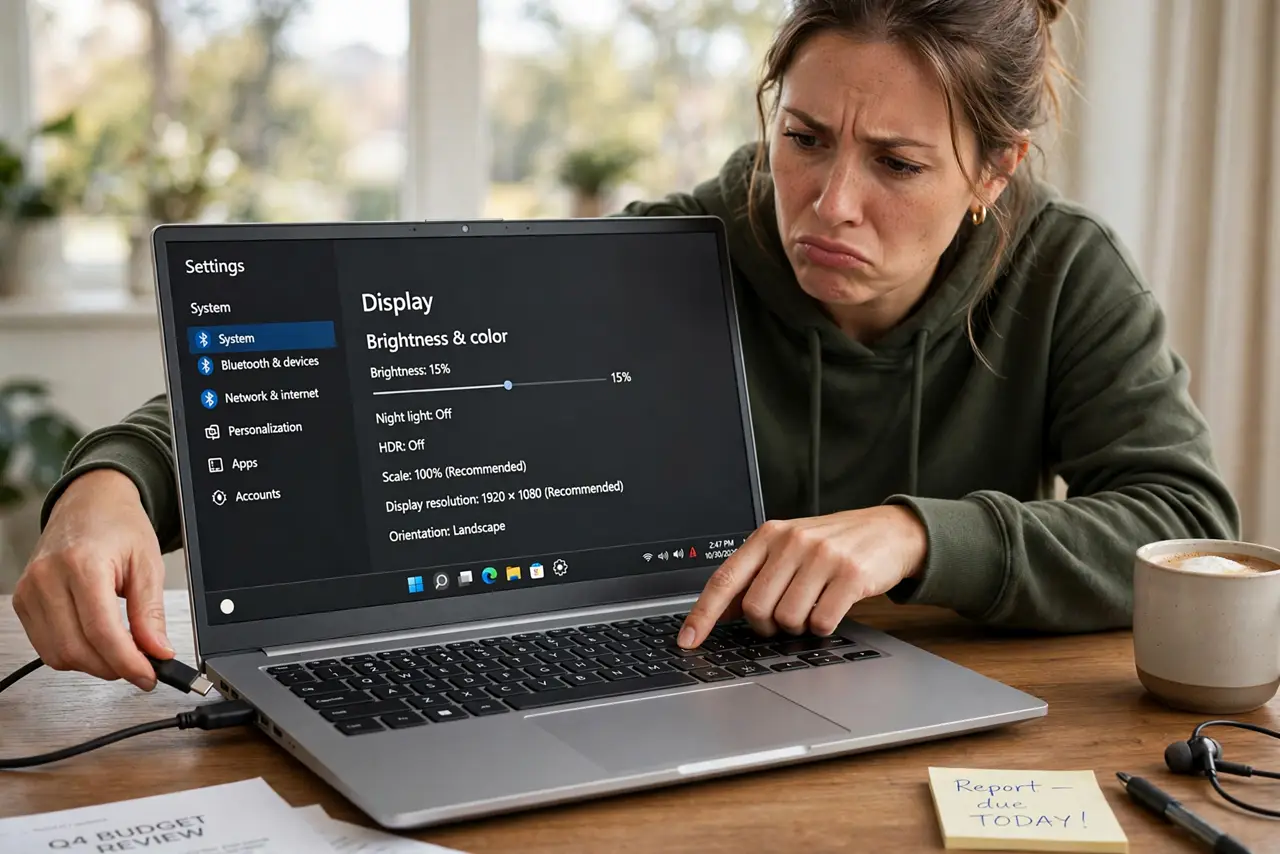
You unplug the laptop and the screen dims on its own, even though you turned every dimming setting off. Windows has several overlapping brightness controls — battery saver, adaptive brightness, and the PC maker's own utility — and they can fight your settings. This guide finds which one is dimming your screen.
TL;DR / Quick Fix
Quick fix: in Settings > System > Display, set the brightness slider separately while unplugged — Windows remembers per power state. Turn off battery-saver dimming and adaptive brightness, and check the PC maker's utility for its own dimming control too.
Follow these steps
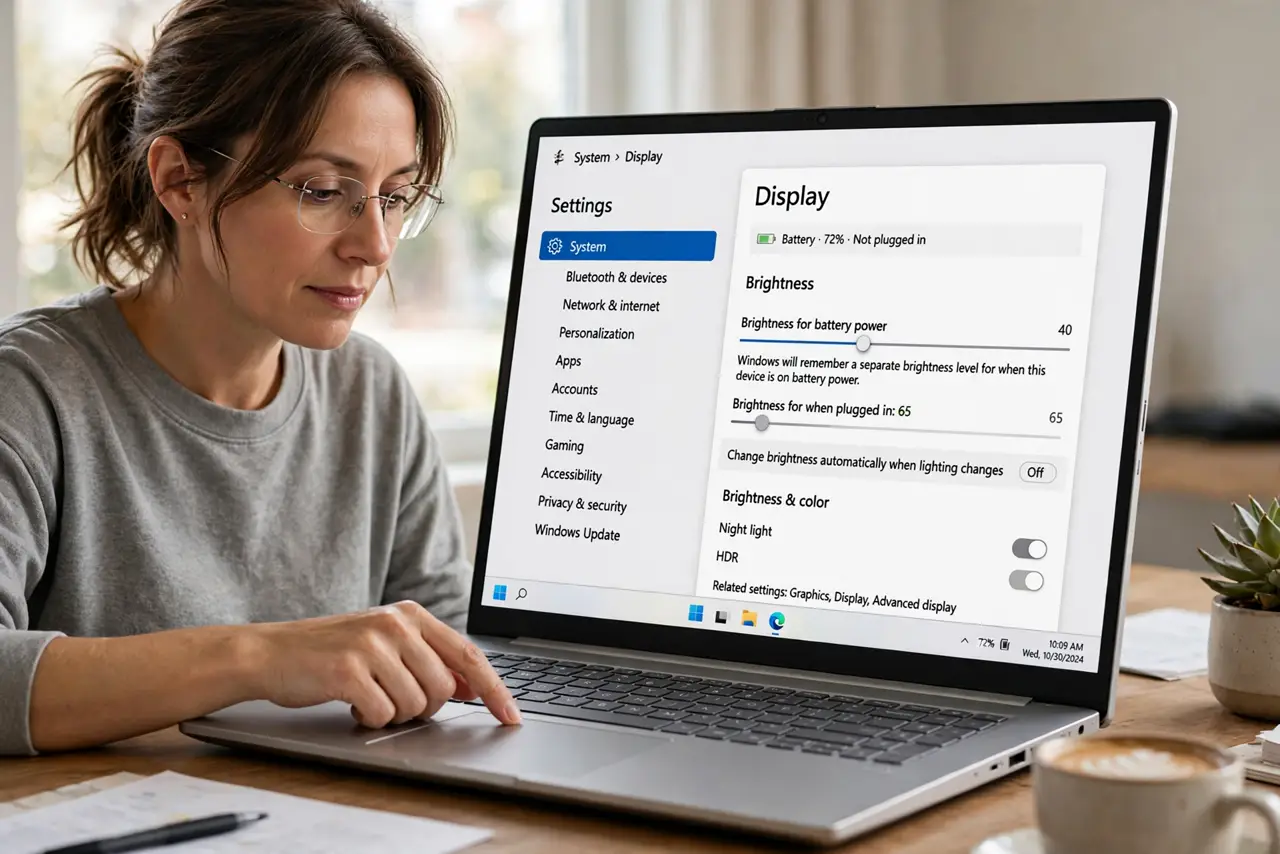
- Set brightness separately for battery. Go to Settings > System > Display and set the brightness slider while unplugged. Windows remembers a separate brightness level for battery and plugged-in — set each one deliberately.
- Stop battery saver from dimming. In Settings > System > Power & battery > Battery saver, check the option that lowers screen brightness. Turn that specific toggle off while keeping battery saver itself on.
- Disable adaptive brightness. In advanced power settings, expand Display > Enable adaptive brightness and set it to Off for battery. The ambient light sensor then stops overriding your manual setting.
- Check the PC maker's utility. Many laptops ship with a manufacturer control app that dims the screen on battery independently of Windows. Open it and disable its power-saving display features.
- Update the display driver. In Device Manager, update the display adapter driver. A buggy graphics driver can force dimming on battery that no setting explains.
- Test unplug and replug. Set your brightness, unplug, wait ten seconds, and watch. If the level holds, the fix worked — if it still drops, one dimming layer is still active.
What NOT to do
- Do not crank brightness to 100% on battery to compensate. Maximum brightness is the fastest way to drain a battery you are trying to preserve.
- Do not disable battery saver entirely over this. The dimming toggle is separate — keep the saver, kill only the dimming.
- Do not edit the registry for brightness control. The real controls are in Settings and the maker utility; registry edits risk breaking display drivers.
- Do not assume the screen is failing. Automatic dimming on battery is a feature misbehaving, not a dying backlight.
Frequently asked questions
Why does my screen dim when I unplug even at 90% battery?
A separate per-power-state brightness level, battery saver dimming, or the maker utility — check all three layers.
Does adaptive brightness use the webcam?
No, it uses a small ambient light sensor near the screen. Covering it accidentally can also cause odd dimming.
Will this fix work on an external monitor?
No. External monitors keep their own brightness; this guide covers the laptop's built-in display.