Screen Snip? Basics
You need to capture part of your screen — an error message, a receipt, a funny chat — and Print Screen grabs the whole thing. Screen Snip (Windows+Shift+S) lets you draw a box around exactly what you want, then copies it to your clipboard. It is fast, built in, and most people discover it years late. Here is the full rundown.
TL;DR / Quick Fix
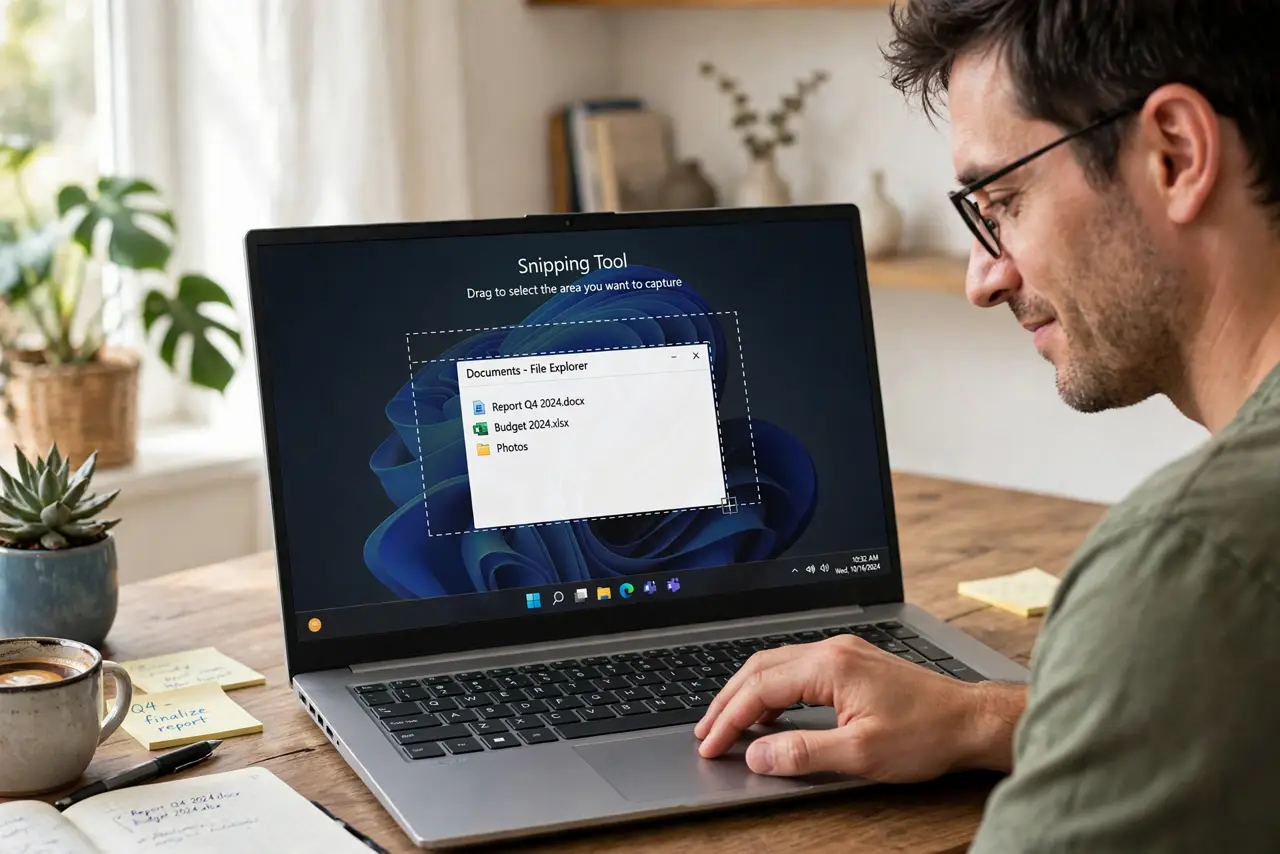
Quick fix: press Windows+Shift+S to snip any part of your screen — drag a box, and the capture lands on your clipboard ready to paste. Click the notification to annotate and save it. For full control, open the Snipping Tool app directly.
Follow these steps
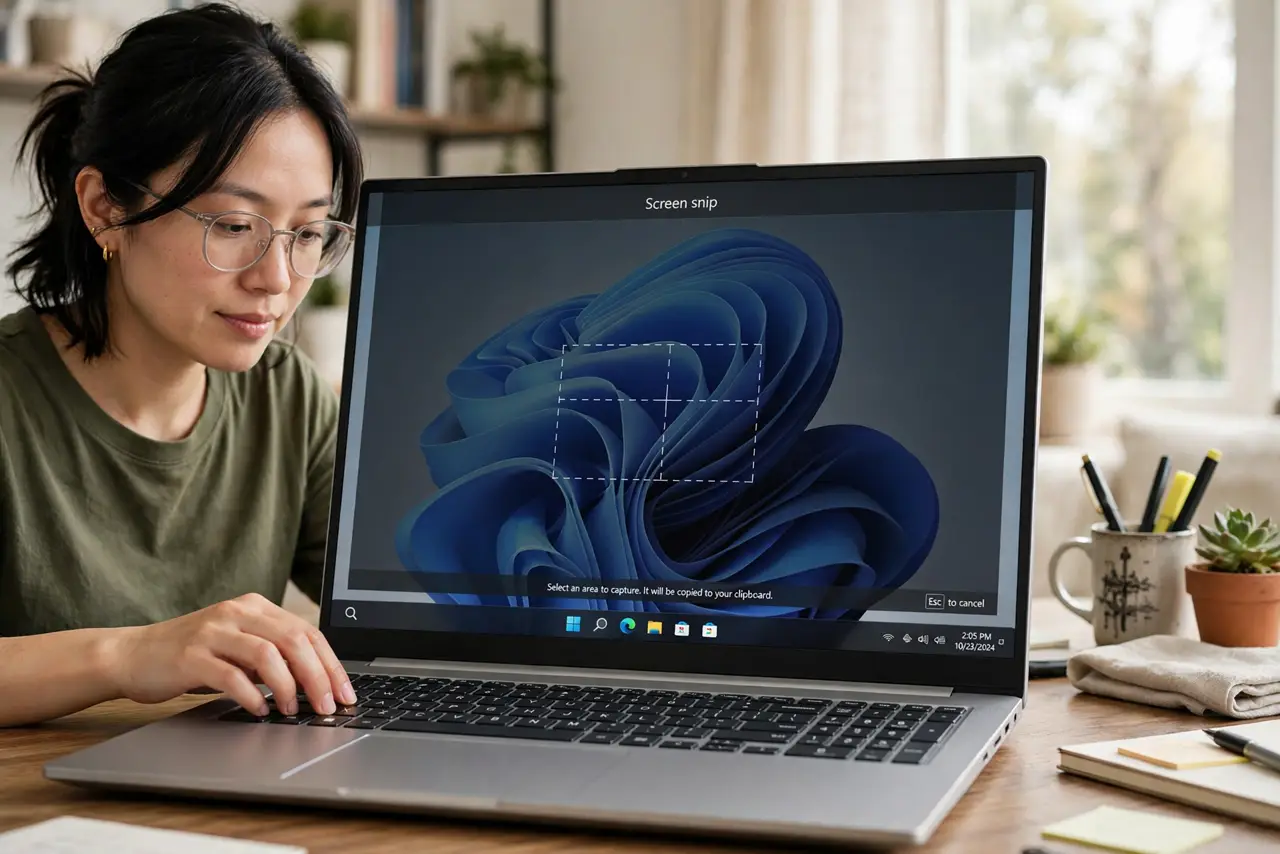
- Learn the shortcut. Windows+Shift+S dims the screen and gives you a crosshair — drag over the area you want. Release, and the snip is on your clipboard. This one shortcut replaces a whole category of third-party screenshot tools.
- Choose your snip shape. The toolbar offers rectangle (default), freeform, window, and fullscreen modes. Window mode is perfect for capturing one app cleanly; rectangle covers everything else.
- Annotate from the notification. After snipping, a notification appears — click it to open the editor with pen, highlighter, and crop. Annotate the error message before sending it to support; they will thank you.
- Decide: clipboard or file. Snips go to the clipboard by default — paste into chat or docs immediately. To keep one, save from the notification editor; also check where snips save if files seem to vanish.
- Open the app for more. Search 'Snipping Tool' for the full app: delayed snips (3-10 seconds, for capturing menus), video capture, and settings. The shortcut is for speed; the app is for control.
- Fix Print Screen hijacks. If pressing Print Screen opens the snipping overlay instead of copying fullscreen, that is a Windows 11 setting — see Print Screen opens Snipping to change it back.
What NOT to do
- Do not paste sensitive snips into the wrong chat. The clipboard holds the image — double-check the destination before Ctrl+V.
- Do not snip passwords or codes and leave them. Screenshots of credentials linger in folders and clipboards — delete after use.
- Do not forget the delay for menus. Menus vanish when you press keys — use the Snipping Tool's delay mode instead.
- Do not re-snip what you already saved. Check the save location first — most 'lost' snips are sitting in the default folder.
Frequently asked questions
Where did my snip go?
To the clipboard, unless you saved it from the notification. Paste it somewhere or click the notification to save — see the save-location guide.
Can I record video with it?
Yes — the Snipping Tool app has a screen recording mode now. The Windows+Shift+S shortcut is stills only.
Why does Print Screen open snipping now?
Windows 11 remapped it by default. It is a setting you can change — the linked guide above walks through it.