Limit Kids' Screen Time
The gaming never ends — dinner is cold, homework is theoretical, bedtime is a rumor. Screen time limits turn the fight into a system: daily allowances, bedtime cutoffs, and per-app limits that enforce themselves. The PC becomes the enforcer so you do not have to be.
TL;DR / Quick Fix
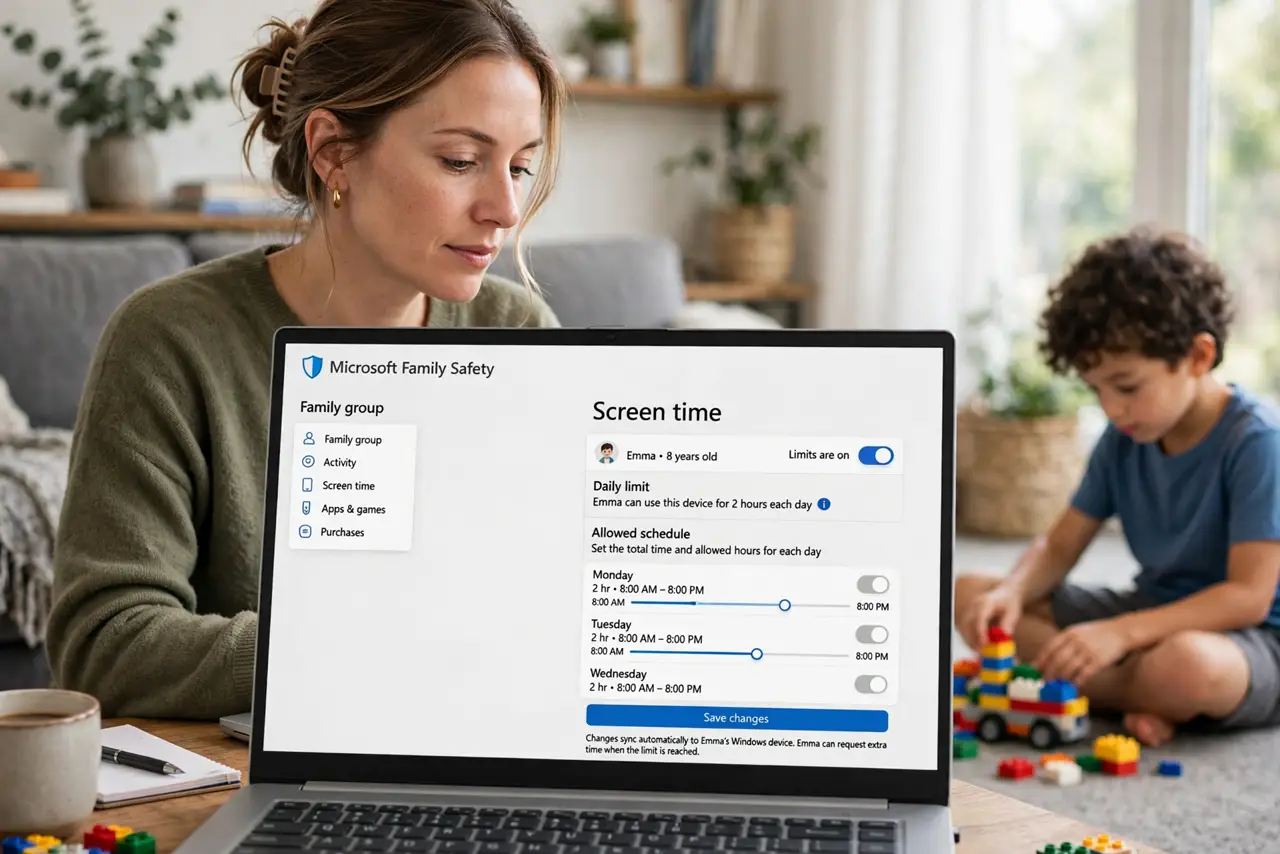
Quick fix: open the Family Safety dashboard, choose your child's profile, and set daily screen time limits per device. Add a bedtime schedule so the PC locks itself at night. Set tighter limits for games, looser ones for school apps. Review the weekly report and adjust limits over time.
Follow these steps
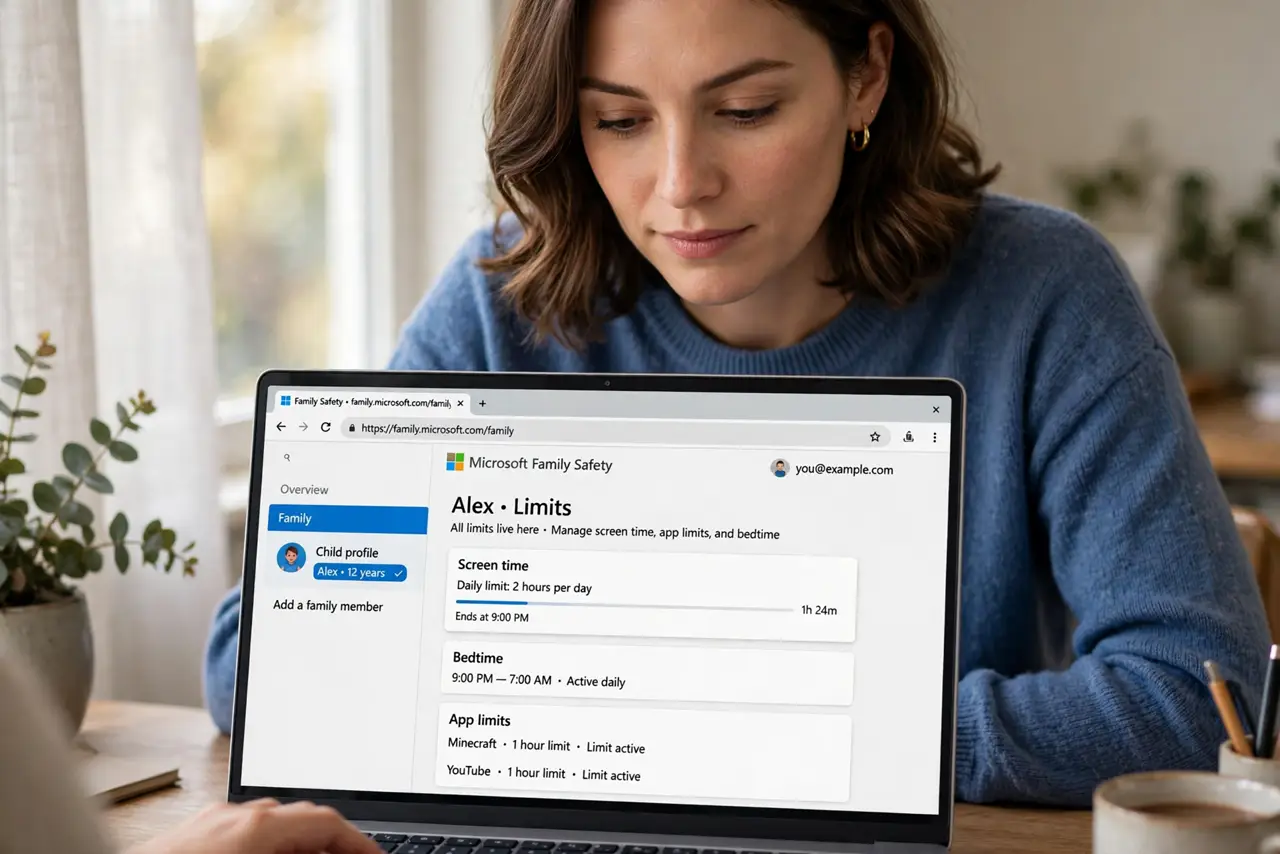
- Open the Family Safety dashboard. Sign in at the Microsoft family page and pick the child's profile. All limits live here.
- Set daily limits. Choose hours per day per device. Start reasonable — the goal is balance, not punishment.
- Add bedtime hours. Set a bedtime window when devices lock. A PC that enforces bedtime ends the nightly negotiation.
- Limit per app. Games get tight limits; school apps get generous ones. Per-app control is the precision tool — see the Family Safety setup for the full system.
- Use the child account properly. Limits attach to the child's account, not the device — the child account guide covers setup. Shared logins defeat everything — separate accounts first.
- Review and adjust weekly. Check the activity report together. Earned trust loosens limits; broken trust tightens them.
What NOT to do
- Do not set limits as punishment. Limits work as structure; as revenge they breed circumvention.
- Do not forget to model balance. Kids notice when your screen never sleeps — family rules work best family-wide.
- Do not set and forget. Needs change with school terms and seasons — revisit quarterly.
- Do not rely on limits alone. Conversation about why beats enforcement without understanding.
Frequently asked questions
What happens when time runs out?
The device locks for the child with a polite notice. They can request more time, which you approve or deny.
Can kids request more time?
Yes — requests come to you for approval. It is a negotiation with a paper trail.
Do limits work on Xbox too?
Yes, through the same family group. One set of rules across PC and console.