Repair System Files with SFC
Windows acting strangely — features not opening, updates failing, weird errors with no clear cause — often means core system files got corrupted. SFC (System File Checker) scans every protected Windows file and replaces damaged ones with clean copies. It is safe, built-in, and fixes a surprising number of 'mystery' problems.
TL;DR / Quick Fix
Quick fix: open Command Prompt as administrator and run sfc /scannow. The scan takes 15-30 minutes and repairs corrupted Windows files automatically. If it reports it could not fix some files, run DISM next — DISM repairs the repair source SFC depends on.
Follow these steps
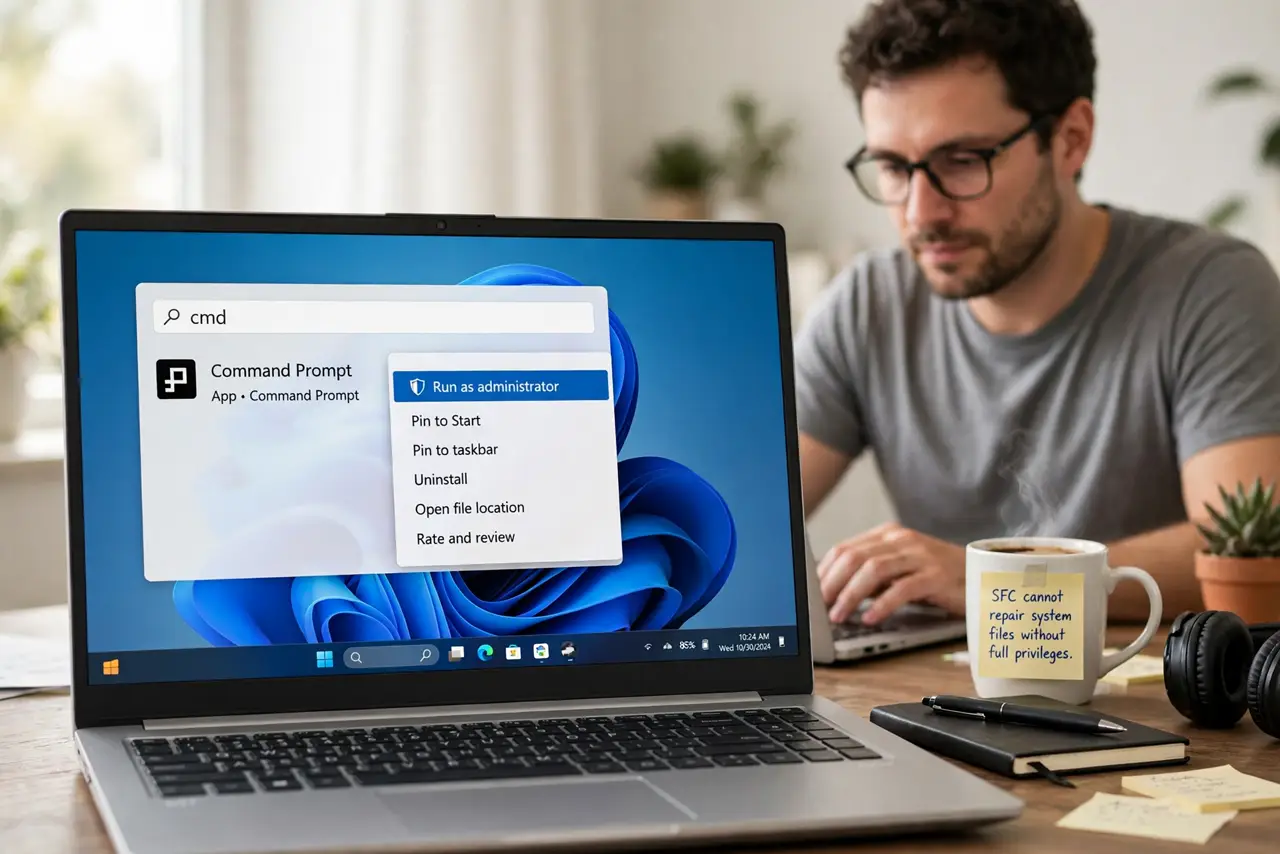
- Open an administrator Command Prompt. Press the Windows key, type cmd, right-click Command Prompt, and choose Run as administrator. SFC cannot repair system files without full privileges.
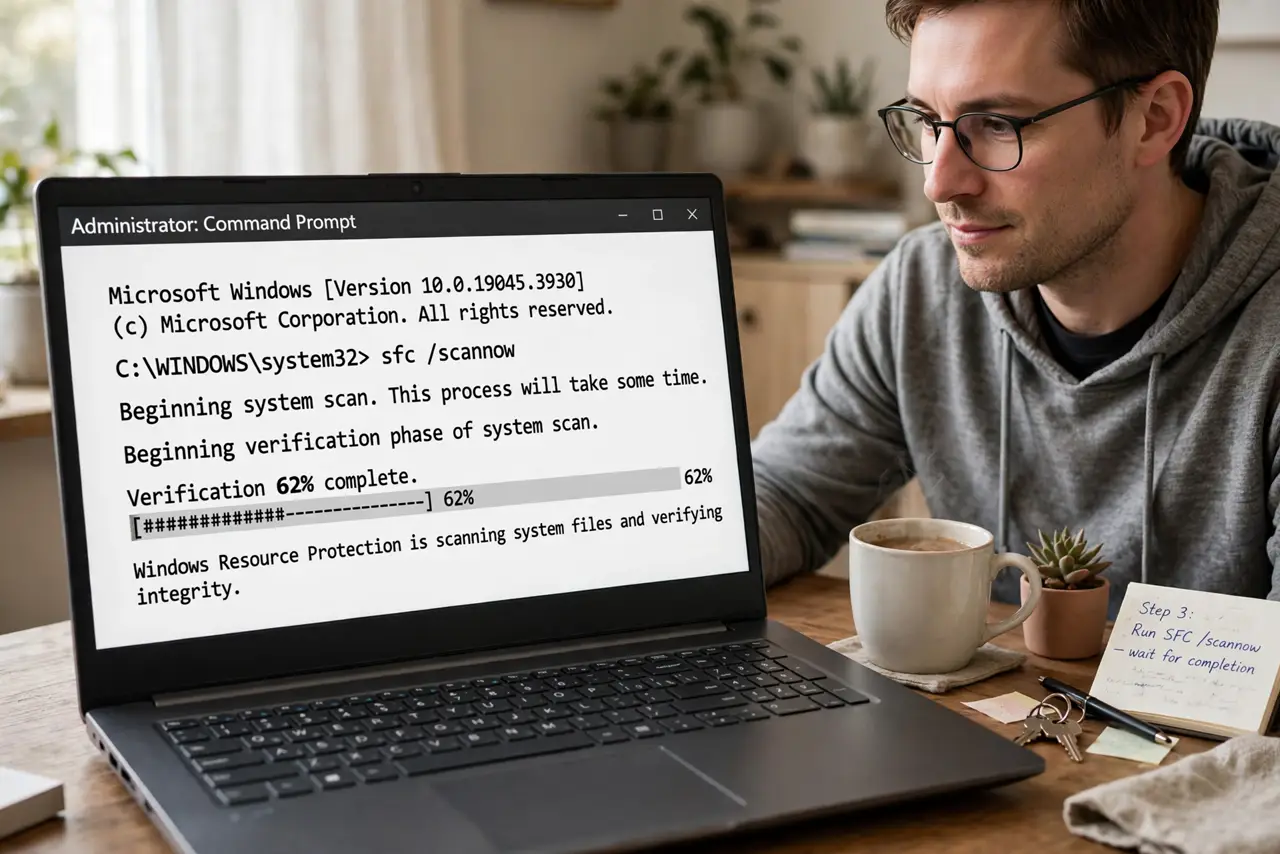
- Run the scan command. Type sfc /scannow and press Enter. The scan verifies every protected system file against its known-good copy and replaces corrupted ones on the spot.
- Wait for the full scan. It takes 15-30 minutes and the progress bar may sit still for stretches — that is normal. Closing the window mid-scan can leave repairs incomplete.
- Read the result message. 'Found corrupt files and repaired them' means success — reboot. 'Found corrupt files but could not fix some' means SFC needs help: run DISM to repair its source files, then run SFC again.
- Reboot after repairs. Replacements take full effect on restart. Test whatever was broken after the reboot — most SFC-fixed issues resolve at this point.
- Check the disk if corruption recurs. Files that keep corrupting point to a failing drive, not bad luck. Run a disk check — recurring corruption is a hardware symptom.
What NOT to do
- Do not run SFC from a non-admin prompt. Without elevation it scans but cannot repair — the most common reason 'SFC did nothing.'
- Do not panic at 'could not fix some files.' That is DISM's cue, not a disaster — the two tools are designed to work as a pair.
- Do not close the window mid-scan. Interrupted scans leave the file store in limbo — let the percentage reach 100%.
- Do not expect SFC to fix everything. It repairs Windows system files only — broken apps, drivers, and user files are outside its job.
Frequently asked questions
How often should I run SFC?
Only when troubleshooting — it is a repair tool, not maintenance. Monthly 'preventive' scans fix nothing that is not broken.
What's the difference between SFC and DISM?
SFC repairs individual system files from a local store; DISM repairs the store itself. When SFC fails, DISM fixes its source, then SFC succeeds.
Can SFC damage my files?
No — it only touches protected Windows system files, never your documents. Your personal files are completely safe.