Beam Files to a Nearby PC
The USB stick shuffle — copy here, walk there, paste, walk back — is Stone Age file transfer between two PCs in the same room. Nearby Sharing beams files over Wi-Fi and Bluetooth with two clicks. This guide enables it on both PCs and ends the sneaker-net.
TL;DR / Quick Fix
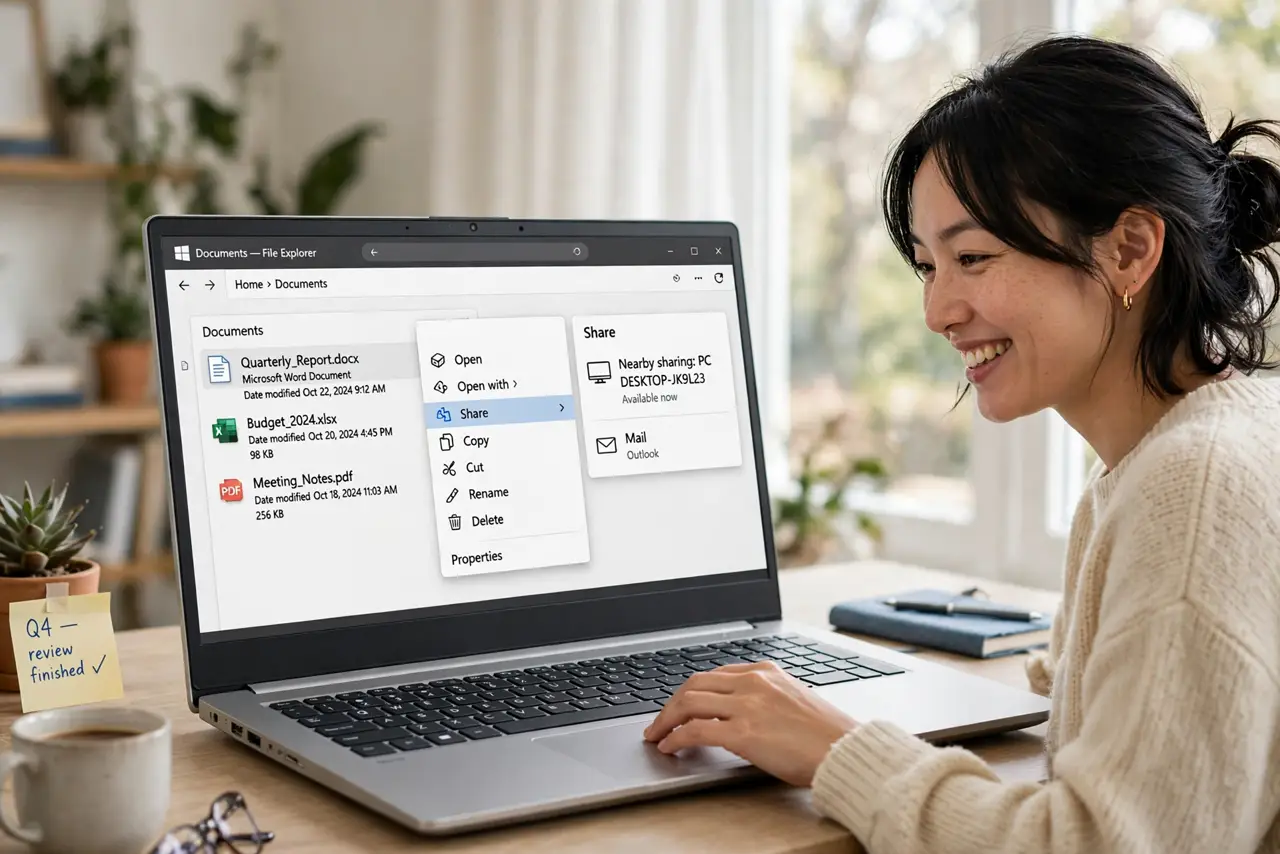
Quick fix: Nearby Sharing beams files between Windows PCs over Wi-Fi and Bluetooth — enable it in Settings, System, Nearby Sharing, then right-click a file, Share, and pick the nearby PC. Both PCs need Bluetooth on and to be on the same network. Accept the transfer on the receiving PC.
Follow these steps
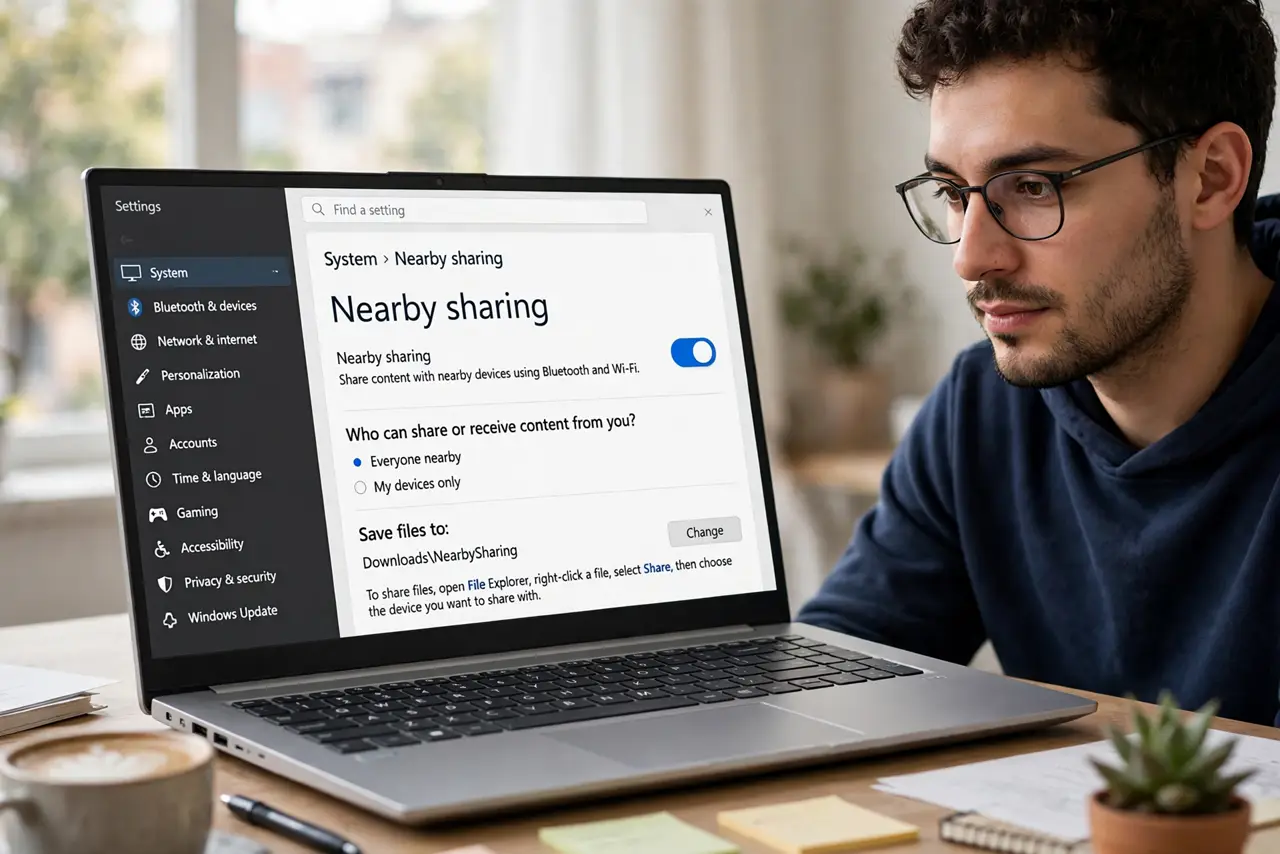
- Enable Nearby Sharing on both PCs. Settings, System, Nearby Sharing — turn it on for each PC. Set to 'Everyone nearby' for home use or 'My devices only' for stricter control.
- Turn on Bluetooth and Wi-Fi. Nearby Sharing needs both radios on, on both PCs. They do not need to be on the same Wi-Fi network, but same-network is most reliable.
- Right-click, Share, pick the PC. Right-click any file, choose Share, and the nearby PC appears. One click sends — no pairing codes, no setup per transfer.
- Accept on the receiving PC. A notification asks to accept. Files land in Downloads (or your chosen folder) — accept promptly; the prompt times out.
- Share links and text too. Nearby Sharing handles URLs and clipboard text, not just files. Select text, Share, send — cross-PC copy-paste without the cloud.
- Know the phone-side alternative. For phone-to-PC transfers, Phone Link photos covers the phone side — Nearby Sharing is the PC-to-PC specialist.
What NOT to do
- Do not leave it on 'Everyone nearby' in public. Strangers could send you files — 'My devices only' outside trusted spaces.
- Do not expect huge-file speed. Nearby Sharing suits documents and photos; multi-gigabyte transfers still want a cable or drive.
- Do not forget Bluetooth. Wi-Fi alone is not enough — both radios must be on at both ends.
- Do not confuse it with network file sharing. Nearby Sharing is ad-hoc beaming; permanent shared folders are a different feature.
Frequently asked questions
Why does the other PC not appear?
Bluetooth off, different sharing scope, or out of range. Check all three — proximity matters.
Does it work PC to phone?
No — PC to PC only. Phone transfers go through Phone Link instead.
Where do received files go?
Downloads by default; change the save location in the Nearby Sharing settings.