Bring Back the Full Right-Click Menu
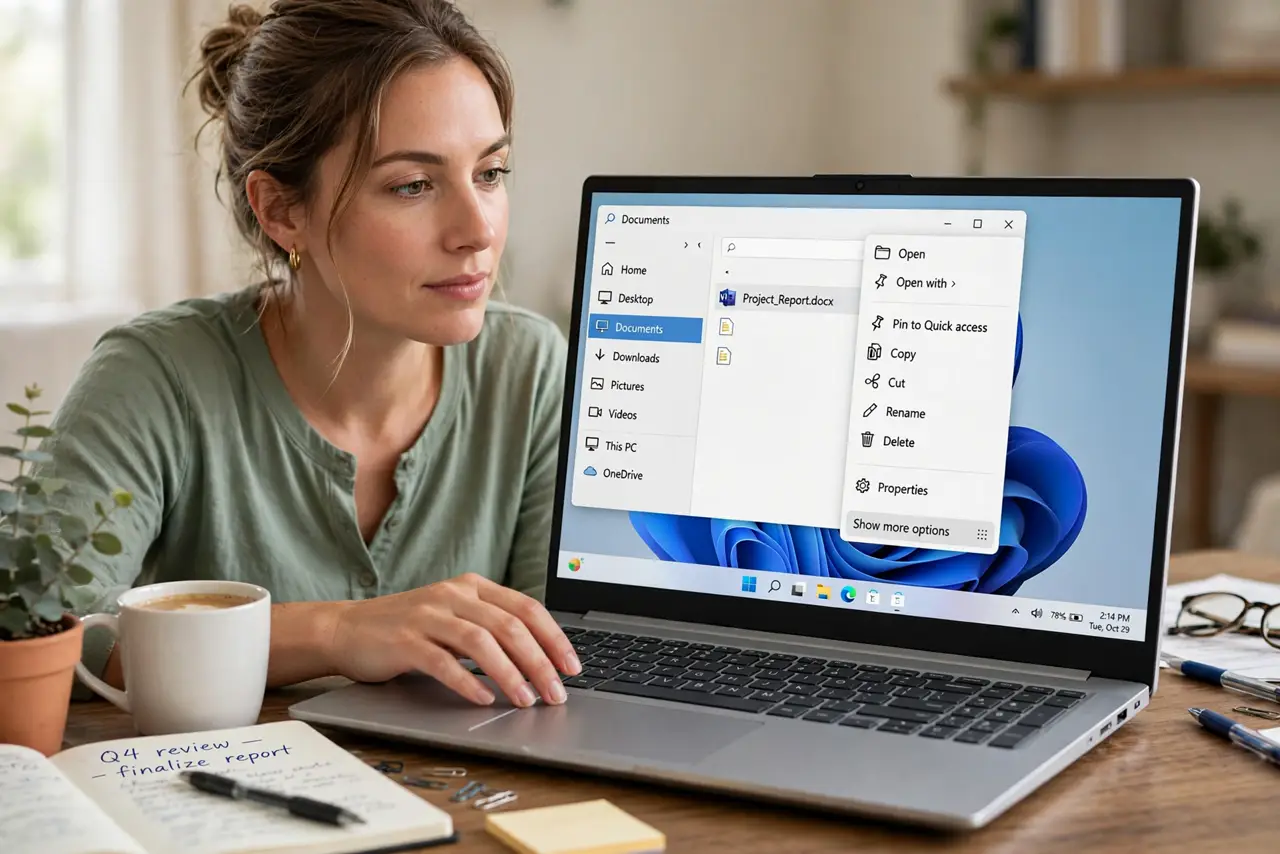
Windows 11 replaced the full right-click menu with a short one, hiding everything else behind Show more options. If you use those hidden entries constantly, the extra click gets old fast. You can restore the classic full menu with one documented registry change, and undo it just as easily — the slow right-click menu guide covers the separate problem of the menu opening slowly.
TL;DR / Quick Fix
Quick fix: you can restore the classic full right-click menu with a single documented registry command that tells Explorer to skip the new compact menu. Run it, restart Explorer, and every right-click shows the full menu again. The change is fully reversible with a second command.
Follow these steps
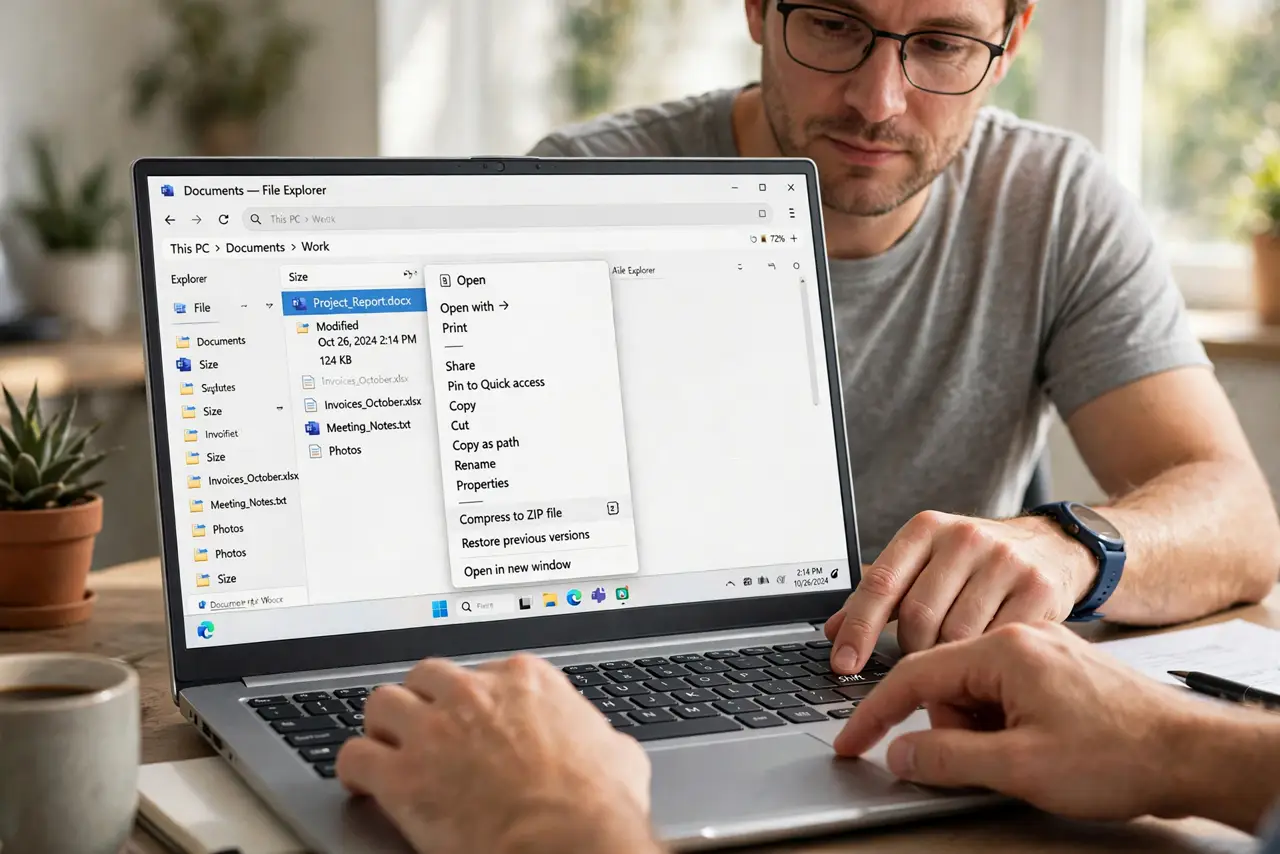
- Know the two ways to see the full menu. Shift plus right-click shows the classic menu once, without changing anything. The registry change below makes the classic menu the default for every right-click, so try the Shift trick first to confirm you actually want it.
- Back up the registry key you will touch. Open the registry editor, navigate to the key the command will create under, and export it. A backup means the experiment is risk-free even if you mistype something.
- Run the documented registry command. Run the published command that adds the InprocServer32 value telling Explorer to use the classic menu. This is the widely documented key for this exact purpose, not a random tweak.
- Restart Explorer to apply it. Sign out and back in, or restart the Explorer process. The new menu style only takes effect after Explorer reloads; a full reboot works too.
- Right-click and confirm the full menu. Right-click any file and check that the complete classic menu appears with no Show more options step. Test a few entries to make sure they all work.
- Know how to undo it. To return to the compact Windows 11 menu, delete the value you added and restart Explorer again. Nothing about this change is permanent.
What NOT to do
- Do not download a menu-restorer tool from a random site. The registry change is one documented command, and mystery tools add risk for no benefit.
- Do not edit other Explorer registry keys while you are in there. Unrelated tweaks can break the taskbar or Start, so change only the one documented value.
- Do not expect the change to survive every major Windows update. Big updates sometimes reset Explorer customizations, and you may need to reapply the command.
- Do not use this to avoid learning the new menu. If you only miss one or two entries, pinning them or using Shift plus right-click may serve you better than a system-wide change.
Frequently asked questions
Does this work on Windows 10 too?
Windows 10 already shows the full menu by default, so this fix is only needed on Windows 11.
Will this slow down my right-click menu?
No. It only changes which menu style Explorer draws; it does not add or remove the extensions that cause slowness.
Is editing the registry for this safe?
Yes, with the backup step. This is a single documented value under a key you can delete to undo everything.