Require Sign-In After Sleep
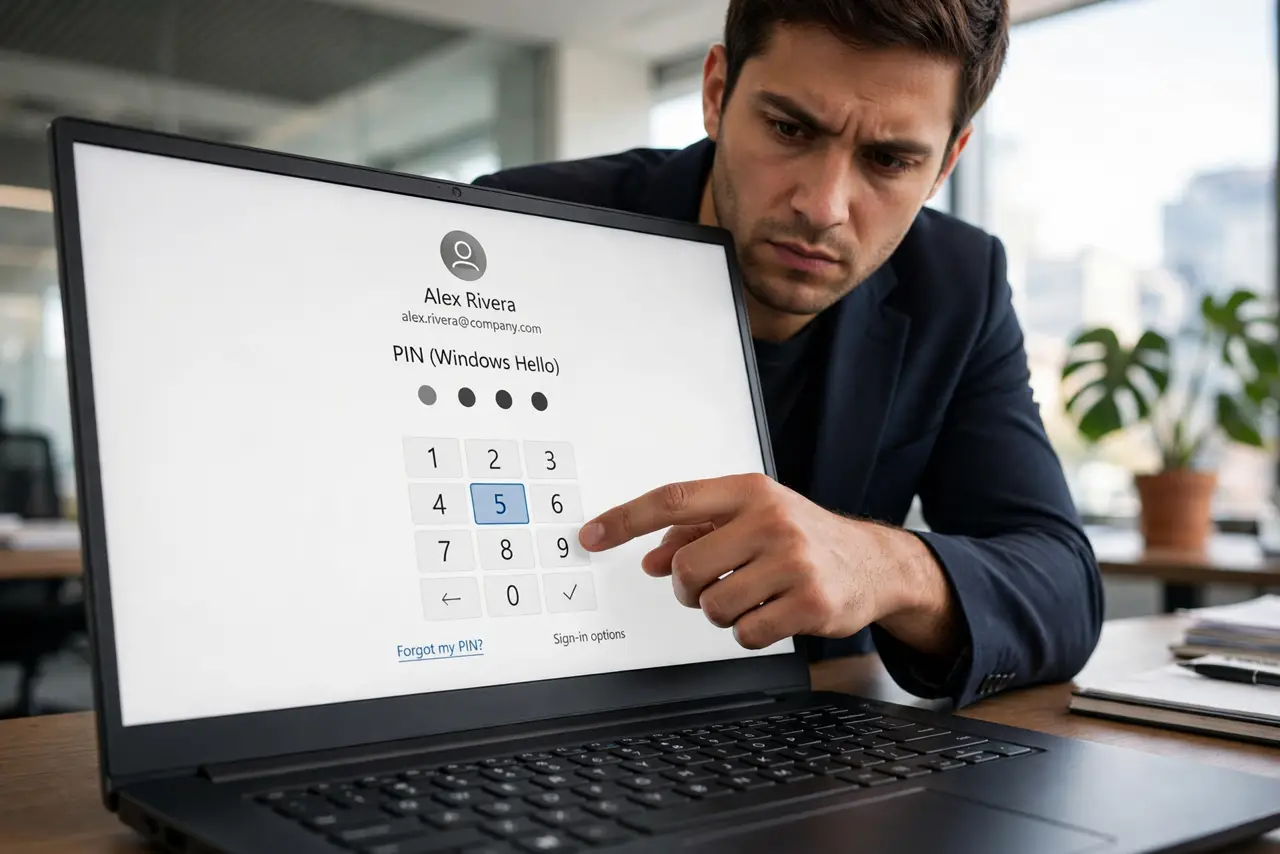
Your laptop wakes from sleep straight to the desktop — no PIN, no password, anyone passing by gets full access. Windows can require sign-in on every wake; it's one dropdown, and in offices and shared homes it's the most important security setting you're not using.
TL;DR / Quick Fix
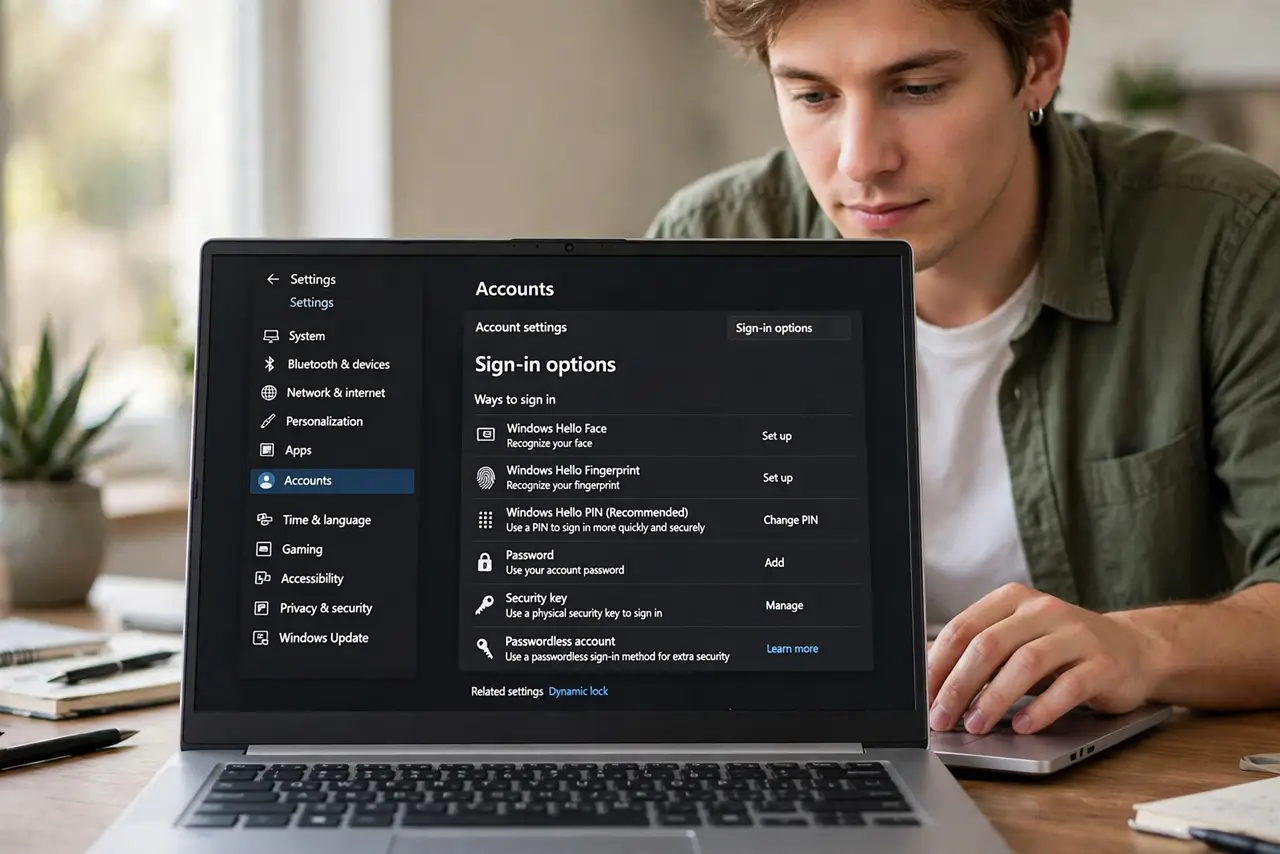
Open Settings > Accounts > Sign-in options and set the sign-in requirement to 'When PC wakes up from sleep'. The lock screen then demands your PIN or password every wake. In offices and shared homes, this one setting is the difference between private and exposed.
Follow these steps
- Open Sign-in options. Press Win + I, go to Accounts > Sign-in options.
- Set the wake requirement. Under 'If you've been away, when should Windows require you to sign in again?', choose 'When PC wakes up from sleep'.
- Test it immediately. Put the PC to sleep and wake it. The lock screen should demand your PIN or password — no straight-to-desktop.
- Pick a fast sign-in method. A PIN or fingerprint makes the extra prompt painless. Set one up in the same Sign-in options page — see change PIN/password.
- Pair it with a short screen timeout. Settings > System > Power & battery > Screen and sleep: short timeouts plus required sign-in close the unattended gap.
- Consider Dynamic Lock too. If you carry your phone, Dynamic Lock auto-locks when you walk away — the companion to this setting.
What NOT to do
- Do not set 'Never' for convenience. Skipping sign-in trades all your lock-screen protection for saving three seconds.
- Do not rely on this alone in public. Shoulder surfers watch PIN entry — shield the keypad with your hand.
- Do not forget the screen timeout. Required sign-in only helps if the PC actually locks; an hour-long timeout leaves it open.
- Do not confuse sleep with the screensaver. The sign-in requirement covers wake-from-sleep; check the screensaver's own 'on resume' box separately if you use one.
Frequently asked questions
Why does Windows sometimes skip the sign-in anyway?
If the PC only turned off the display without sleeping, there's no wake event. Shorten the sleep timeout so it truly sleeps.
Does this affect restarts too?
Restarts always require sign-in regardless. This setting governs wake-from-sleep specifically.
Will it ask after every tiny nap?
Yes — any sleep triggers it. That's the point; pair it with a quick PIN so it never feels slow.