Your PC Wakes at Night for Windows Update
A PC that wakes itself at night, whirring in a quiet room, is usually waking for a scheduled update or a wake timer an update left behind. This guide checks update timing first, then wake timers, so nights stay quiet. If restarts during work are the problem instead, see stopping Windows restarts for updates while you work.

TL;DR / Quick Fix
Quick fix: Set active hours to cover your day. Check for a pending update. Then work through the remaining steps in order, checking one change at a time, and stop for a technician if you see damage, swelling, or a burning smell.
Follow these steps
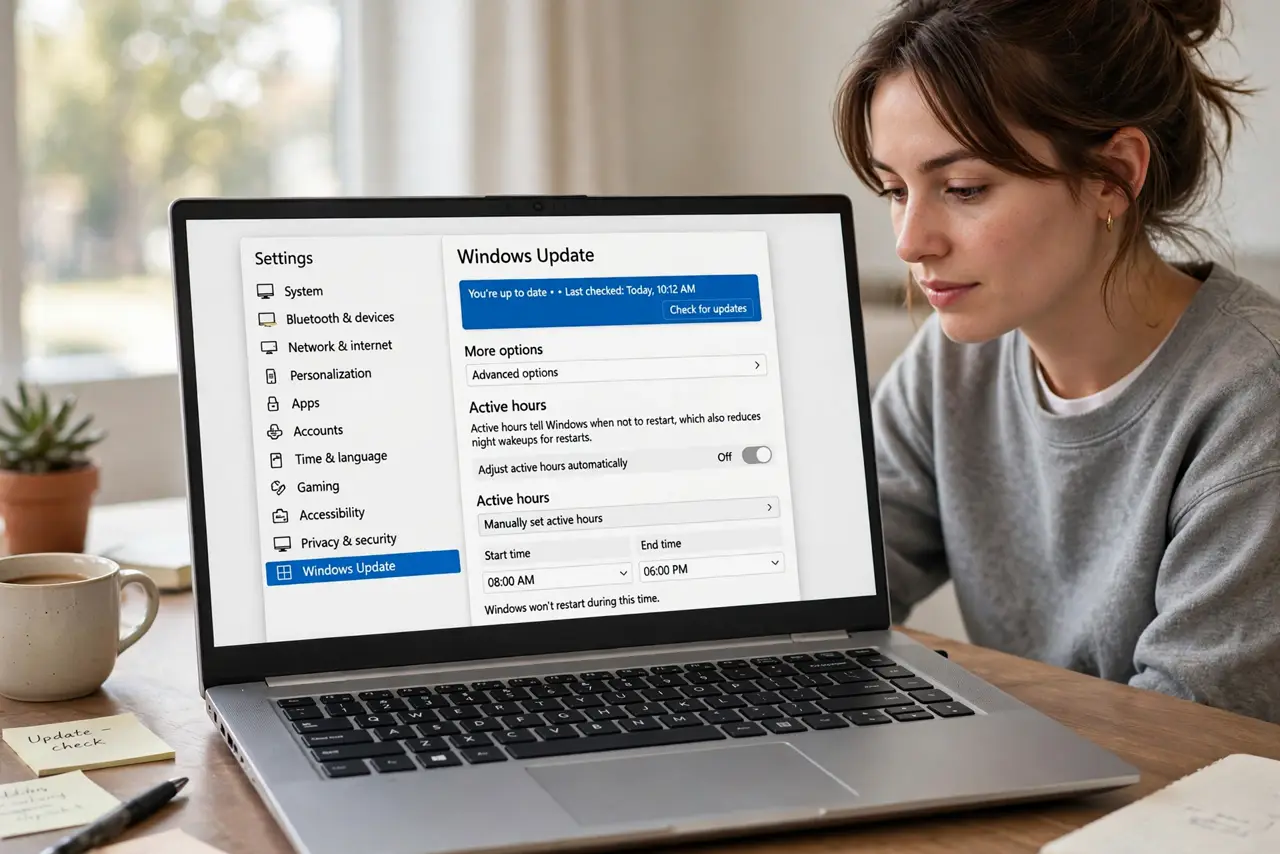
- Set active hours to cover your day. Open Settings, then Windows Update, then Advanced options, and set Active hours to cover the time you use the PC. Active hours tell Windows when not to restart, which also reduces night wakeups for restarts.
- Check for a pending update. In Windows Update, check whether an update is downloaded and waiting. A pending update is the most common reason for a night wake, and installing it on your terms ends the cycle.
- Turn off wake timers for the test. Open Control Panel, then Power Options, then Change plan settings, then Change advanced power settings, expand Sleep, then Allow wake timers, and set it to Disable. Test one night and see whether the PC stays asleep.
- Find what woke the PC. Open a terminal as administrator and run powercfg /lastwake, which names the device or timer that last woke the PC. That answer tells you whether updates, a device, or a scheduled task is responsible.
- Disable the specific wake source. If the wake source is a device, such as a mouse or network adapter, open Device Manager, open that device properties, then Power Management, and untick Allow this device to wake the computer. Leave the power button and keyboard able to wake it.
- Restore wake timers selectively. If disabling wake timers fixed the nights, turn them back on only for Important wake timers only, which lets truly important tasks wake the PC while ordinary ones wait until morning.
What NOT to do
- Do not disable sleep to stop night wakes. That wastes power all night, while wake timers and update timing fix the actual cause.
- Do not turn off Windows Update to stay asleep. Updates protect the PC, and timing controls achieve quiet nights without losing them.
- Do not disable every device wake source. Keep the keyboard able to wake the PC, or you will need the power button every morning.
- Do not ignore a PC that wakes and stays on. A wake that never returns to sleep wastes power and can wear fans, so find the source.
Frequently asked questions
Why does the PC wake but the screen stay dark?
A wake timer can wake the PC for a background task without turning the screen on, so it looks asleep while it works.
Does powercfg need admin rights?
Yes, run it as administrator, or it will report that it cannot show the last wake source.
Will disabling wake timers break backups?
Scheduled backups that rely on waking the PC may wait until morning, so check backup timing if you use one.