Slide to Shut Down
On a tablet or a 2-in-1 with no keyboard handy, shutting down through menus is fiddly — and the power button alone just sleeps. Slide to Shut Down gives you the phone-style gesture: press, then drag down, done. Here is how to trigger it and when it beats the normal shutdown.
TL;DR / Quick Fix
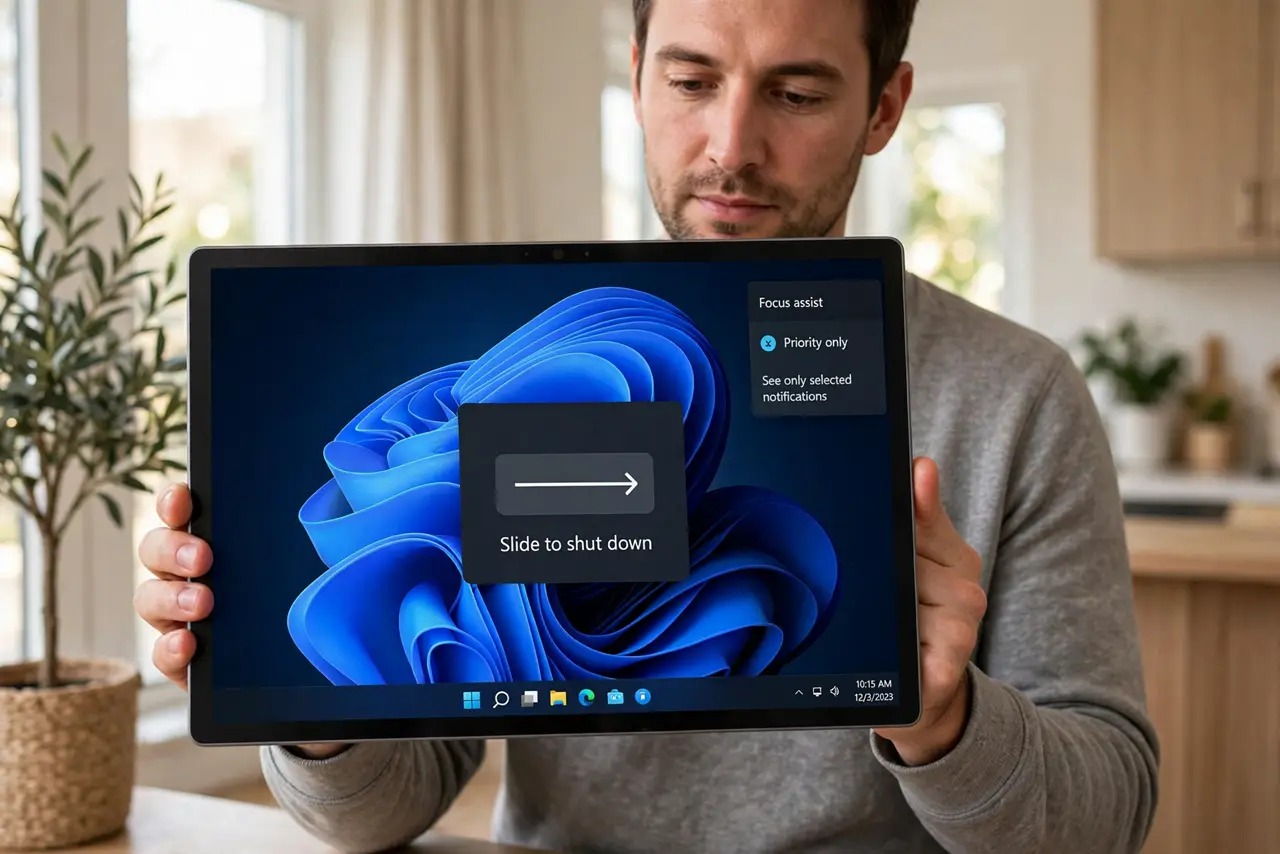
Quick fix: press and hold the power button, then slide down when the slide-to-shut-down screen appears — or run the built-in SlideToShutDown command for the same gesture. It is made for tablets without keyboards. For daily use, the Start menu power button is still faster.
Follow these steps
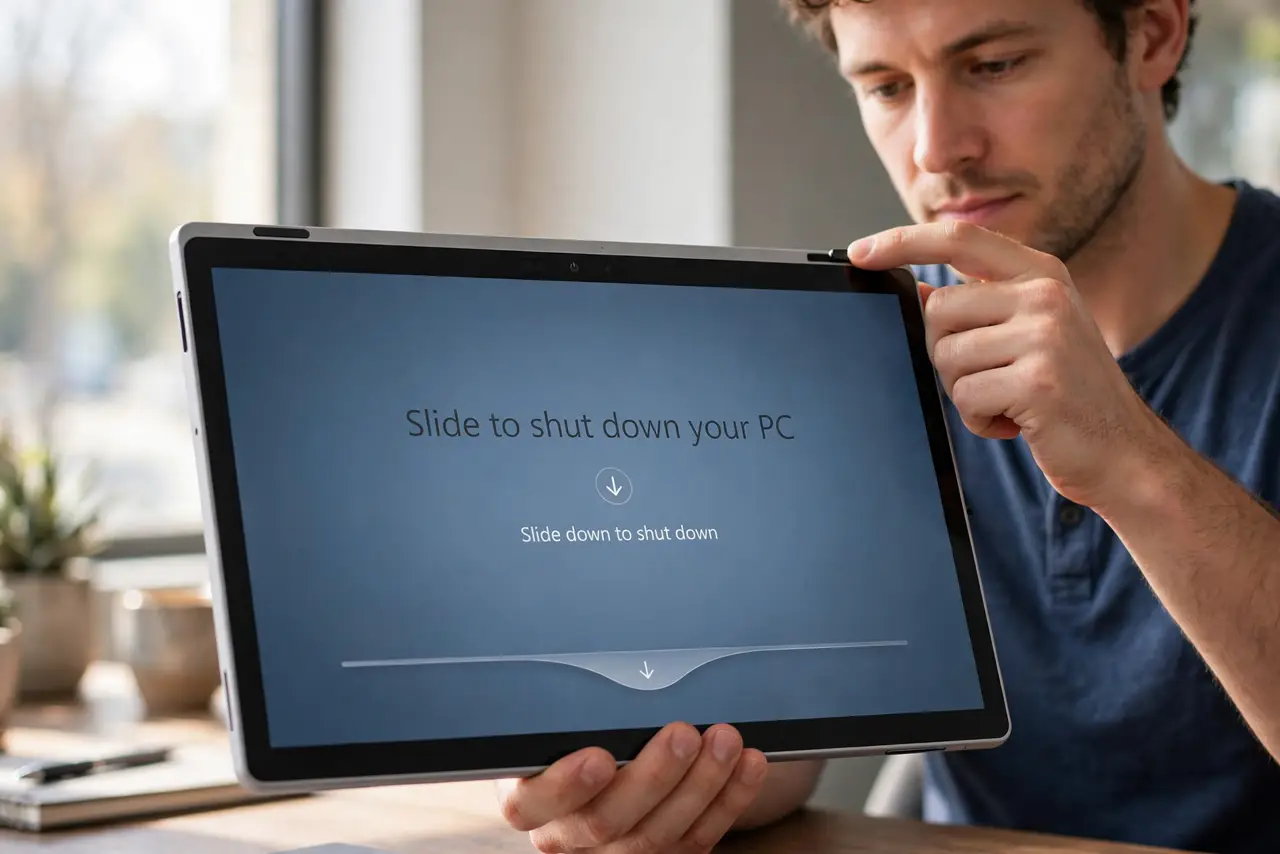
- Use the power button method. Press and hold the physical power button for a few seconds until the slide screen appears, then drag down. This is the intended tablet gesture — no menus needed.
- Or run the command. Press Windows key + R, type SlideToShutDown, and hit Enter — the same slide screen appears. Pin it to the taskbar if you use it often.
- Know what it does. It performs a full shutdown, not sleep — everything closes and the machine powers off. For the gentler hibernate option, use that instead.
- Use it on 2-in-1s. Detachables and tablets in tablet mode are the natural home for this gesture. On a desktop with a keyboard, the Start menu is faster — see the lid wake behavior for the related power quirks.
- Do not confuse it with sleep. The power button alone usually sleeps; slide shuts down. If you wanted to keep your session, you picked the wrong gesture.
- Teach it to tablet users. Family members with Windows tablets find the gesture intuitive — it matches the phone habit. One demonstration and they have it.
What NOT to do
- Do not use slide-shutdown for quick breaks. Full shutdown closes everything — sleep or hibernate is the right tool for pauses.
- Do not panic if the screen takes a moment. The slide animation needs a second; dragging twice can confuse it — one smooth drag.
- Do not expect it on the lock screen power menu. The gesture comes from the button or the command, not the on-screen power icon.
- Do not hold the power button too long. A very long hold forces a hard shutdown — release when the slide screen appears.
Frequently asked questions
Why doesn't my power button show the slide screen?
Many laptops map the button to sleep instead. Use the SlideToShutDown command, or change the button's action in Power Options.
Is slide-shutdown different from Start menu shutdown?
No — same full shutdown, different gesture. The result is identical.
Can I add it to the Start menu?
Pin the SlideToShutDown command as a shortcut tile. One tap, then slide — handy on tablets.