SmartScreen Blocks Your App?
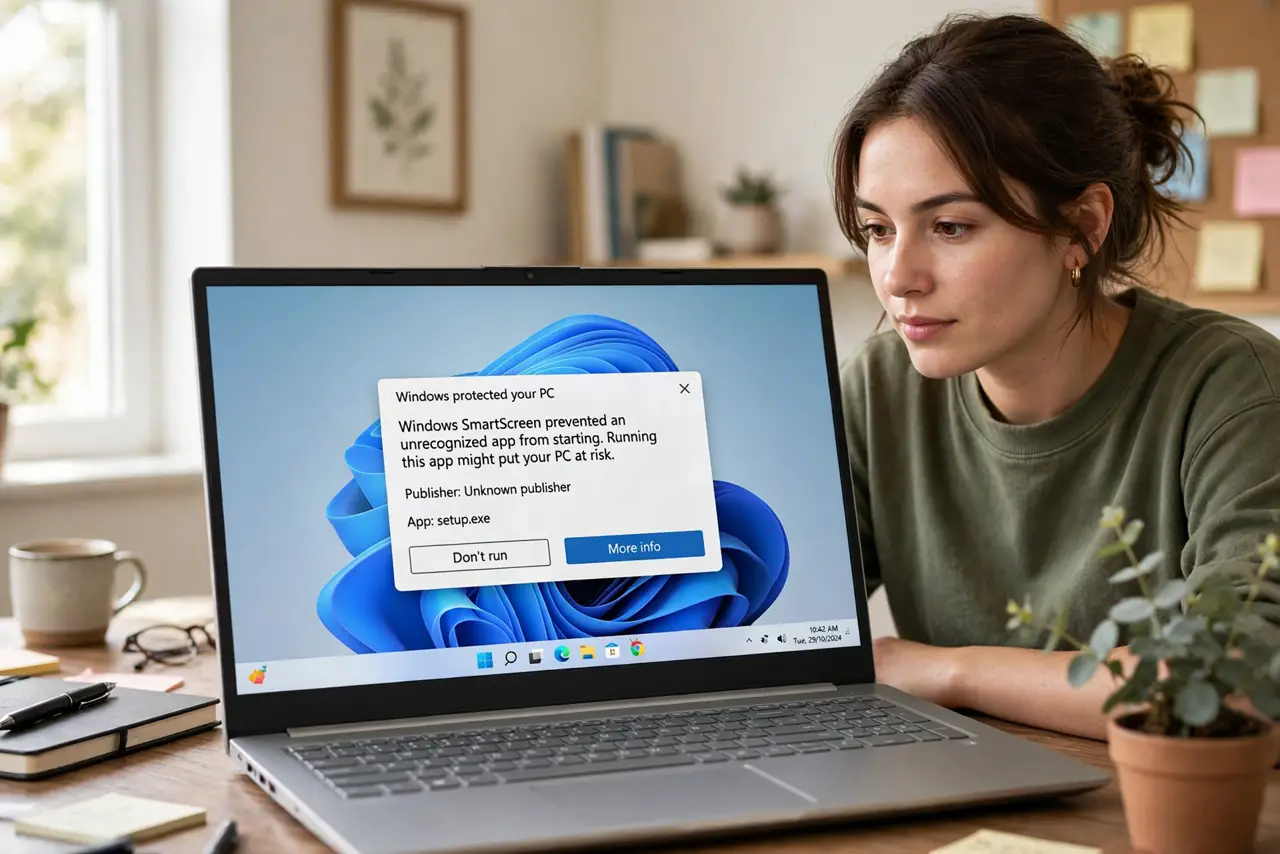
You download a legitimate program, double-click the installer, and Windows SmartScreen slams the brakes: 'Unknown publisher,' big blue warning. SmartScreen is doing its job — flagging software without an established reputation — but small developers and open-source tools trip it constantly. Here is how to tell safe from sketchy and proceed correctly.
TL;DR / Quick Fix
SmartScreen warns on installers without an established reputation — common with small developers and open-source tools, not proof of malware. Proceed only if you downloaded from the maker's official site: click More info, then Run anyway. In doubt, delete it and run a Defender scan instead.
Follow these steps
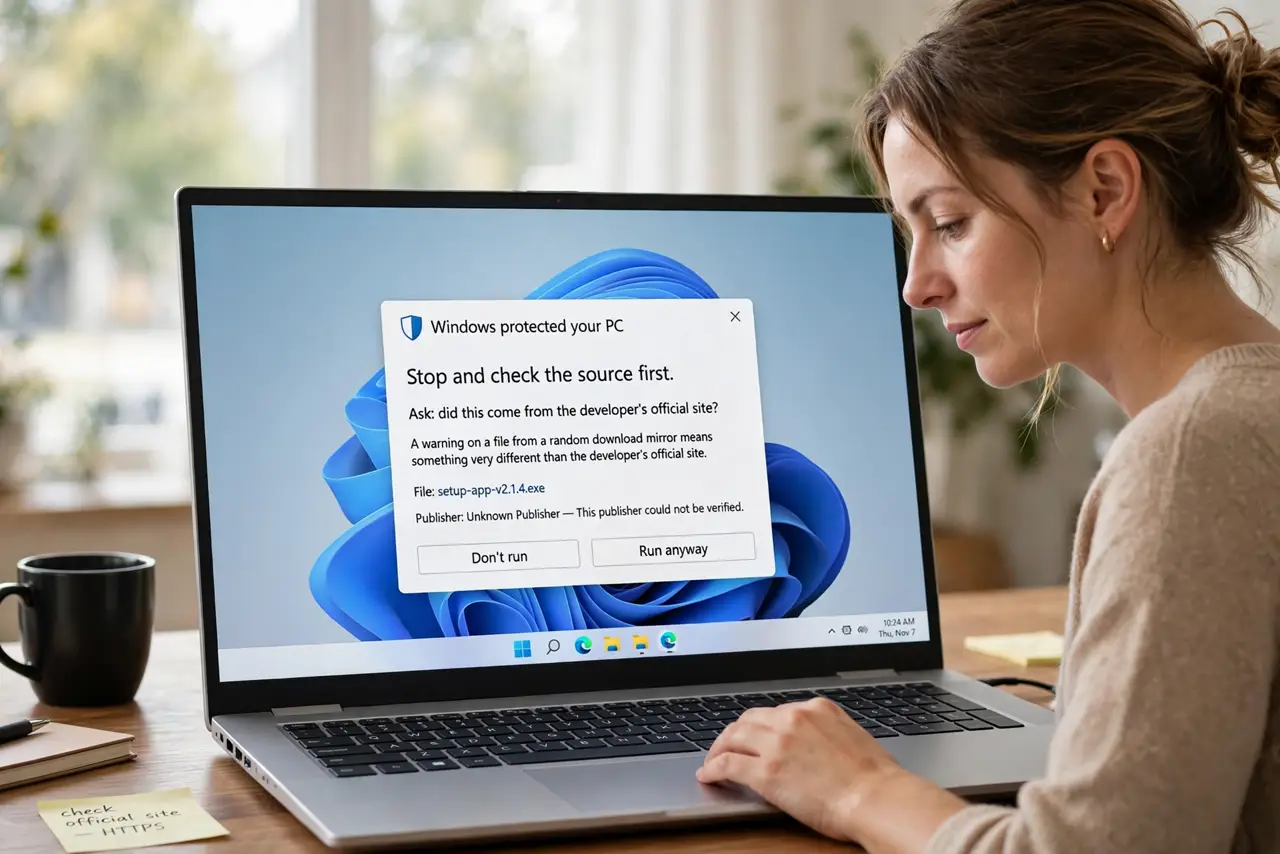
- Stop and check the source first. Ask: did this come from the developer's official site? A warning on a file from a random download mirror means something very different than the same warning on the maker's own release.
- Verify the file if you can. Compare the file size or hash with the value published on the official site. Mismatches mean a tampered or wrong file — delete it and re-download from the source.
- Click More info, then Run anyway. On the SmartScreen dialog, click More info to reveal the Run anyway button. This is the legitimate bypass for software you have verified — not a button to click blindly.
- Watch the install carefully. A legitimate installer does its job without extra 'offers.' Decline bundled toolbars and extras — those ride along with free software, not with SmartScreen's blessing.
- When in doubt, do not run it. If the source feels off, the site looked sketchy, or you cannot verify the file — delete it. No program is worth the risk; find the official source or an alternative.
- Report false positives to the developer. Small developers can submit their software to Microsoft for reputation building. A quick note to them helps every future downloader skip the scare.
What NOT to do
- Do not click Run anyway on files from unofficial sources. The warning exists precisely for that moment — honor it when the source is dubious.
- Do not disable SmartScreen to avoid the warnings. Turning off the guard because it annoys you removes protection against actual malware.
- Do not assume 'unknown publisher' means infected. It means unverified — small and open-source developers often lack the paid certificates big companies have.
- Do not download repacked or pirated copies from unofficial sites to dodge warnings. Repacks are the classic malware delivery vehicle — the warning was trying to save you.
Frequently asked questions
Is SmartScreen the same as antivirus?
No — SmartScreen is a reputation filter that warns about unknown software; Defender antivirus scans for actual malware. They are complementary layers.
Why do big-company installers not trigger it?
Established publishers have reputation built up over millions of installs. New or niche software has not earned that reputation yet — hence the warning.
Can developers avoid the warning?
Yes, with code-signing certificates and by submitting software to Microsoft for analysis. It costs money and effort, which is why small projects trigger warnings.